BandNavi HD
BandNavi HD Summary
BandNavi HD is a mobile iOS app in Music And Audio by newforestar co,.ltd. Released in Dec 2011 (14 years ago). It has 1.00 ratings with a 5.00★ (excellent) average. Based on AppGoblin estimates, it reaches roughly 4.00 monthly active users . Store metadata: updated Jul 10, 2025.
Store info: Last updated on App Store on Jul 10, 2025 .
5★
Ratings: 1.00
Screenshots


App Description
BandNavi HD enables you to find new bands and musics from relations between musicians.
Member changing, featuring, collaboration, etc. are common in bands. Moreover some musicians have relations with many bands in the case that a support member gives a performance, a composer offers a music, or a guest musician appears at a live and so on.
You can find new bands and musics by iteratively tracing such relational networks with BandNavi HD.
■ How to use
1. After launching app, you'll see the music info being played on your iPad in the left "Library" pane. You can also select another music here.
2. Tap "Start Navi" button to display the list of musicians in the right "Navi" pane. They are the members of the band who is playing the music.
3. If you like to know about any other band, enter the band name in the "Search" tab. Tap one of the results, then the list of musicians will be displayed in the "Navi" tab.
4. Tap a musician's name in the "Navi" pane, then the list of the bands in which the musician has been involved will be shown next.
5. Musician >Band > Musician > Band ... You can trace the relations one after another.
6. The indicator bar after a band or musician name represents the degree of confidence, which is calculated in our own peculiar way.
7. When you get interested a band, you can search video clips of the band in YouTube or their music in iTunes Music Store by tapping the Option button shown on the side of the band name. If you have some music of the band, you can also open the music library any time by tapping the button.
8. If you want to know the data sources of a member, tap the Option button shown on the side of the member name.
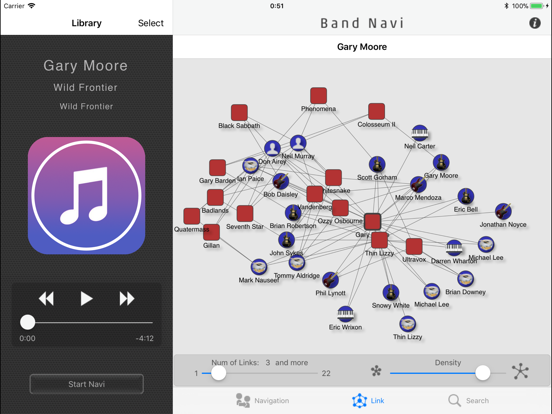
9. In the "Link" tab, you'll see the link graph of the selected band or musician. (Depending on the number of data, it may take a long time to display it.)
10. Red nodes represent bands, blue nodes represent musicians. Light-colored nodes means that they are terminal nodes with no other links.
11. Using "Num of Links" slider, the number of links the band or musician has can be changed. Using "Density" slider, You can change the appearance of the graph.
■ About this application
・This application connects to the database server. It is NOT possible to use this application without the network environment.
・The band member information is collected from various web pages by using a web mining technology.