MyGIS

MyGIS Summary
MyGIS is a mobile iOS app in Maps And Navigation by 3B Soft srls. Released in Jan 2012 (14 years ago). It has 2.00 ratings with a 1.00★ (poor) average. Based on AppGoblin estimates, it reaches roughly 8.00 monthly active users . Store metadata: updated Jan 25, 2024.
Store info: Last updated on App Store on Jan 25, 2024 .
1★
Ratings: 2.00
Screenshots


App Description
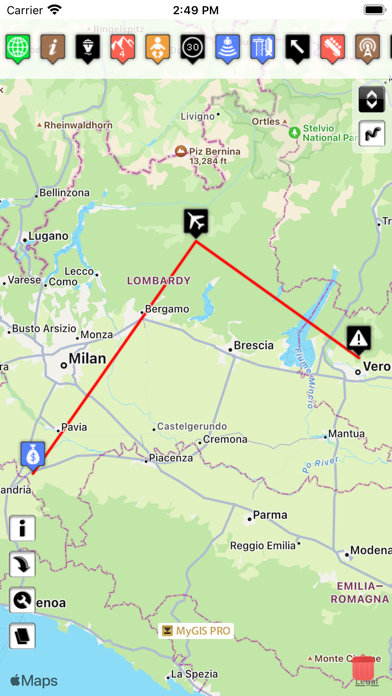
Create your own custom map with annotations and lines and share it via email or twitter.
A real GIS, with maps and database.
You can drag items from the sliding bar at the top (if it is not displayed, click on the icon at the top right). There are a variety of symbols to choose from. The item is initially inserted without any data.
To change the title and/or subtitle associated with an annotation, you must select it in the map and then click in the window that appears.
To move an annotation you must first put the map in edit mode by clicking on the icon at the top right. At this point, you can select an annotation on the map and drag it. By bringing it over the trash can at the bottom right (which appears only after putting the map in edit status), the annotation is deleted. To return the map to its default state and finish moving, click on the edit icon again.
Deleting an annotation can be done in two ways. Through the "View and edit data" functionality, selecting the delete button. Or through the placemark move functionality, by dragging it over the trash can.
To insert lines, select the "draw" icon in the top right (below the edit icon), and then start drawing lines on the map.
Viewing and editing Linea data click to collapse contents
To change the title and/or subtitle associated with a placemark, you need to select it in the map and then click in the window that appears.
To edit a line you must first bring the map into edit mode by clicking on the pencil icon at the top right. At this point, the movable vertices of the lines are highlighted with red squares. If the vertices are far enough apart, a fictitious intermediate vertex is also displayed to be used for actually inserting a new vertex. To return the map to its default state and finish moving, click on the pencil icon again.
Deleting a line is done by deleting all its vertices (that is, dragging them onto the trash can). You can completely delete a line using the "View and edit data" functionality by selecting the delete button.
You can share the portion of the map currently displayed via Twitter or via email by clicking on one of the two icons at the bottom left. By sharing the map via email, a .kmz file is also attached.
MyGIS has the ability to save a MyGIS.kmz file that can be opened in other applications (for example, dropbox, to be able to save it). By also selecting a file with th