Canara e-Passbook


Canara e-Passbook Summary
Canara e-Passbook is a mobile Android app in Finance by CANARA BANK. Released in May 2021 (4 years ago). It has about 13.4M+ installs and 271K ratings with a 4.11★ (good) average. Based on AppGoblin estimates, it reaches roughly 1.1M monthly active users . Store metadata: updated Oct 31, 2025.
Recent activity: 22.3K installs this week (117.2K over 4 weeks) showing steady growth , and 321 new ratings this week View trends →
Data tracking: SDKs and third-party integrations were last analyzed on Feb 14, 2025.
Store info: Last updated on Google Play on Oct 31, 2025 .
Canara e-Passbook was last scanned for SDKs 2025-02-14. Below is the overview of third party companies detected in the app. The full list of raw SDKs, app permissions and unknown SDKs is available here.
 Google
4.11★
Ratings: 271K
Screenshots


App Description
e-Passbook provides electronic form of passbook/pass-sheet or account statement.
• Concise form of physical passbook.
• Easy and convenient to use.
• Registration via. OTP authentication to registered mobile no.
• Details of all accounts (SB, RD, FD, and Loans) and transactions available in a bundled form.
• Real-time updates of account details and transactions.
• Customer details and Branch Details included with an option to share via. SMS/ WhatsApp.
• Statement generation option is available.
• Loan accounts details and statement generation option.
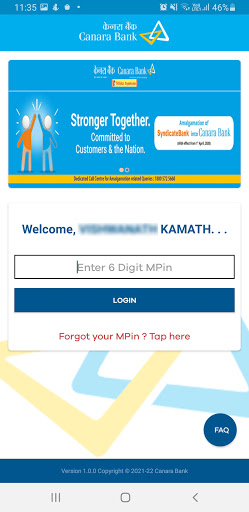
• Enhanced in-built security through MPIN/ Fingerprint/ Face ID lock.
• Option for maintaining personal ledger(s) and entering personalized remarks for transaction(s).
• Branch Holiday details are available.
• Creation of personal Expenses heads, tagging passbook entries to those heads with graph capabilities.
• Consolidate Asset/Liability View
• Off-line functionality.
STEPS FOR VALIDATING MOBILE NUMBER:
1) Click on 'Send SMS'.
2) The screen will be redirected to SMS application containing the encrypted text for registration. Click on 'Send'. SMS will be sent to the Bank’s server and details linked to registered Mobile number in the device will be fetched (In case of dual SIM cards, User must send SMS from their Registered Mobile Number).
3) After sending the SMS, User shall be redirected back to ePassbook application. If not so, the user may manually switch to the e-Passbook application using the 'BACK' button.
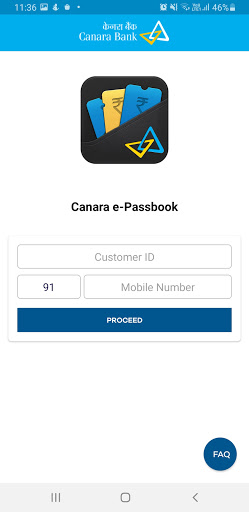
4) In the next page, the mobile number fetched from Bank‘s server will be displayed. User shall enter his/her customer ID and click on Proceed.
5) If the Mobile Number matches with the Customer ID of the User the application will ask for OTP or the error message 'Customer Id is not registered with Mobile number’ will be displayed. We request the user to kindly try with the registered mobile number and customer ID.
6) After OTP validation, User shall be asked to create new MPin and enter it twice.
7) After MPIN creation, User will be redirected to the login page of the application.
8) The User may enter MPIN to login to the application.