NOMone VR Browser Remote


NOMone VR Browser Remote Summary
NOMone VR Browser Remote is a mobile Android app in Tools by NOMone Software. Released in May 2018 (7 years ago). It has about 61K+ installs and 171 ratings with a 3.95★ (average) average. Based on AppGoblin estimates, it reaches roughly 2.7K monthly active users . Store metadata: updated Oct 31, 2025.
Recent activity: 121 installs this week (526 over 4 weeks) showing steady growth View trends →
Store info: Last updated on Google Play on Oct 31, 2025 .
3.95★
Ratings: 171
Screenshots


App Description
Control NOMone VR Browser using your old Android phone or tablet
Control NOMone VR Browser using your old Android phone or tablet.
Get NOMone VR Browser:
https://play.google.com/store/apps/details?id=com.nomone.vrbrowser
Of all the input devices supported by NOMone VR Browser, using another phone as a remote is among the most comfortable experiences. You can control every aspect of the browser with minimal effort. It works like a typical touch-pad:
• Drag to move the cursor.
• Tap then drag to perform a drag.
• Tap then long-press to perform a long press.
• Use the volume keys to scroll up and down.
You can connect the two phones using Wifi or Bluetooth:
1. Bluetooth
• On the phone running the browser:
- Turn on Bluetooth.
• On the phone running the remote app:
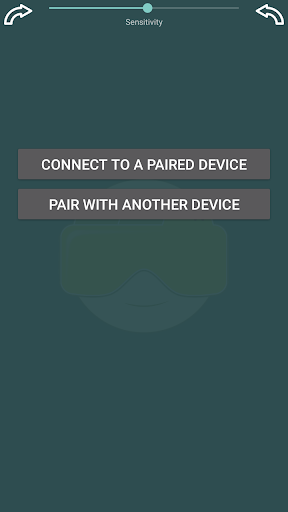
- Select 'Bluetooth', then select 'Pair with another device'.
- Search for devices, and pair with the phone running the browser.
- Go back to the app and select 'Connect to a paired device'.
That's it! Now you can use the remote device to control the virtual cursor and/or looking-around (if enabled) on the browser phone.
2. Wifi
• On the phone running the browser:
- From the menu, choose "Remote control". The remote control configuration should now appear.
- Enable remote control.
- Remember your IP (should be written in green),
• On the phone running the remote app:
- Make sure you are connected to the same WIFI network as the browser phone.
- Enter the IP address and press connect.
That's it! Now you can use the remote device to control the virtual cursor and/or looking-around (if enabled) on the browser phone.
If you have any issues or suggestions, please email us:
support@nomone.com