TV Sleep Timer Remote

TV Sleep Timer Remote Summary
TV Sleep Timer Remote is a ad-supported Android app in Tools by TV Sleep Timer Remote. Released in Jul 2024 (1 year ago). It has about 26.4K+ installs Based on AppGoblin estimates, it reaches roughly 1.4K monthly active users and generates around $<10K monthly revenue (0% IAP / 100% ads). Store metadata: updated Feb 21, 2026.
Recent activity: 254 installs this week (1.1K over 4 weeks) showing steady growth , and -82 new ratings this week View trends →
Store info: Last updated on Google Play on Feb 21, 2026 .
0★
Ratings: 0
Screenshots


App Description
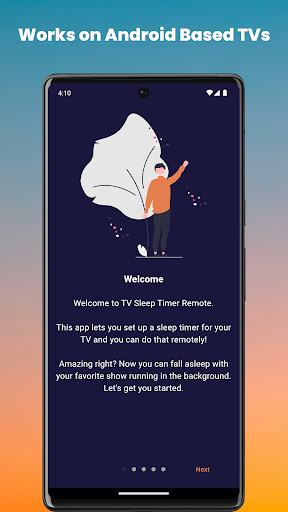
Do you sleep while watching TV? Now you can make your TV go to sleep with you.
Only supports Android based smart TVs,
Android TV, Google TV, Amazon Fire TV and Android based TV boxes.
So you go to sleep while watching TV? You don't want to wake up to a sudden noise when you were just about to go to deep sleep? You want to cut your costs on the electricity bill?
This app is just for you then. You can make your TV go to sleep with you without thinking about the details. Just install this app on your phone and connect to your TV. You can setup a sleep timer simply by the tap of a button. You don't even need to install a separate app on your TV.
Just turn the developer settings and USB debugging on your TV and connect to your TV.
🔧 How to Enable Developer Settings and USB Debugging on Android TV/Google TV
Developer Settings provide advanced options for customization, while USB Debugging allows for advanced debugging and development tasks which makes TV Sleep Timer Remote function. Follow these steps to access both settings:
Navigate to Settings: Using your remote, navigate to the "Settings" menu on your Android TV or Google TV.
Select Device Preferences: Within the Settings menu, locate and select "Device Preferences."
Find About: Scroll down to find and select "About."
Locate Build Number: In the "About" section, find the "Build" or "Build Number" option.
Tap Build Number: Continuously tap on the "Build" or "Build Number" option multiple times. You'll see a message indicating that you are now a developer.
Access Developer Settings: Once you've enabled Developer Mode, navigate back to the previous menu, and you'll find "Developer Options" now visible within the "Device Preferences" menu.
Enable USB Debugging: Within the "Developer Options" menu, locate and enable "USB Debugging." This will allow your Android TV or Google TV to communicate with your computer for advanced development tasks.
That's it! You've successfully enabled Developer Settings and USB Debugging on your Android TV or Google TV. 📺
We hope that you will enjoying the experience with us, don't forget to turn this setting off if you decide otherwise.
App can continue running in the background until the TV is turned off to perform that operation reliably at the user specified time.
All feedback is highly appreciated.