Weather Clock Widget

Weather Clock Widget Summary
Weather Clock Widget is a ad-supported, with in-app purchases Android app in Weather by CORE TECHNOLOGY. Released in Aug 2012 (13 years ago). It has about 1.9M+ installs and 11.7K ratings with a 3.04★ (mixed) average. Based on AppGoblin estimates, it reaches roughly 76.7K monthly active users and generates around $>100K monthly revenue (94% IAP / 6% ads). Store metadata: updated Sep 1, 2018.
Recent activity: 15 installs this week (69 over 4 weeks) showing above average growth , and -5 new ratings this week View trends →
Store info: Last updated on Google Play on Sep 1, 2018 .
3.04★
Ratings: 11.7K
Screenshots


App Description
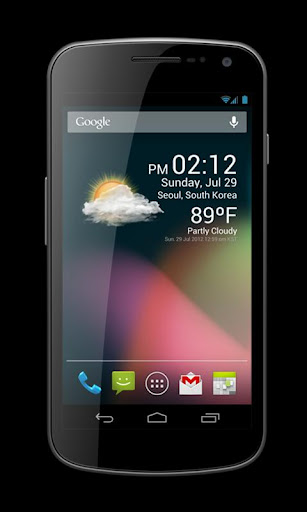
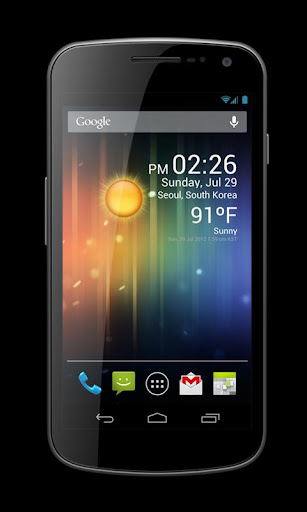
Check the Current Time and Weather Condition. Simple and fast.
Check the Current Time and Weather Condition.
Simple and fast
Application uses less battery power.
Weather Clock Widget is a replacement lock screen clock widget for Android 4.2+.
To add the widget to your Android 4.2 device's lock screen, simply swipe to the left-most page of your lock screen and touch the "+" icon. Then, select "Weather Clock Widget" to customize and add the widget. You can make this the primary lock screen widget, replacing the default clock, by first touching-and-holding it and then dragging it horizontally to the very rightmost position.
**Before running the application configuration is required.
SETTING: Settings->Location services->GPS satellites enable
To add a widget to a Home screen, follow these steps:
1. Touch and hold any empty section of a Home screen.
2. Touch Widgets.
3. Touch and hold a widget. You’ll see images of each Home screen.
4. Slide the widget to the Home screen image you prefer, then lift your finger.
or Home->Application Menu->Widget
https://support.google.com/nexus/answer/2781850?hl=en
Forecast On/Off: Touch the Weather Image