MyEngine

MyEngine Summary
MyEngine is a free iOS app in Business by Williams International. Released in Jul 2017 (9 years ago). It has 3.00 ratings with a 5.00★ (excellent) average. Based on AppGoblin estimates, it reaches roughly 8.00 monthly active users . Store last updated Jul 1, 2024
MyEngine SDKs Summary
App not yet scanned for SDKs.
5★
Ratings: 3.00
Screenshots
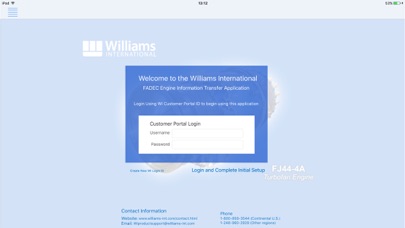


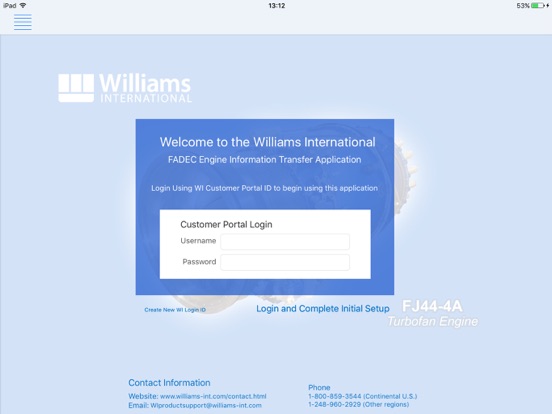


App Description
Overview
Williams International - MyEngine - Information File Transfer
This application facilitates the transfer of Engine Information (e-info) files from an Aircraft to Williams International.
The MyEngine application has 2 Connection Modes, Aircraft and WI.
In Aircraft Connection Mode the flight files on the Aircraft are acquired by the iPad.
In WI Connection Mode, the e-info files are uploaded to Williams International.
Acquiring Aircraft Files
In order to acquire Aircraft flight files, change to Aircraft Connection Mode. Use the [ Make a Connection ], [ Connect to Aircraft ] or [ Connect to Internet ] button on the home page to access the iPad Settings (Wi-Fi) and select the appropriate Aircraft network.
Once the Aircraft Wi-Fi setting is selected, return to the MyEngine home page and verify Aircraft availability via the [ Wi-Fi ] display.
Aircraft file acquisition will begin automatically.
Aircraft files can be re-acquired, or a cancelled acquisition can be restarted, by using the [ Retry Transfer ] button.
Notifications will provide file acquisition progress or error messages.
Transferring Files to Williams International
After Aircraft flight files have been acquired, transfer to Williams International is available.
Change to WI Connection Mode (via Internet) by using the [ Connect to Internet ] or [ Make a Connection ] button on the home page to access the iPad Settings (Wi-Fi) and select the appropriate Internet network.
Once the Williams Connect (Internet) Wi-Fi setting is selected, return to the MyEngine home page and verify availability via the [ Wi-Fi ] display.
File transfer to Williams International will begin automatically.
Files can be re-sent, or a cancelled transfer can be restarted, by using the [ Retry Transfer ] button.
Notifications will provide file transfer progress or error messages.