MovStash - Blur Video Editor

MovStash - Blur Video Editor Summary
MovStash - Blur Video Editor is a ad-supported iOS app in Photo And Video by REAFO CO., LTD.. Released in Nov 2015 (10 years ago). It has 2.7K ratings with a 4.22★ (good) average. Based on AppGoblin estimates, it reaches roughly 1.4K monthly active users and generates around $<10K monthly revenue (0% IAP / 100% ads). Store metadata: updated Jul 8, 2025.
Recent activity: 2.00 new ratings this week View trends →
Data tracking: SDKs and third-party integrations were last analyzed on Apr 19, 2025.
Store info: Last updated on App Store on Jul 8, 2025 .
4.22★
Ratings: 2.7K
Screenshots
App Description
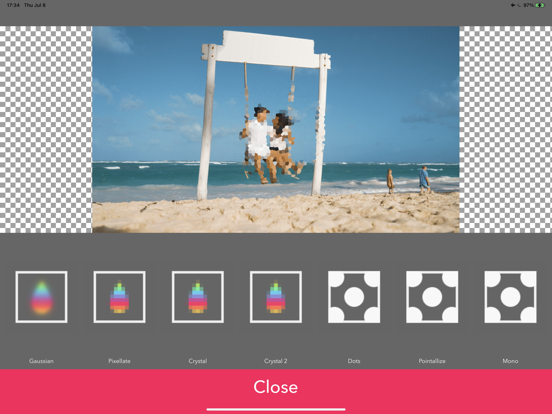
This app is for making mosaic/blur video.
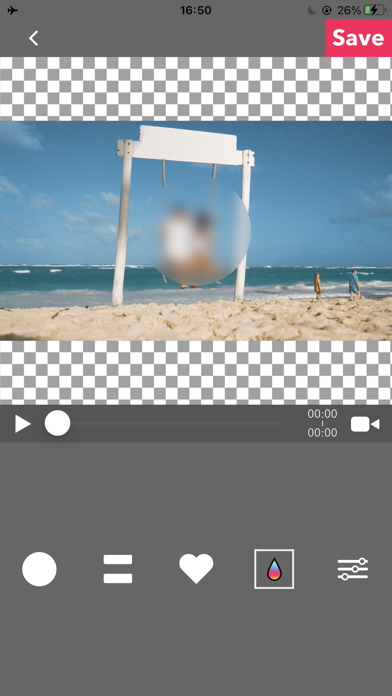
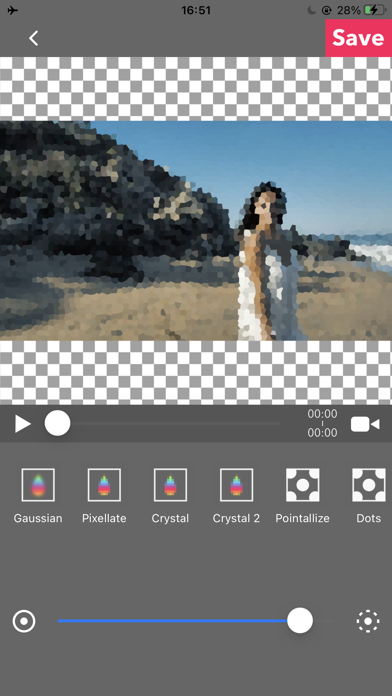
You can choose 4 types of blur.
■Simple mode.
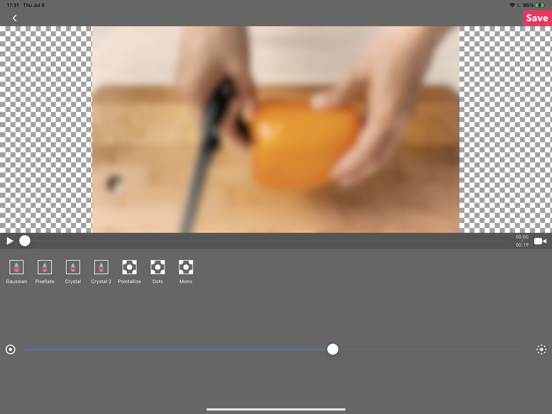
Simple mode is for Blur to the specified area and all duration of the video.
-- How to edit mosaic/blur --
Position :Drag mosaic/blur area directory or screen using with one finger.
Size :Pinch mosaic/blur area directory or screen using with two fingers.
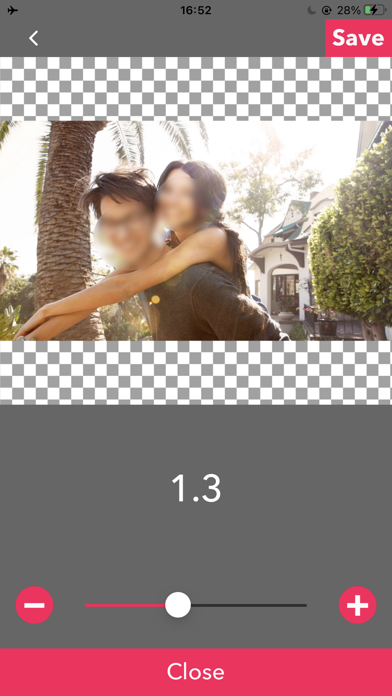
Blurriness:Parallel swipe mosaic/blur area or screen using with two fingers.
■Timeline mode.
Timeline mode is you can blur to the specified area in a specified time range of the video.
-- How to use basics. --
1. Select the video.
2. Press [+] button to add a new blur area.
3. Drag the red area to the place you want to blur.
4. Press [OK].
5. [≡] button is to show the list of blur areas. you can edit again after you've done once.
6. Adjust blur types and level, and then press [save] to render the video with blur.
-- How to set the time range
1. Press [+] button to add a new blur area.
2. Slide the slider to the time that is started blur.
3. Drag the red area to the place you want to blur.
4. Slide the slider to the time that is ended blur.
5. Drag the red area to the place you want to blur.
6. You can see three thumbnails under the slider. Tap the last one and press the trash bin button to delete.
7. Then the blur area is only showed up in the time range.
8. Press [OK] to do it.
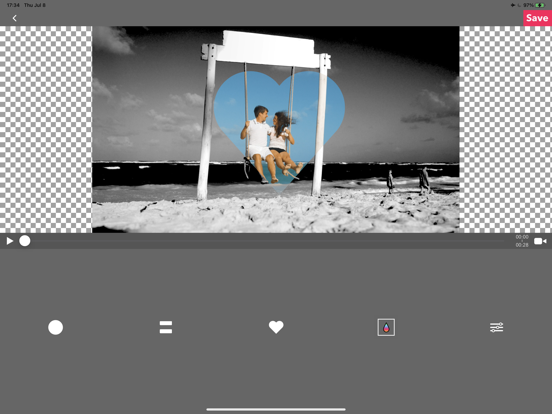
-- How to change the shape of blur area
1. Tap the red area which is located under the slider.
2. Select the shape you want to.
■Face tracking mode
App blur faces that are recognized.
Face tracking mode is not a perfect solution to blur faces so be careful.
-- How to use --
・Faces are recognized automatically after you select a video.
・You can adjust blurs size/level/type and inverse area or nor.
・Press [save] to export it.