Unitronics' Remote Operator
Unitronics' Remote Operator Summary
Unitronics' Remote Operator is a mobile iOS app in Productivity by Unitronics. Released in Mar 2016 (10 years ago). It has 2.00 ratings with a 4.00★ (good) average. Based on AppGoblin estimates, it reaches roughly 3.00 monthly active users . Store last updated Dec 14, 2023
Unitronics' Remote Operator SDKs Summary
App not yet scanned for SDKs.
4★
Ratings: 2.00
Screenshots

App Description
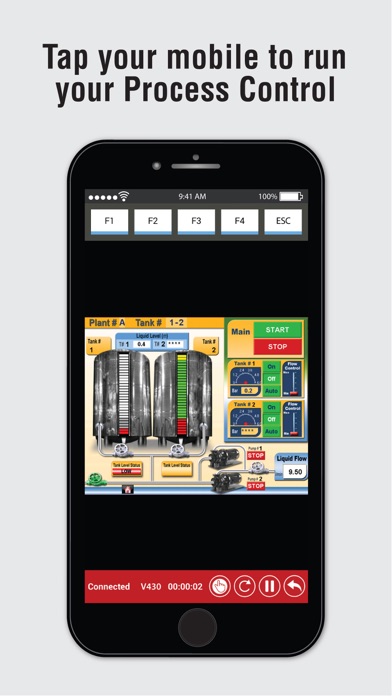
The Remote Operator application enables you to remotely access your Unitronics controllers using your smartphone and tablet. Via the application, you can view and operate the controller’s HMI —as if you are physically touching the controller. Using Remote Operator you monitor automation processes, press keys and touch HMI objects, change parameter values, view Alarms and process value Trends. You can define and access multiple controllers from a single device.
Main Features
- Remotely access Vision and Samba controllers via Internet or wireless LAN
- Remotely control/monitor automation processes and machines
- Control many controllers from a single mobile device.
- View operational conditions, Alarms, data, and Trends in real time
- Configure communication channels for multiple controllers
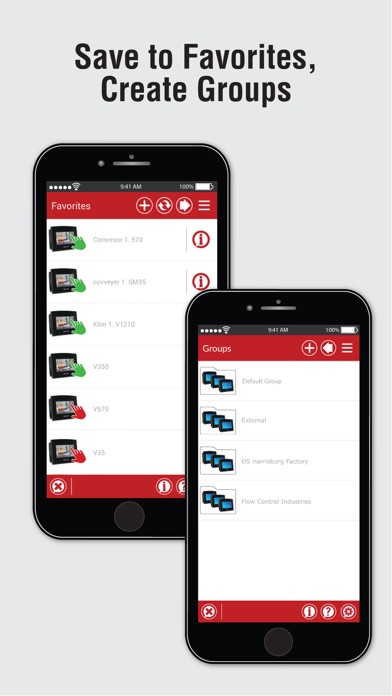
- Organize controllers in Favorites and Groups
- Shareable Configurations – send/share your list of controllers to another device
- Security via Password: prevent unauthorized entry
- Pinch to zoom
*Supported Controllers
Minimum OS version: iOS 7+
Supported Controllers: V350, V430, V700, V570, V1040, V1210, SM35, SM43, SM70
View and Download the QuickStart Guide:
http://www.unitronics.com/Unitronics_Apps/Unitronics_Remote_Operator_AppQuickStart.pdf
*First-time Use
1. Open Remote Operator.
2. Create a Password, set up password recovery.
3. Tap OK, the app opens an empty Favorites screen.
**Adding PLCs to Favorites/Groups
Tap + to add PLCS, configure controllers and communication channels.
Enter:
- PLC Nickname
Optional. Must be unique.
- PLC Name
Must exactly match the actual PLC Name, including capitals.
- IP Address/Host, TCP and Port
Defines communication channel
NOTE:
1. IP Address & Port MUST be a unique combination.
2. Format: Incorrect 10.000.000.037 Correct 10.0.0.37.
- Group Name
Tap to open the Group list.
Add to Favorites: When checked, the PLC is added to the Favorites list as well as a Group.
When finished, if desired, tap Check PLC Connection.
Tap OK to save the PLC and return to Favorites.
To delete a PLC, swipe left.
*Adding Groups
1. In the Favorites screen, tap the right facing arrow to open Groups.
2. Tap + to add a Group.
3. Enter Group Name and Comment.
4. Tap OK to add the Group.
5. Tap left facing arrow to return to Favorites.
6. Tap More (three bars, upper right side of the screen) to Hide/Show the Applicati