Video Speed Editor - VBooster

Video Speed Editor - VBooster Summary
Video Speed Editor - VBooster is a ad-supported iOS app in Photo And Video by REAFO CO., LTD.. Released in Dec 2015 (10 years ago). It has 175 ratings with a 4.79★ (excellent) average. Based on AppGoblin estimates, it reaches roughly 181 monthly active users and generates around $<10K monthly revenue (0% IAP / 100% ads). Store metadata: updated May 6, 2026.
Recent activity: 2.00 new ratings this week View trends →
Store info: Last updated on App Store on May 6, 2026 .
4.79★
Ratings: 175
Screenshots


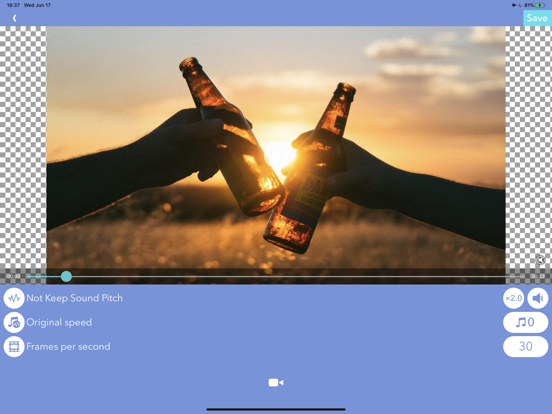
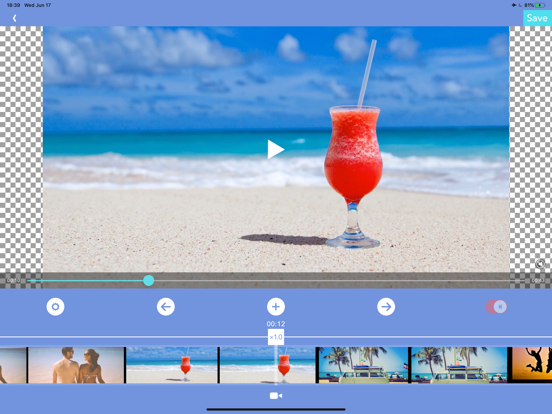
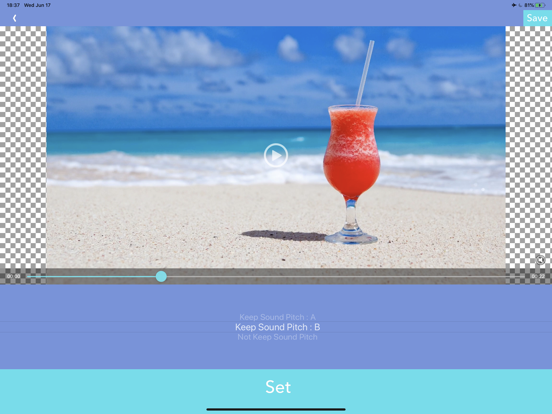
App Description
VBooster is the app for changing playback speed and saving to your camera roll.
[Simple Mode]
Simple Mode is for change playback speed of entire a video easily.
-- Playback speed --
You can change playback speed from x0.1 to x10.0 by 0.1 steps.
-- Sound types --
You can choose 3 types of sounds.
1. Change pitch by speed
2. Keep pitch type A
3. Keep pitch type B
-- Music --
You can add songs as Background music.
-- Music speed --
You can choose 2 types of speed.
1. Up to a speed of the video
2. Original speed
Q.Witch types are better " Keep pitch type A" or "B"?
A. It depends on the sound of the video. So please try both to find the better one.
[Time range mode]
Time range mode lets you change the playback speed of time ranges you specified.
--Add a new time range--
・Seek to the time you want to start a new time range with seek bar.
・Press [+] button to start creating time range, then move to the end of the time range.
・Then, press [check mark] button to finish adding a new time range.
・After added the time range, the playback speed setting screen will be shown, and you can change the speed.
--Overwrite a time range--
・By the default, you can't specify over another time ranges.
・To overwrite another time ranges, turn off the switch that is located on the right side.
--Change playback speed or delete a time range--
・If you want to edit playback speed or delete a time range, tap the time range on the seek bar.
・Then, the edit menu will be shown.
--Other settings--
・You can set BGM/Frame rate and so on as well as Simple Mode.
・To do that, press [gear] button to open settings.