AVA BLE Remote

AVA BLE Remote Summary
AVA BLE Remote is a free iOS app in Tools by Reefwing Software. Released in Jan 2016 (10 years ago). Store last updated Aug 26, 2018
AVA BLE Remote SDKs Summary
App not yet scanned for SDKs.
0★
Ratings: 0
Screenshots
App Description
Any self respecting autonomous robot needs a remote control. If you want to use an iPhone as your controller then Bluetooth is one of the better communication options for directing your robot / drone / whatever.
This app has been designed to work with the Romeo BLE and Bluno boards from DFRobot. The Bluno is a combination of an Arduino and a Bluetooth shield. It uses Bluetooth Low Energy (BLE), which is compatible with iOS 7.0+ devices: iPhone 5+,iPad 3+,iPad Mini,and iPod 5th Gen (note that Bluetooth LE capability is required).
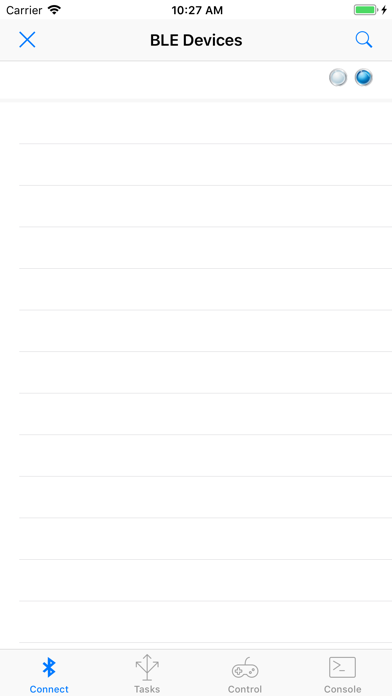
Getting Started: The Connection Screen.
When the app starts, it will open the connection tab and display any compatible BLE devices which are within range. To connect to a device just tap on its name. If the connection is successful, the word connected will be displayed and the communication indicator "LEDs" will turn from flashing blue to green. You can start a manual search for BLE devices by tapping the search (magnifying glass) icon in the top right of the connection screen. You can stop the search by tapping the disconnect device button (a cross) in the top left.
If you are already connected to a BLE device, tapping the disconnect device button will disconnect you. You can only attach to one BLE device at a time.
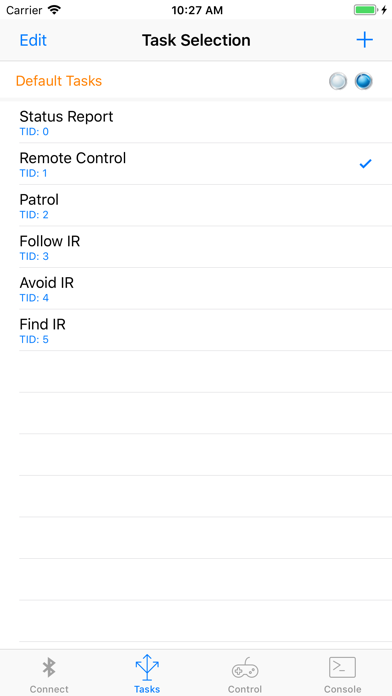
Setting a Task:
The Task tab allows you to send a tasking message to your Bluno. Tapping a task will transmit the tasking ID (e.g. 1) via Bluetooth. Tap the add button (+) to add your own tasks. Tap Edit to delete or rearrange the tasks. Tapping "Default Tasks" will reload the task list that comes with the app.
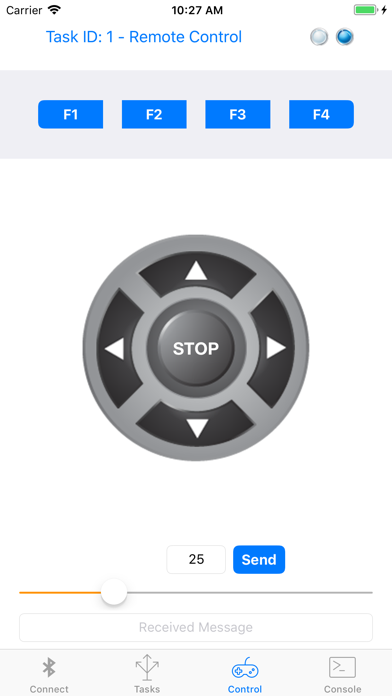
Controlling your BLE Device:
The Control tab acts as a virtual gamepad for your BLE device. The currently selected task is displayed at the top of the screen.
Tapping the function keys (F1 to F4) will send the designated character via Bluetooth to your BLE Device. The function keys will also adjust the speed. F1 = 25%, F2 = 50%, F3 = 75% and F4 = 100%. The speed is sent automatically.
Similarly, tapping the directional dPad or stop button will send the character assigned to those buttons. You can change the characters which are transmitted from the key mapping option in the console tab. The default mappings are:
F1 w
F2 x
F3 y
F4 z
Up Arrow f
Down Arrow b
Left Arrow l
Right Arrow r
Stop s
The speed slider will send the selected speed in the followin