ℂKey - Customisable Keyboard

ℂKey - Customisable Keyboard Summary
ℂKey - Customisable Keyboard is a free iOS app in Tools by James Froggatt. Released in Nov 2016 (9 years ago). It has 17 ratings with a 4.06★ (good) average. Based on AppGoblin estimates, it reaches roughly 46 monthly active users . Store last updated Dec 21, 2016
ℂKey - Customisable Keyboard SDKs Summary
App not yet scanned for SDKs.
4.06★
Ratings: 17
Screenshots
App Description
Build your own keyboard - you choose the keys!
Great for maths & science work, fans of more obscure keyboard layouts, or just better expressing yourself.
Scroll down for an overview of the premade layouts and a detailed feature breakdown.
NOTES
• Add the keyboard by navigating to Settings -> General -> Keyboard -> Keyboards -> Add New Keyboard…
• Unicode characters may not display correctly in some fonts.
• Check out the subreddit at reddit.com/r/ckey/
OVERVIEW
• Add keys to your keyboard, which can type any text of any length.
• Organise related keys into multiple pages (‘panes’).
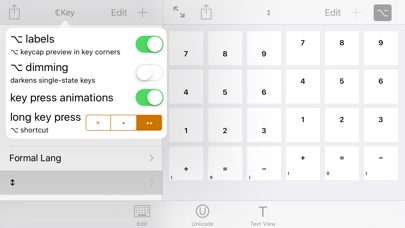
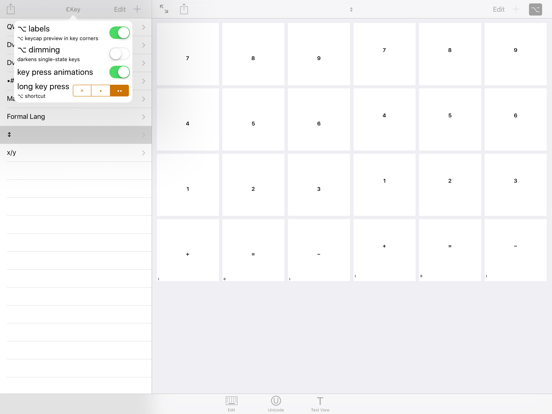
• Includes handy editing features and plenty of options.
• Built-in unicode character picker for finding new characters to add to your keyboard.
• Editable text view for trying out your keyboard designs.
DEFAULT LAYOUTS
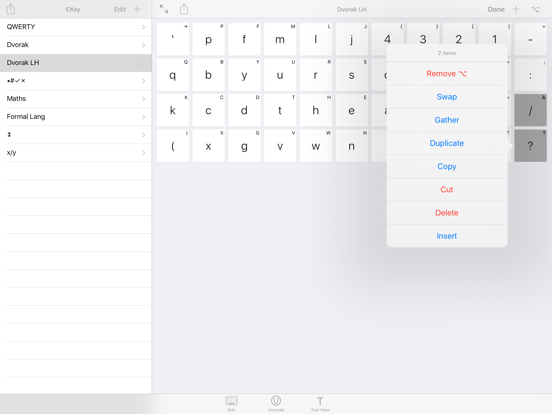
• QWERTY, Dvorak, Dvorak Left Handed
- Layouts inspired by the originals, with an original collection of symbols.
- Use a reduced number of keys to accommodate smaller screens.
• Symbols: contains some more rarely used symbols not present on the standard layouts.
• Maths: a layout designed for general maths, with digits, pi & infinity, and a wide set of operations.
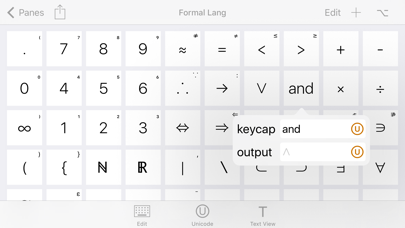
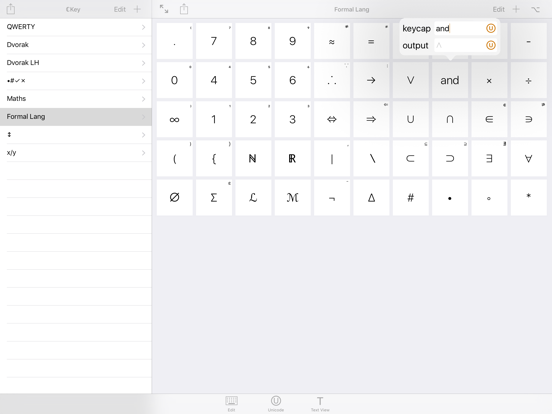
• Formal Languages: an example of a more complex, specialist layout.
• Superscript & Subscript
• x/y: all unicode fractions.
FEATURES
Keyboard:
• Your keys - the main content of the keyboard.
• Multiple panes, to organise related keys.
• A space key.
• Control keys: backspace, keyboard picker, dismiss, return.
• Alternate key forms.
- Hold a key to type it's alt form.
- Use the alt key to temporarily switch the forms around.
- Alternate forms could be capital letters, inverse operations, or something completely different.
• Swipe left on the pane list to give your keys more room in longer typing sessions.
- Swipe in from the left edge to bring the list back.
App:
• Edit panes and keys in a view resembling the keyboard itself.
- Tap a key to change what it types:
+ Keys can type any number of any unicode characters, multiline text supported.
+ Optionally use a custom keycap, instead of showing the key's output.
+ Edit the alt mode version of the key by tapping with alt mode enabled.
- Hold a key to bring up the edit menu:
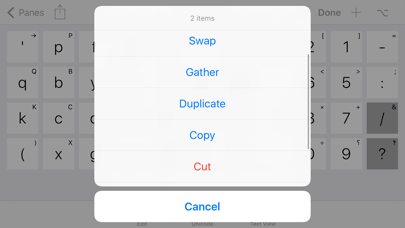
+ Edit [with 1 selected] - bring up a larger version of the key editor.
+ Swap [with 2 sele