MyNote -Simple note app-

MyNote -Simple note app- Summary
MyNote -Simple note app- is a ad-supported iOS app in Productivity by fumio ueda. Released in Jun 2017 (8 years ago). It has 62 ratings with a 4.82★ (excellent) average. Based on AppGoblin estimates, it reaches roughly 103 monthly active users and generates around $<10K monthly revenue (0% IAP / 100% ads). Store metadata: updated Oct 30, 2025.
Store info: Last updated on App Store on Oct 30, 2025 .
4.82★
Ratings: 62
Screenshots


App Description
Summary
"My Note -a simple note app-" is an application for iPhone/iPad with iOS13.3 or later that is suitable for writing down ideas, schedules, and checklists, just like a notebook. In particular, it has uniquely useful features such as
(a) the ability to instantly change the text size by simply pinching the screen,
(b) the ability to automatically expand the column height according to the text length or font size change, and
(c) the ability to create a table of contents.
Description of Functions and Features
(1) Notepad function
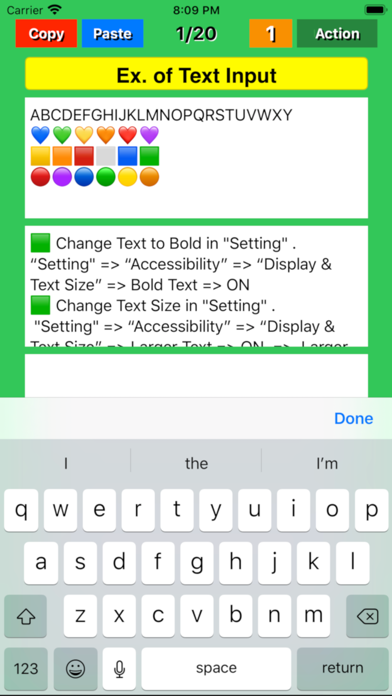
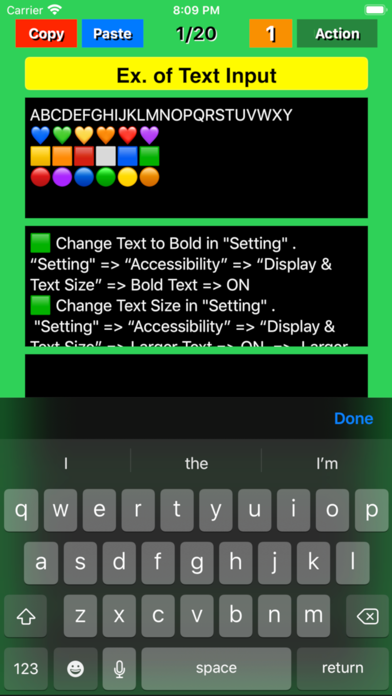
(a) Page composition; Each page consists of a title and ten columns of text.
(b) Start Page; The page is displayed from the last finished page and can be edited.
(c) Column Expansion; The height of each column is automatically expanded or restored according to the length of the text in that column.
(d) Scrolling; Each page can be scrolled vertically by swiping vertically.
(e) Page Turnover; Swipe left and right or tap the left and right frames to turn pages. The number of pages to be turned is either "1" or "5" as set by the turning-pages-buttons (second button from the right). Pages are turned from the end of the page to the beginning, or from the beginning to the end.
(f) Text editing; When you tap the screen, the cursor appears there and at the same time the keyboard appears at the bottom of the screen. You can use the keyboard to enter text at the cursor position. The cursor will automatically move to the position behind the character you have entered. Edits are finalized by pressing the "Done" button on the keyboard and saved on the terminal for the next readout.
(2) "Copy" function
By tapping the "Copy" button on each page, the title and text are copied to the device's memory. The text is also copied to the clipboard.
(3) "Paste" function
Tapping the "Paste" button on a page overwrites the title and text stored in the memory to the title and text fields of the page, respectively. Tap "Overwrite" on the confirmation screen that appears before overwriting to execute the overwrite.
If a blank page is copied and pasted onto a page of your choice, all text can be erased at once.
(4) Table of contents creation function
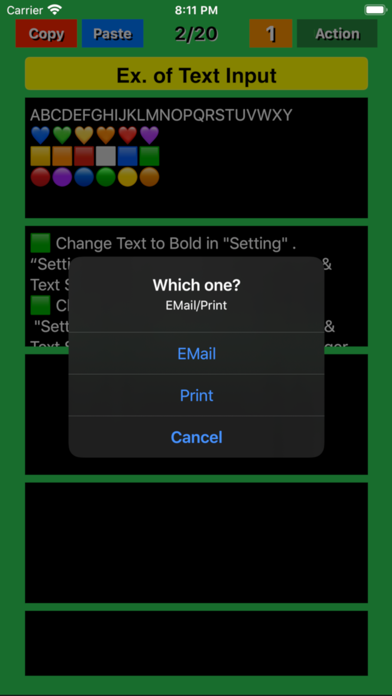
When you press and hold the "Paste" button on any page, a prompt will appear asking if you want to create a table of content