Firestick Remote & Cast FireTV
Firestick Remote & Cast FireTV Summary
Firestick Remote & Cast FireTV is a with in-app purchases iOS app in Photo And Video by AirBeamTV BV. Released in Jan 2018 (8 years ago). It has 7.8K ratings with a 3.70★ (average) average. Based on AppGoblin estimates, it reaches roughly 4.1K monthly active users and generates around $<10K monthly revenue (100% IAP / 0% ads). Store metadata: updated Sep 16, 2025.
Recent activity: 4.00 new ratings this week View trends →
Data tracking: SDKs and third-party integrations were last analyzed on Apr 15, 2025.
Store info: Last updated on App Store on Sep 16, 2025 .
3.7★
Ratings: 7.8K
Screenshots


App Description
Get the #1 app for Fire TV and improve your home-entertainment experience today.
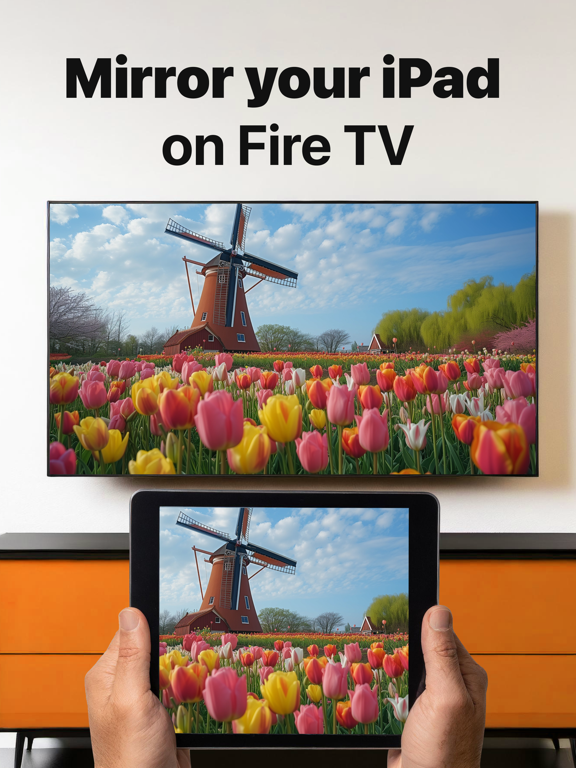
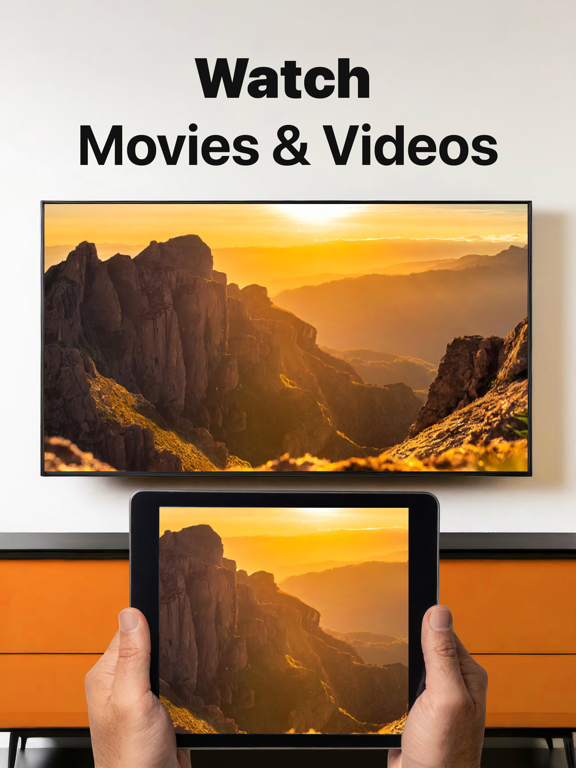
Stop staring at a small screen. Prevent eyestrain and avoid high costs for expensive hardware. With this app you can make your life even more comfortable! Watch all the content from your iPhone and iPad on your Amazon Fire TV. Enjoy firestick remote & videos, series, news, photos, sport and documentaries on your television and stream them effortlessly from your iOS device.
Get the most out of your Fire TV and improve your home-entertainment experience with just a few simple clicks.
Before using this revolutionary screen mirroring app, visit the Amazon website and install the (free) Mirror Receiver for Fire TV: http://bit.ly/am-firetv
When using the app there is a small delay of a few 1 to 2 seconds. This mirroring app is therefore not suitable for gaming.
How the app works:
1. Make sure your iPhone or iPad is connected to the same local network as your Amazon Fire TV. Do not use multiple VLANs or subnets.
2. Launch the app. It will search for your Amazon Fire TV(s) on your local network. Select the TV as soon as it is found.
3. Enable notifications for this app. We use this to let you know if your TV is working correctly or not.
4. Click 'Start Mirroring' and start mirroring on the Fire TV. After that, you can just go to another app on your iPhone or iPad and the mirroring will continue as usual.
5. To stop mirroring, there are two options:
A) Click on the red top bar you see on your iOS device.
B) Go to the Mirror for Fire TV app and click on 'Stop Mirroring'.
Limitations and potential issues:
DRM;
Some apps block screen mirroring. This means that application developers can choose whether to block screen mirroring. Netflix, HBO, Disney and Apple TV+ have decided to block this. Unfortunately, we cannot change this.
There is a simple test to see if the app you want to mirror has blocked Screen Mirroring:
1) Open that particular app and slide up the Control Center on your iPhone/iPad.
2) Then click on 'Screen recording' and start recording the screen on your camera roll.
3) View the app you want to mirror and stop the screen recording at some point.
4) Then go to your Photos app and watch the video that was recorded.
If the recorded video shows the app you want to mirror, it will work fine. If the video is blank, the app you want to mirror won't allow screen mirroring