Screen Mirroring: Mac,PC & TV
Screen Mirroring: Mac,PC & TV Summary
Screen Mirroring: Mac,PC & TV is a with in-app purchases iOS app in Photo And Video by AirBeamTV BV. Released in Jul 2018 (7 years ago). It has 4.7K ratings with a 4.24★ (good) average. Based on AppGoblin estimates, it reaches roughly 2.8K monthly active users and generates around $<10K monthly revenue (100% IAP / 0% ads). Store metadata: updated May 20, 2026.
Recent activity: 1.00 new ratings this week View trends →
Store info: Last updated on App Store on May 20, 2026 .
4.24★
Ratings: 4.7K
Screenshots




App Description
The #1 app for every organisation!
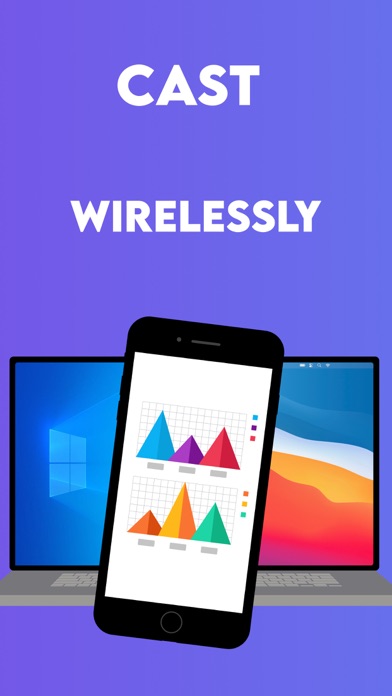
Application to mirror the screen and audio of your iPhone or iPad to your Mac or Windows PC. Works on any laptop or desktop with Windows (Windows 10, 8.1, 8 or 7) with the Chrome browser installed, or on any Mac, iMac, MacBook (Pro) with the Chrome browser installed.
No wires and no additional hardware needed! And no need to install an application on your Mac or Windows PC, just use the Chrome browser!
You can mirror any app on your iPhone or iPad to your computer.
This is how the app works:
1. Launch the Mirror for Mac or Windows PC app. It will show a nine digit number.
2. Turn on notifications for this app. We will use this to let you know if screen mirroring is working correctly or not. So please, please allow it, otherwise when things don't work as they should, you are left in the dark.
3. Open Chrome on your Mac or Windows PC and go to start.airbeam.tv and type in the nine digit number.
4. Click on Start Mirroring to start mirroring on your Chrome browser on your Mac or Windows PC. After that, you can just go to any other app on your iPhone or iPad and the mirroring just continues to run.
5. To stop mirroring, there are two options. (1) click on the red top bar that you will see on your iPhone or iPad. (2) Go to the Mirror to Mac or Windows PC app and click on Stop Mirroring.
In Trial mode, the screen mirroring will continue for 5 minutes. After purchasing the Pro version through an In App Purchase, screen mirroring will not stop after 5 minutes.
Limitations and known issues:
DRM
Some apps block Screen Mirroring. This means that application developers can choose themselves if they want to block Screen Mirroring. For instance, Netflix, Disney and AppleTV+ have decided to block this.
There is a simple test that you can do to see if the app that you want to mirror has blocked Screen Mirroring:
Open that particular app and slide up Control Center on your iPhone/iPad. Then, click on Screen Recording and start recording the screen to your Camera Roll. Then go to your Photos app and watch the video that was recorded. If the recorded video shows the app you want to mirror, it works fine. If the video is empty, then the app you want to mirror does not allow Screen Mirroring.
About Screen Recording and Privacy
Even though there are notifications about Screen Recording, we don't record your screen into files a