XPS-to-PDF
XPS-to-PDF Summary
XPS-to-PDF is a mobile iOS app in Productivity by RootRise Technologies Pvt. Ltd.. Released in Apr 2018 (8 years ago). It has 3.00 ratings with a 5.00★ (excellent) average. Based on AppGoblin estimates, it reaches roughly 7.00 monthly active users . Store metadata: updated Jan 9, 2026.
Store info: Last updated on App Store on Jan 9, 2026 .
5★
Ratings: 3.00
Screenshots
App Description
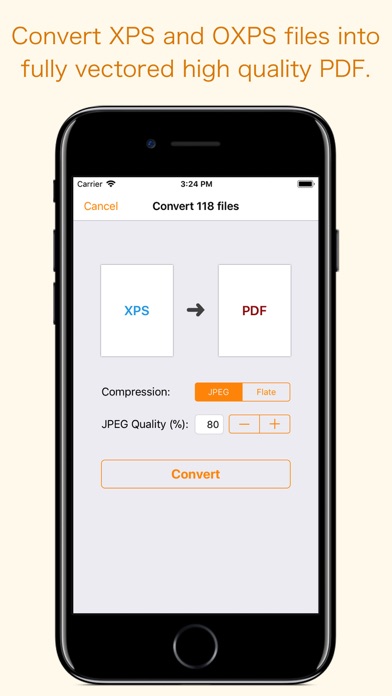
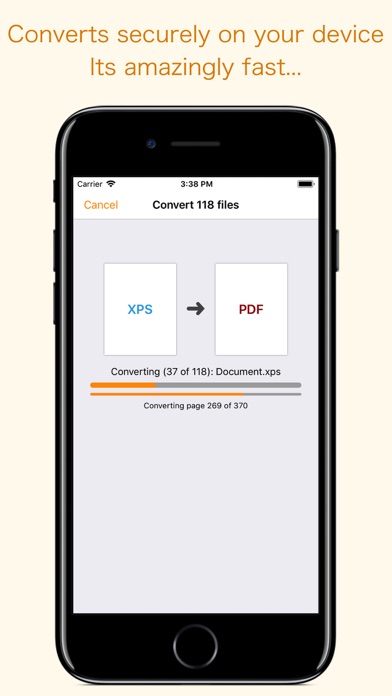
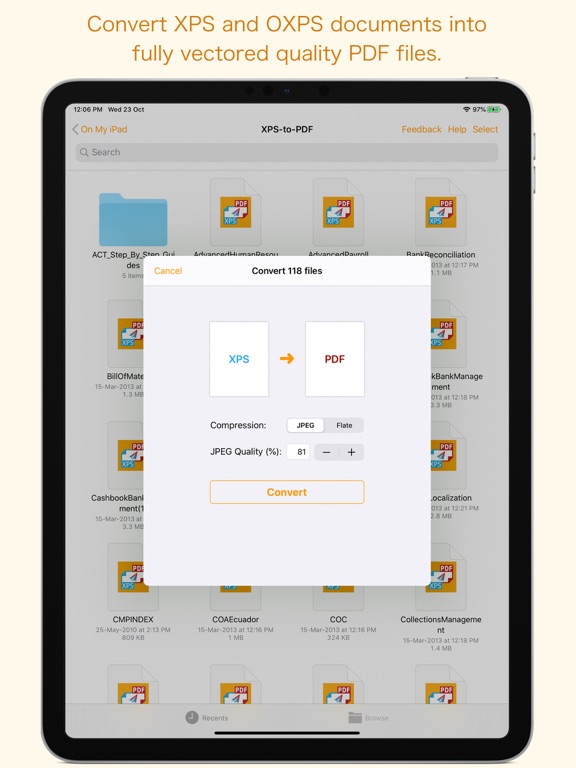
XPS-to-PDF is a simple, efficient and fast way to batch convert XML Paper Specification (.xps) and OpenXPS (.oxps) documents into fully vectored high quality PDF files on iPhone and iPad. XPS-to-PDF supports JPEG and Flate image compression types and JPEG quality settings for PDF conversion.
Do not found decent XPS/OXPS reader on your iPhone and iPad? Simply convert XPS/OXPS documents into quality PDF documents and read in your favorite PDF reader.
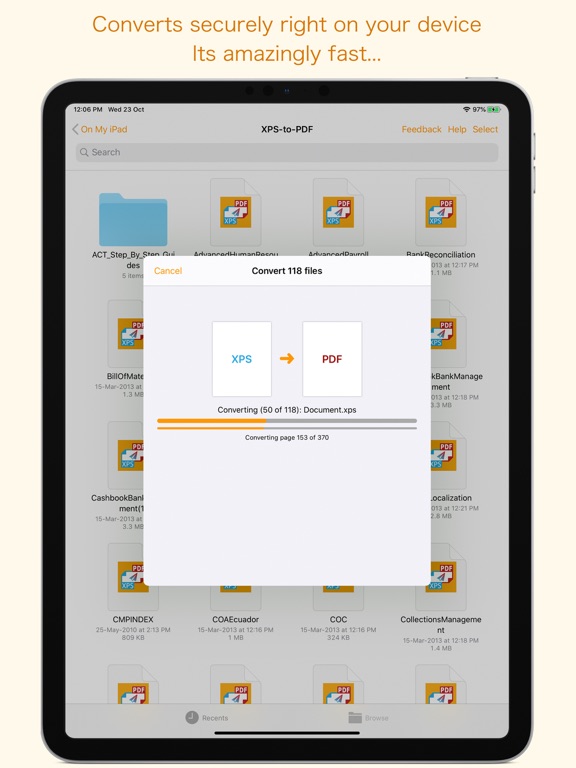
XPS-to-PDF supports batch conversion. Select multiple XPS/OXPS files in document browser view and tap Convert button at top to start batch conversion.
XPS to PDF CONVERSION FEATURES:
- Converts XPS to fully vector-PDF documents. Preserves text, vector graphics and raster images as editable PDF contents.
- Preserves Bookmarks (Outline).
- Preserves XPS internal and external topic hyperlinks into PDF. It automatically maintains XPS topic and page navigation links into PDF compatible annotations.
- Supports PDF conversion using JPEG and Flate image compression methods. Can set image quality for JPEG image compression.
- Preserves metadata properties.
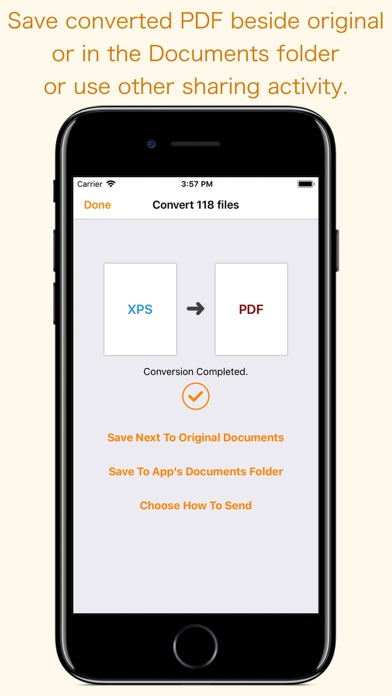
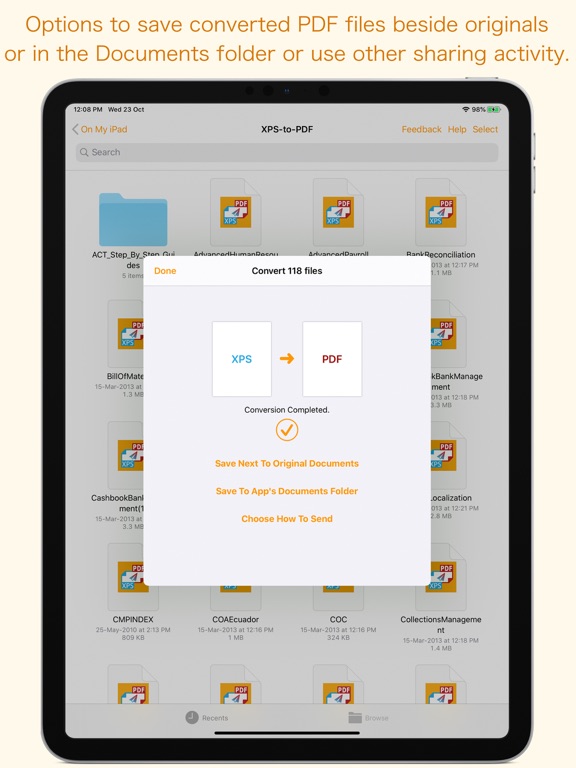
DESTINATION PATH : Convenient options to store converted PDF files at your easily accessible location. Choose from following
Save Next to Original Documents - Tap this button to save a converted file into the same location and directory as an existing original document. The converted document with unique name will be saved beside original document.
Save to App’s Documents Folder - Tap this button to save a converted file with unique name into XPS-to-PDF Documents folder.
Choose How to Send - Tap on this button to popup standard iOS activity controller. Tap one of the option in activity controller for sending, saving or posting a converted PDF. Choose a location, or provide the requested information (for example, an email address if you are sending an email) then send or post a copy of converted PDF.
DOCUMENT MANAGEMENT
- The inbuilt document browse view automatically gives you the option to share documents using the Share button or a drag-and-drop action. It also provides a standard interface for browsing and managing documents.
- Automatically handles access to iCloud for you within the app. It also provides access to documents managed by third-party storage service extensions installed on your device.
- Browse, find and sort documents to hel