sqft AR

sqft AR Summary
sqft AR is a ad-supported iOS app in Tools by Noriaki Murao. Released in Jun 2018 (8 years ago). It has 928 ratings with a 4.42★ (good) average. Based on AppGoblin estimates, it reaches roughly 1.8K monthly active users and generates around $<10K monthly revenue (0% IAP / 100% ads). Store metadata: updated Dec 30, 2025.
Recent activity: 1.00 new ratings this week View trends →
Store info: Last updated on App Store on Dec 30, 2025 .
4.42★
Ratings: 928
Screenshots

App Description
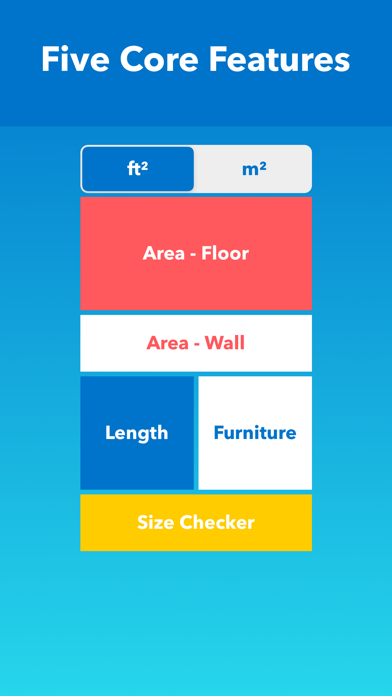
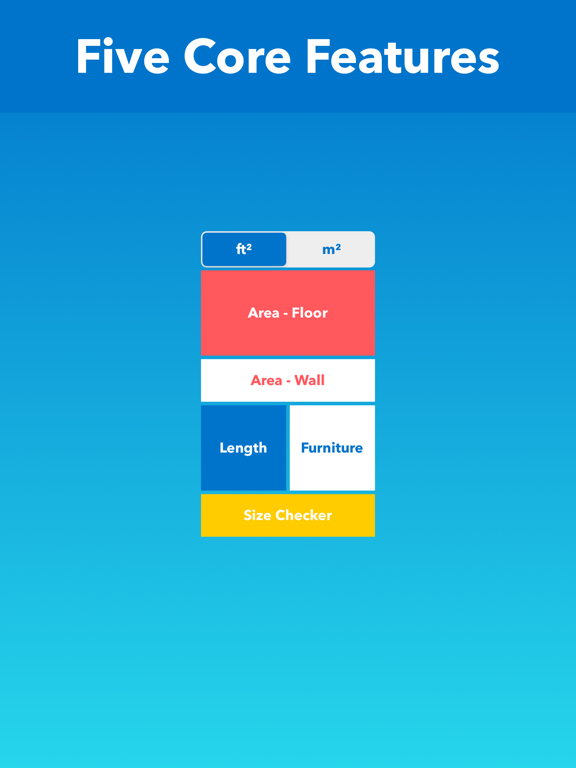
The app has five core features.
1. Area - Floor: To measure the horizontal area on a floor in ft² or m²
2. Area - Wall: To measure the vertical area on a wall in ft² or m²
3. Length: To measure the length between two points
4. Furniture: To measure the relative size of the space by placing standard-sized virtual furniture
5. Size Checker: To check the relative size of a product in the real world by comparing it to other objects. To check whether the product's size fits the space.
HOW TO USE
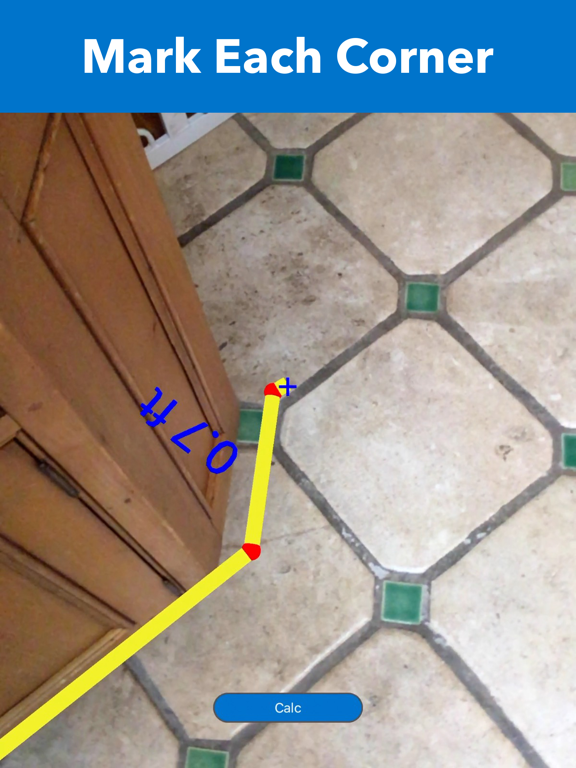
1. Area - Floor or Wall
- Choose a unit between ft² or m²
- Tap "Area - Floor" or "Area - Wall" on the main menu
- Move the camera to scan the surrounding area
- Find a flat surface on the floor or on the wall until the blue square appears
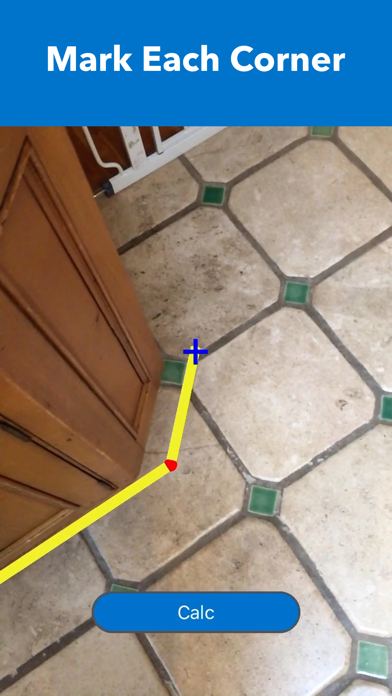
- Place the pointer ("+" on the center of the screen) to one of the corners of the floor or the wall
- Tap the screen to mark with a red sphere
- Move slowly clockwise ( or counterclockwise) to the next corner and repeat the action until all corners are marked by a red sphere ( Do not mark twice on the starting point)
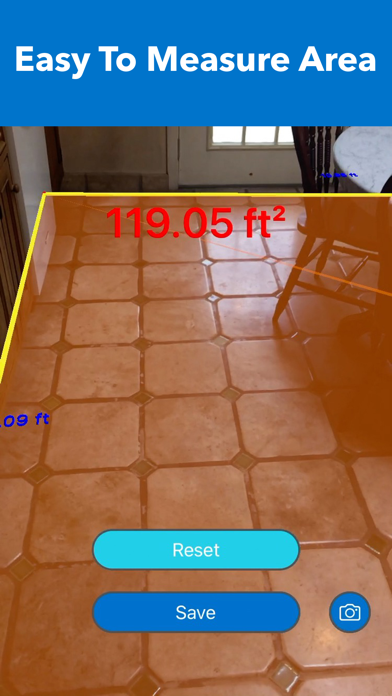
- Tap the "Calc" button to calculate the area
- To save data, tap the "Save" button, type remarks, and tap "Save."
- To take a photo, tap the "Camera" button
- To find saved data of Area, tap "File" mark on the top right corner of the main menu
- To see the location and photo (if it was taken) of saved data, tap the row on the list of saved data
- To delete saved data, tap "File" mark on the main menu and slide your finger from right to left on the row in the list of saved data
- In some cases, the AR shaded orange area may be displayed outside of the outlines or overlapped; this does not affect the calculation of the area
2. Length
- Tap "Length" on the main menu
- Move the camera to scan the surrounding area
- Wait until a lot of yellow dots display on the surface of the target object.
- Place the pointer ( "+" on the center of the screen) to the starting point of measuring object
- Tap the screen to mark with a red sphere
- Move slowly to the other end of the measuring object and place the pointer
- Tap the screen to display the length
- To measure another object, tap the "Reset" button and repeat the same procedure
- To take a photo, tap the "Camera" button
3. Furniture
- The virtual furniture is standard or typical size to help measure the relative size of the space
- Tap "Furniture" on the main menu
- Mov