Dusty Strings 16/15 Dulcimer

Dusty Strings 16/15 Dulcimer Summary
Dusty Strings 16/15 Dulcimer is a mobile iOS app in Music And Audio by Michael Eskin. Released in Aug 2018 (7 years ago). It has 8.00 ratings with a 4.25★ (good) average. Based on AppGoblin estimates, it reaches roughly 22 monthly active users . Store metadata: updated Aug 2, 2018.
Store info: Last updated on App Store on Aug 2, 2018 .
4.25★
Ratings: 8.00
Screenshots

App Description
Experience playing the full, lush tones of a Dusty Strings hammered dulcimer right on your iPhone or iPad.
Play on-screen or via MIDI from other apps or a MIDI keyboard.
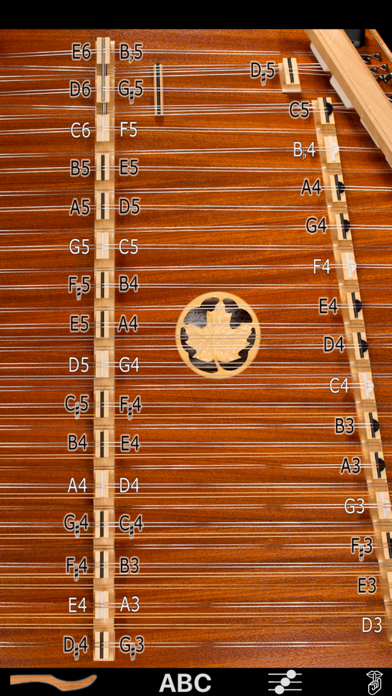
The app provides the treble and bass bridges of the flagship D550 model for playing on screen and the full 3.75 octave chromatic range of the real instrument from G2 to E6 when played via MIDI.
The app has a 16/15 configuration with 16 string courses on the treble bridge and 15 courses on the bass bridge.
The D550 is one of the popular Chromatic Series models made by Dusty Strings, builders of hammered dulcimers in Seattle, WA since 1979.
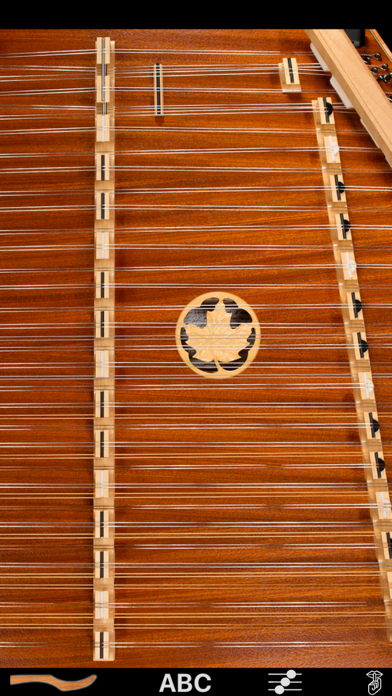
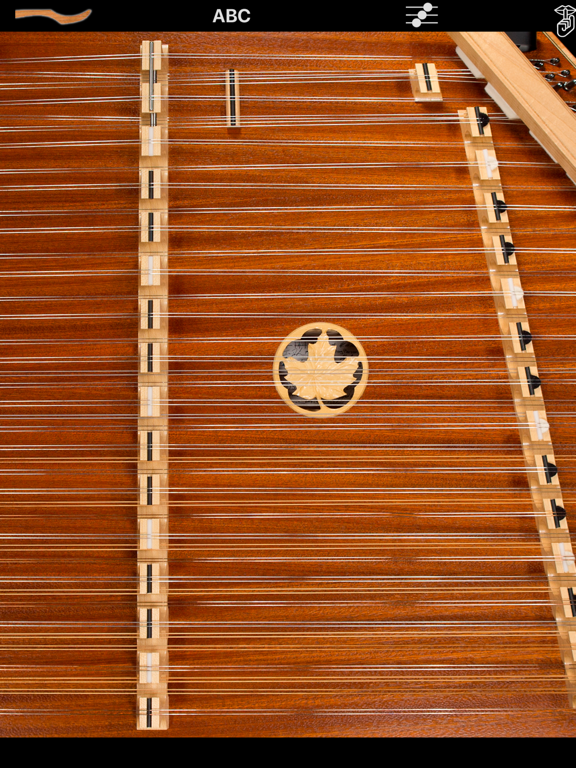
To play, just touch the strings next to the black and white bridge markers.
The Treble bridge (in the middle) has playable notes on either side, which are a fifth interval apart.
The Bass bridge (on the right) can be played to the left of the markers.
Toggle between a bright, clear ringing tone using hard hammers and a gentler, more piano tone using soft hammers by touching the image of the hammer in the upper left corner.
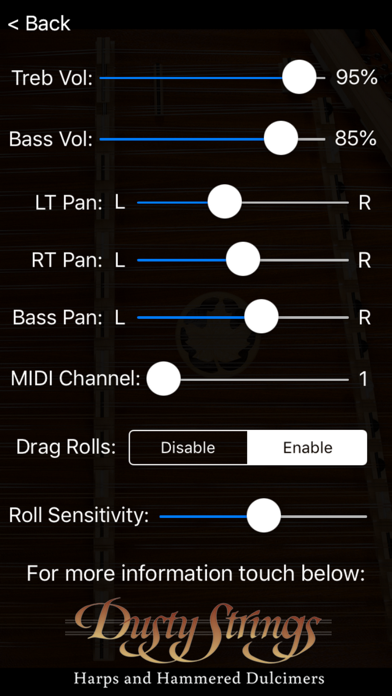
To get repeated note "drag roll" effects, drag quickly horizontally across the strings. The drag roll sensitivity can be set on the settings screen. The higher the sensitivity, the shorter distance you need to move your finger to get the effect.
Touch the "ABC" button to toggle the note name display on/off.
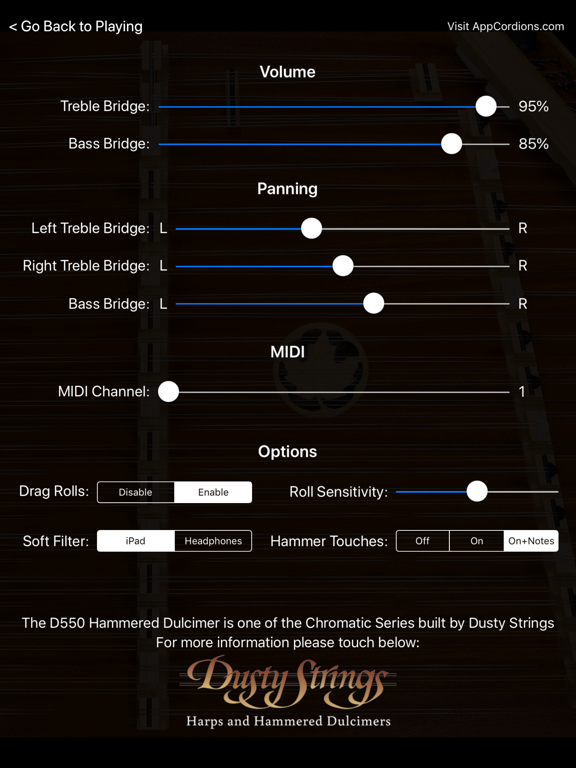
Touch the mixer icon to show the controls screen where you can adjust the balance and pan for the bass and treble bridges, enable or disable the drag rolls, as well as set the sensitivity for how far you need to drag to get the roll effect.
On the iPad version, the "Hammer Touches" setting chooses between no visible touches, visible touches, and visible touches + note label highlighting.
On the controls screen for the iPad version, you may use the "Soft Hammer Filter" control to choose between equalization of the soft hammer sounds for best sound through the iPad speaker or through headphones. The "iPad" setting optimizes the soft hammer equalization for playback through the iPad speaker. The "Headphones" setting optimizes the soft hammer sound equalization for headphones or for use when connected to an amplifier through the headphone jack. The "Headphones" setting allows the full fidelity of the lowest sound to pass through for best quality. iPhone devices default to the "Headphones" setting.
From the controls scree