PDF Markup & Annotation Maker
PDF Markup & Annotation Maker Summary
PDF Markup & Annotation Maker is a mobile iOS app in Business by Ruchira Ramesh. Released in Oct 2018 (7 years ago). It has 10 ratings with a 4.50★ (excellent) average. Based on AppGoblin estimates, it reaches roughly 29 monthly active users . Store metadata: updated Nov 2, 2025.
Store info: Last updated on App Store on Nov 2, 2025 .
4.5★
Ratings: 10
Screenshots
App Description
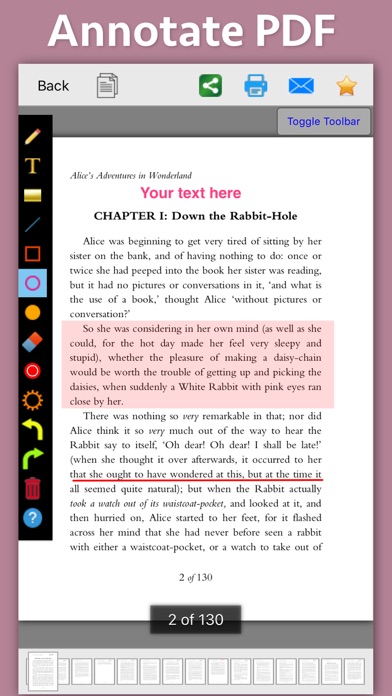
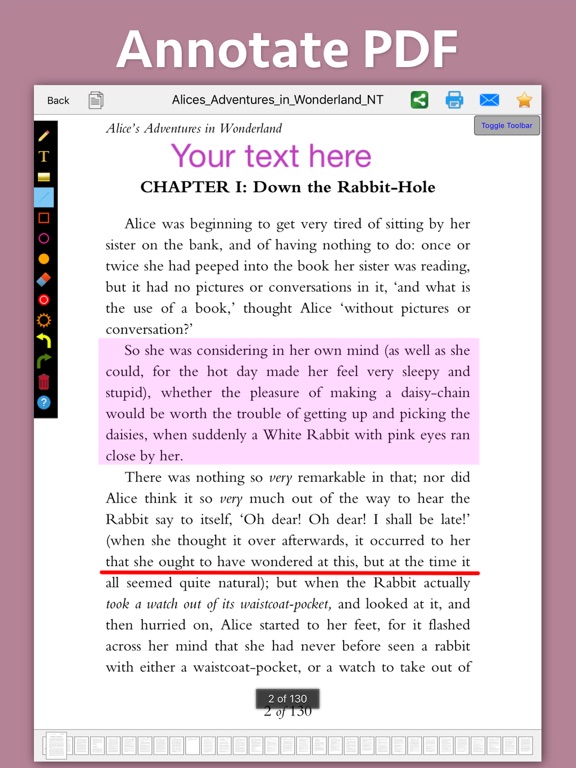
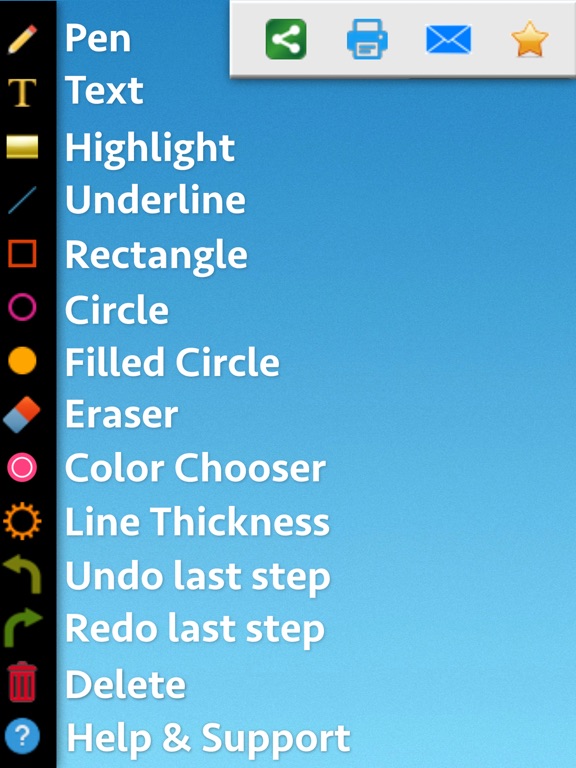
Write text on PDF, Highlight, underline ,draw shapes & customise using different Fonts, text size, colors and transparency level.
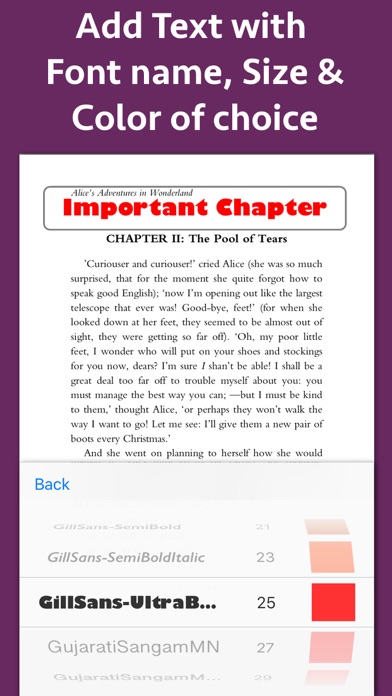
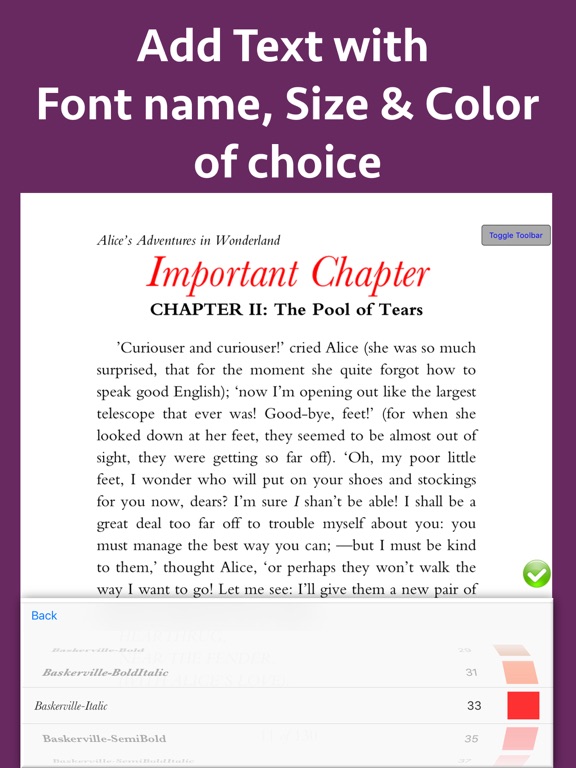
Using these features you could highlight important lines in a PDF.You could also write text on pages of the PDF.For example : you could write "Important" on the important pages of the PDF.
This could be very helpful in making notes, preparing documentation or for making presentation. Annotated PDF files are easier to understand and help to focus on important points, images and topics.
Below are some additional usage :
-- Getting feedback on a document that is sent for review. The reviewer could highlight the areas, or write text at the places that need correction or improvements.
-- Holding a meeting or discussion on a PDF Document with several users and adding highlights, writing text & drawing shapes using pen tool like arrows, checkmark and cross marks wherever the document needs changes or where it needs more discussions.
-- Adding your own notes makes it much easier to find the document later and to remember why it is important or which pages & topics are important.
-- Approving documents with text and commenting on the PDF.
-- Highlighting the important paragraphs in the study materials.
-- Adding references or points on the PDF pages by writing text on the PDF.
Using the application you could do below operations :
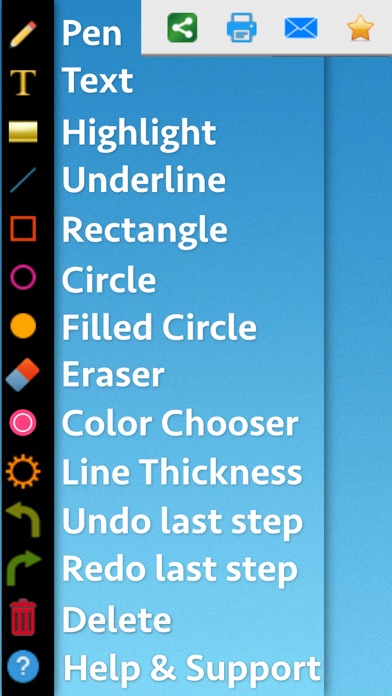
a) Write Text on PDF : Using the application the Text could be written anywhere on the pages.After the text is written, you could perform various customisations as shown below :
-- Change Font of the text
-- Change the Text Size
-- Change the the text color
-- Resize or change the location of the text as per the requirements.
b) Highlight Text in PDF : Using the highlight tool, the text could be highlighted. The highlighting colors could be changed to any color of your choice.Once the Text is highlighted, you could also resize or reposition the highlighted part as per the requirements.
c) Underline Text - Underline the text using the line tool.The underline color could be changed as per the requirements. The line tool could also be used to draw lines and shapes.
d) Strikethrough Text - Strikethrough the text.The strikethrough color could be changed as per the requirements.This could be also be done using the line tool.
e) Draw Circle - Draw a circle using the circle tool. It also supports various custo