MyKeyboard - Custom Keyboard
MyKeyboard - Custom Keyboard Summary
MyKeyboard - Custom Keyboard is a with in-app purchases iOS app in Tools by FiveSheep OU. Released in Nov 2019 (6 years ago). It has 100 ratings with a 3.67★ (average) average. Based on AppGoblin estimates, it reaches roughly 262 monthly active users and generates around $<10K monthly revenue (100% IAP / 0% ads). Store metadata: updated Jan 20, 2026.
Store info: Last updated on App Store on Jan 20, 2026 .
3.67★
Ratings: 100
Screenshots

App Description
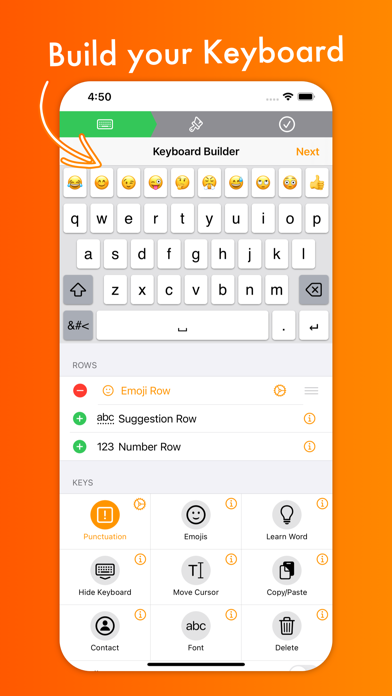
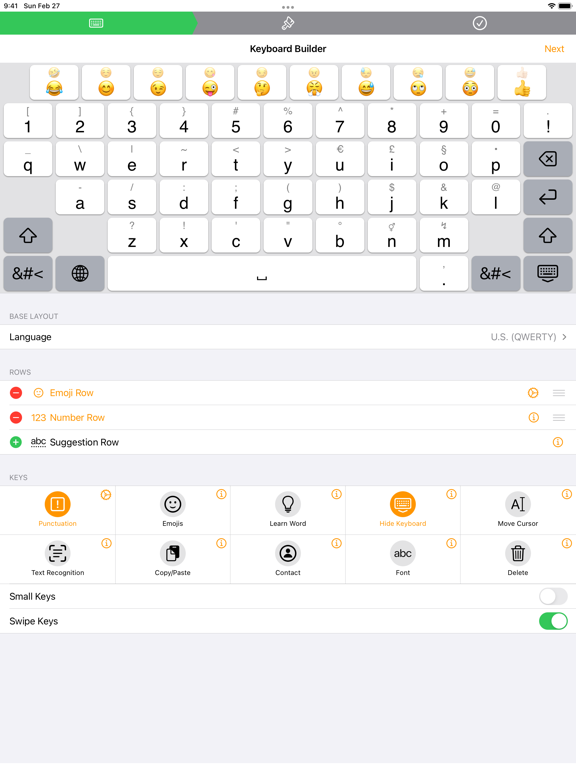
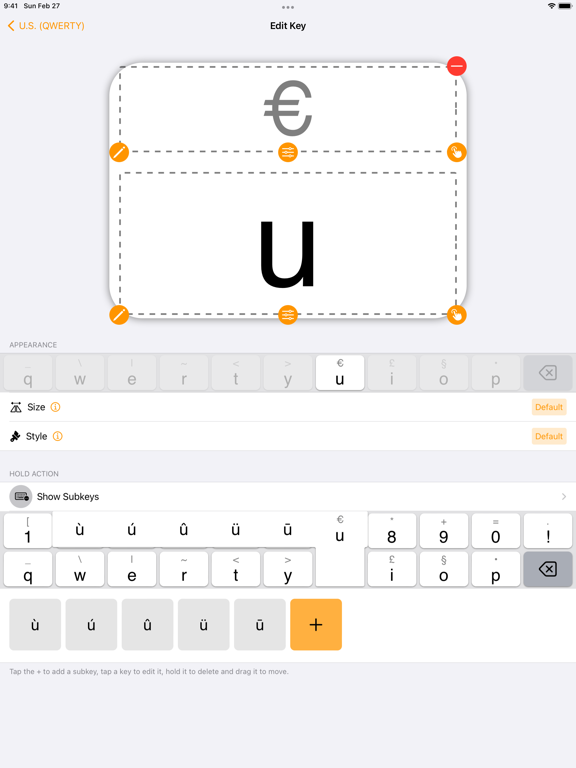
Customize virtually anything about your iOS keyboard, with simple drag and drop. Add or remove keys or rows, customize the way keys look and behave, change the duration until subkeys (the keys that pop up when holding on a key) pop up, add and remove subkeys and add keys with custom actions.
MyKeyboard is beloved by its users for its ease of use and endless possibilities. For example, the emoji row is a standard feature of the custom Keyboard and can be changed to contain all of your favorite emoji. These emoji keys then automatically contain subkeys with similar emoji which you can personalize. By default, a number row is also in the keyboard, providing you fast access to these often-used keys.
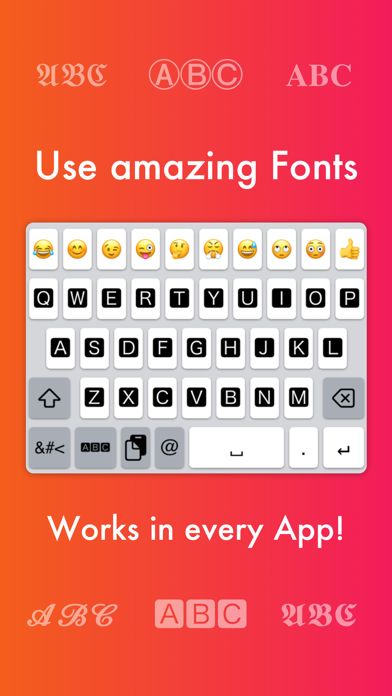
Another amazing feature of MyKeyboard is the switchable fonts. MyKeyboard contains 19 amazing fonts that can be used across almost all apps, including WhatsApp, Instagram, Facebook and iMessage. You can add a font key to your keyboard and switch to the font by tapping on it.
Custom key actions include:
- Insert Appearance
- Insert
- Replace Word With Appearance
- Show Subkeys
- Shift
- Caps Lock
- Cut
- Copy
- Paste
- Accept Correction
- Dismiss Correction
- Learn Current Word
- Switch Keyboard
- Switch To Main Keyboard
- Hide Keyboard
- Next Input Mode
- Delete Last Character
- Activate Deletion Mode
- Clear
- Clear Left
- Clear Left Word
- Clear Right
- Clear Right Word
- Clear Word
- Switch to Emoji Board (Switches you to the emoji keyboard; Learn more about this when you google emoji keyboard)
These actions can be triggered on tap and hold. When no hold action is set for a specific key, the keyboard goes into trackpad mode, allowing you to shift the insertion point around by swiping. The deletion mode is similar and allows you to delete by swiping left and retract from it by swiping right. By default, it is the hold/press action on the delete key. You can also increase or decrease the key hold time until these actions are triggered, but you will have to perform swift key gestures when setting it very low.
~~ Keyboard Builder ~~
Use the keyboard builder for creating a fully customized keyboard layout in less than a minute. Your own keyboard layout is called “My Keyboard” and can be configured in every imaginable way. You can even add a copy, cut or paste key, a font key, an emoji key, a move cursor key, a “delete all” key and so much more. You can al