Map-Memo

Map-Memo Summary
Map-Memo is a ad-supported iOS app in Lifestyle by RamSystem. Released in May 2019 (7 years ago). Store metadata: updated Feb 21, 2022.
Store info: Last updated on App Store on Feb 21, 2022 .
0★
Ratings: 0
Screenshots
App Description
[Map screen]
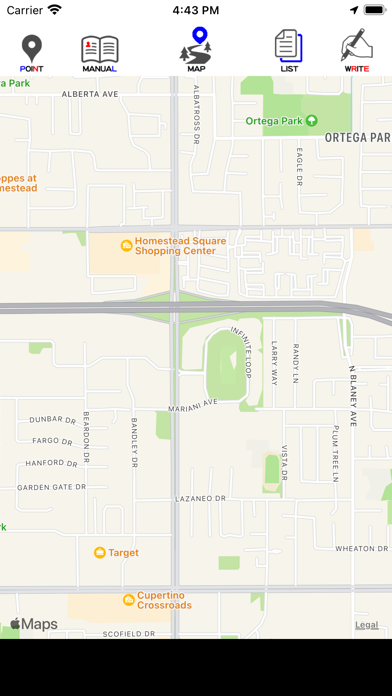
This is the first screen to be displayed.
The current location is displayed, but by pinch-in, pinch-out, and drag
You can freely enlarge / reduce / move.
Press and hold until you hear a "pin".
The map moves around that position.
In addition, a blue pin stands to display the position in an easy-to-understand manner.
* About icons
This is a description of the icon at the top.
From the left
(POINT)
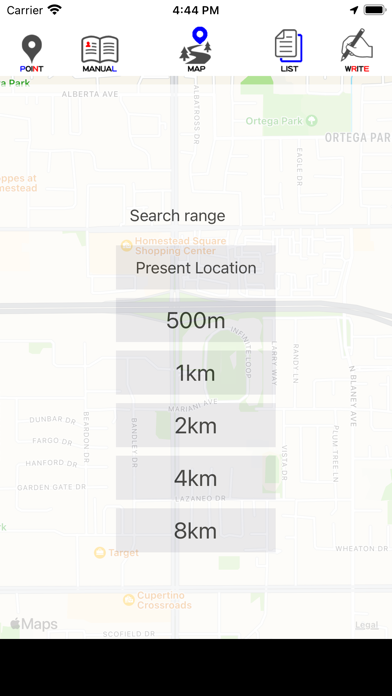
The record of the movement to the current location and the memories left behind is displayed on the map.
Tap the icon
You can select the search range on the map of memories or the display of your current location.
The search range can be set from 500m to 8km around the blue pin on the map.
(MANUAL)
The screen will change to display the operation manual.
This is the text chapter.
You can page forward, enlarge, and reduce sentences by pinching in, pinching out, and dragging.
(MAP)
The icon of the displayed screen.
This icon is for display only and has no function.
(LIST)
The screen will change to the memory list screen.
For details, refer to [List screen].
(WRITE)
It will change to the screen to make memories
For details, refer to [Create screen].
[Create screen]
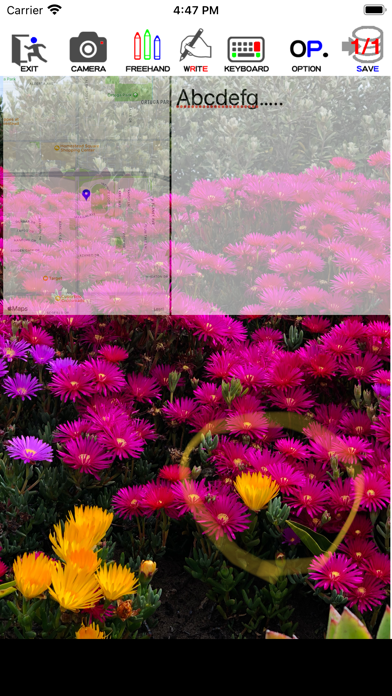
It is a screen to take a picture and write down an impression.
A map of the location is displayed in the upper left, and text characters can be written on the right.
In addition, you can write freehand on the entire screen.
The picture you take will look like its background.
The background photo can be freely pinched in, pinched out, and dragged.
You can enlarge / reduce / move the display part.
Once you tap the map screen, it will be displayed on the entire screen.
Tap it again to return it to its original size.
If there are many registered photos / characters, swipe left or right to display them.
* About icons
This is a description of the icon at the top.
From the left
(EXIT)
This is the end of the creation screen.
Use it when you want to finish without doing anything, or when you want to cancel what you have done and finish.
(CAMERA)
It is a camera shoot.
The standard iPhone camera will start and take a picture.
The picture taken will be displayed like the background of the screen.
(FREEHAND)
You can write freely on the entire screen.
A nib, color, eraser and ruler are available.
Tap again to finish the freehand process.
(WRITE)
The icon of the displayed screen.
This icon is for display onl