Travel - Photos & Steps

Travel - Photos & Steps Summary
Travel - Photos & Steps is a mobile iOS app in Travel And Local by mitsunori oishi. Released in Jun 2019 (7 years ago). Store metadata: updated Dec 28, 2019.
Store info: Last updated on App Store on Dec 28, 2019 .
0★
Ratings: 0
Screenshots

App Description
This app tabulates the number of steps and distance stored in healthcare by specifying the period.
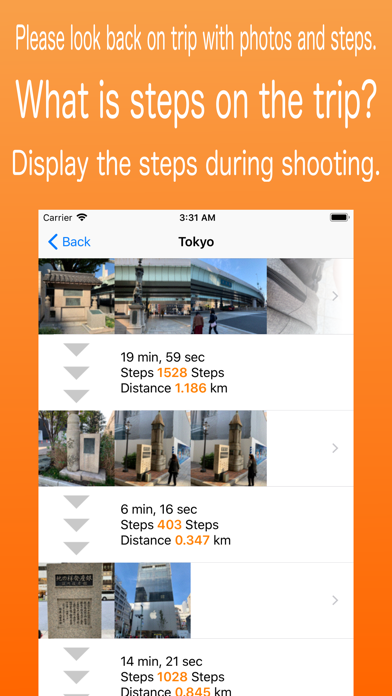
The count results show the number of steps taken during shooting, like photos-steps-photos.
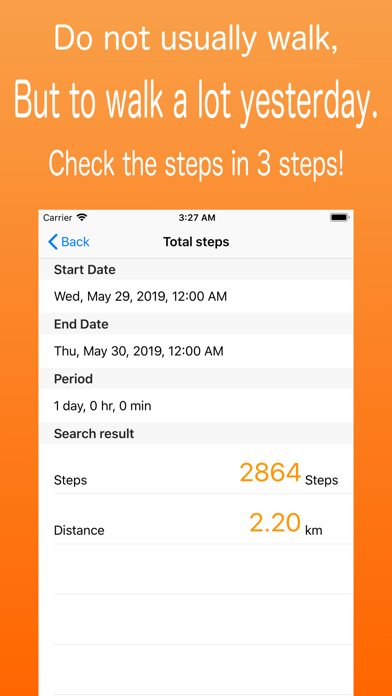
In addition, when you just want to know the number of steps and distance per day, the number of steps for that day is displayed in three steps.
※Attention
・This app integrates with the Health app.
However, it only reads the healthcare steps / distance information and does not write it.
Please allow reading of data from healthcare at first launch.
If health care does not have information on steps / distance, it can not be counted.
・Display a photo with the number of steps. Therefore, please allow access to the album at the first launch.
・If you delete the photo displayed in the list, the photo will not be displayed.
It has no effect on aggregation.
・If the thumbnail is not displayed, please perform "Recovery" in "Setting".
・Ad will be displayed.
■ How to use (when registering in the list)
1. Tap "Add".
2. Set the start date and end date. You can also set from the date the photo was taken.
In that case, the selected photo is displayed.
3. Enter a title.
4 Tap "Done".
5. The date, time, steps and distance you walked are registered in the list.
■ How to use (if you want to know the number of steps)
1 Tap "Check".
2. Set the date and time to check.
3. Tap "Done".
4. The number of steps / distance is displayed.
■ "List" tab
-Display step list.
Display content
Start date / time photo, end date / time photo, ※ Only when both start and end date / time are set.
Start date, end date, duration, number of steps, distance
Step count graph. Number of steps / time walked (Best record as 100%)
Distance graph. Distance / time walked (Best record as 100%)
-Tap a line, "Walked overview" is displayed.
-The list can be displayed in the order of "added date", "ordered by date", and "ordered by title".
-Swipe to edit and delete summary results.
-Delete the list in "Edit".
■ "Walked overview" display
-Display an overview of the aggregation results.
Display content
Start date / time photo, end date / time photo, ※ Only when both start and end date / time are set.
Start date, end date, duration, number of steps, distance
-Tap "Details" to display "Walked Details".
■ "Walked details" display
-Display the walked details
Display content
Photo group-Step count infor