Fabrication Layout

Fabrication Layout Summary
Fabrication Layout is a mobile iOS app in Productivity by Imran Pinjara. Released in Aug 2020 (6 years ago). It has 1.00 ratings with a 1.00★ (poor) average. Based on AppGoblin estimates, it reaches roughly 3.00 monthly active users . Store last updated Aug 15, 2026
Fabrication Layout SDKs Summary
App not yet scanned for SDKs.
1★
Ratings: 1.00
Screenshots



App Description
Fabrication Layout is a professional sheet metal pattern development and fabrication layout calculator for mechanical engineers, fabrication engineers, welders, pipe fitters, estimators, supervisors, students, and industrial professionals. It helps generate accurate flat pattern layouts for common fabrication shapes used in pressure vessels, piping, ducting, storage tanks, process equipment, and heavy fabrication industries.
The app reduces manual calculations, improves layout accuracy, minimizes fabrication time, reduces material waste, and increases productivity with easy-to-use engineering calculators.
Included Fabrication Layout Calculators
• Pipe (Shell) Development
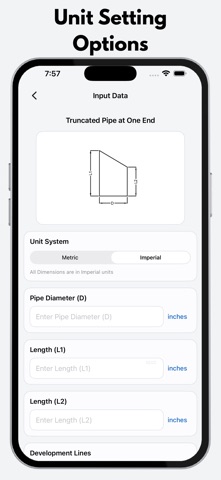
• Truncated Pipe
• Double Truncated Pipe
• Equal Pipe Branch Intersection
• Unequal Pipe Branch Intersection
• Offset Pipe Branch Intersection
• Pipe to Cone Intersection (Perpendicular)
• Pipe to Cone Intersection (Parallel)
• Pipe Truncated by Radius
• Full Cone Development
• Truncated Cone / Half Cone
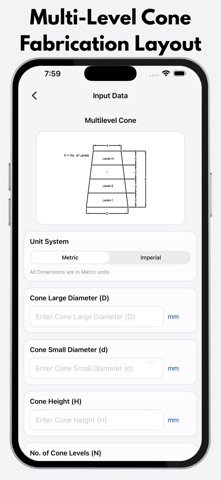
• Multi-Level Cone
• Eccentric Cone
• Multi-Level Eccentric Cone
• Tori Cone (Single Knuckle)
• Tori Cone (Double Knuckle)
• Square to Round Transition
• Rectangle to Round Transition
• Round to Square Transition
• Round to Rectangle Transition
• Pyramid Development
• Truncated Pyramid
• Sphere Petal Layout
• Dish End Petal Layout
• Miter Bend Layout
• Screw Flight Development
Features
• Accurate fabrication layout calculations
• Easy-to-use interface with illustrated input diagrams
• Custom or predefined development lines
• Instant calculation results
• Clear output dimensions for workshop marking
• Supports Metric and Imperial units
• Designed for real workshop and industrial use
How It Works
Select the required fabrication calculator.
Enter the component dimensions.
Review the illustration for correct inputs.
Select or enter development lines.
Tap Calculate.
View accurate layout dimensions for marking and fabrication.
Ideal For
• Mechanical Engineers
• Fabrication Engineers
• Production Engineers
• Planning Engineers
• Project Engineers
• Estimation Engineers
• QA/QC Engineers
• Pipe Fitters
• Welders
• Fabrication Supervisors
• Contractors
• Workshop Managers
• Students and Engineering Trainees
Suitable Industries
Pressure Vessel Fabrication, Process Equipment, Piping, HVAC Ducting, Sheet