TslaMirror

TslaMirror Summary
TslaMirror is a with in-app purchases iOS app in Tools by Wuhan TrustComputing IT Co., Ltd.. Released in Dec 2020 (5 years ago). It has 98 ratings with a 2.33★ (poor) average. Based on AppGoblin estimates, it reaches roughly 497 monthly active users and generates around $<10K monthly revenue (100% IAP / 0% ads). Store metadata: updated May 27, 2026, version 166.
Data tracking: SDKs and third-party integrations were last analyzed on May 9, 2026.
Store info: Last updated on App Store on May 27, 2026 (version 166).
SDKs, Trackers & Permissions
TslaMirror was last scanned for SDKs 2026-05-09. Below is the overview of third party companies detected in the app. The full list of raw SDKs, app permissions and unknown SDKs is available here.
 Firebase
 Google
 nanopb
App Details
App Store
Ads & App-Ads.txt
AppGoblin SDK Scans
2.33★
Ratings: 98
Screenshots

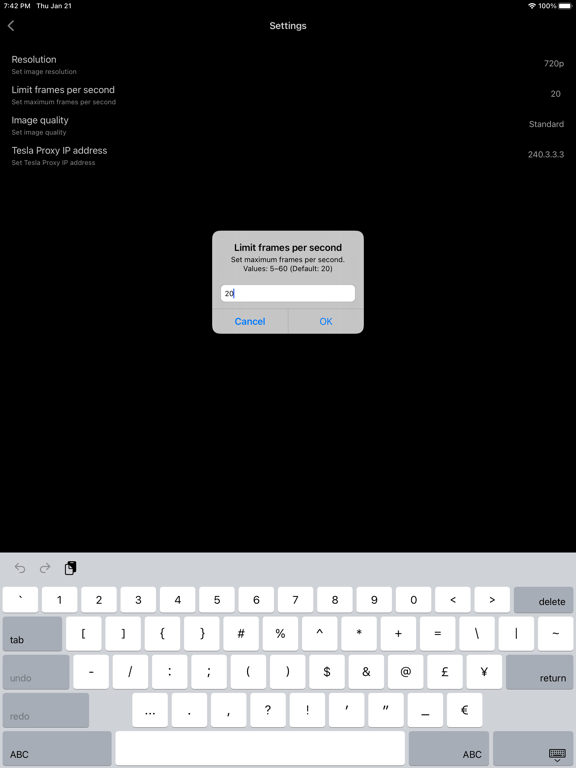
App Description
One-week free trial.
TslaMirror is an app designed to mirror your iPhone apps to your Tesla’s built-in browser.
- Supported apps include Waze, Google Maps, Apple Maps, YouTube, TikTok, Plex, and more.
- DRM-protected apps, including but not limited to Netflix, Apple TV, YouTube TV, Amazon Prime Video, and Hulu, are not supported. Some DRM-protected apps may block video mirroring, resulting in a black screen in the Tesla browser.
Instructions for the Tesla built-in browser:
1. If possible, update your Tesla’s infotainment system to the most recent version.
2. Make sure the vehicle is PARKED (0 mph / 0 km/h).
3. Connect your Tesla to your iPhone Personal Hotspot (cellular data required). MCU2 or MCU3 hardware is required: available on Model 3 and Model Y, Model S built after March 2018, Model X built after March 2018, or vehicles upgraded from MCU1 to MCU2/3.
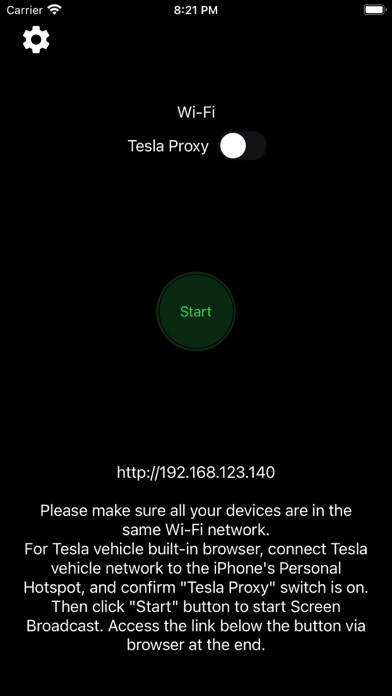
4. Ensure the iPhone is not in Low Power Mode. Launch the TslaMirror app and toggle on “Proxy.”
5. Tap “Start,” then select “Start Broadcast” to begin screen broadcast.
6. In your Tesla’s built-in browser, go to https://TslaMirror.com
7. Pinch in the browser to zoom in or out.
8. In H.264/H.265 mode, lossless audio playback is supported in the browser.
9. In MJPEG mode, only video is mirrored. For audio, use a Bluetooth connection from your iPhone to the Tesla’s speakers.
10. Keep your iPhone unlocked; due to Screen Broadcast API limitations, locking the screen stops casting and requires restarting the broadcast.
Key Features
1. No additional internet traffic is used for mirroring; traffic stays on the iPhone’s Personal Hotspot. However, while the Tesla is connected to the hotspot, the vehicle may use your cellular data for its own internet access.
2. Private: the screencast is only available to devices connected to the iPhone Personal Hotspot Wi-Fi network.
3. A 5 GHz Personal Hotspot (supported from the iPhone 12 series) is highly recommended. Do not enable “Maximize Compatibility” on iPhone 12 models; enabling it forces a 2.4 GHz hotspot.
4. H.264/H.265 mirroring recommendations:
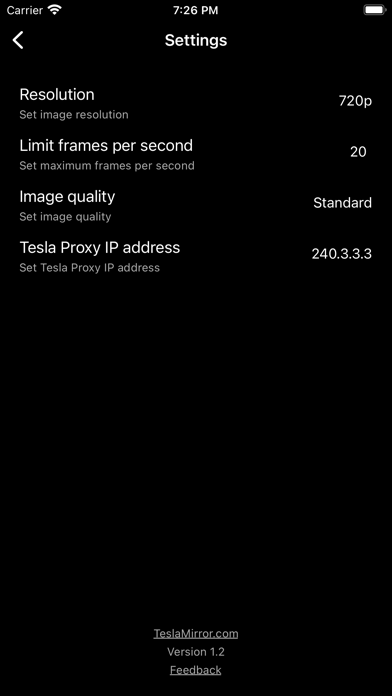
– MCU3 (AMD Ryzen): H.265 mode with 720p@60 fps recommended, as 1080p requires higher bandwidth. MCU3 supports up to 1080p@60fps (H.264 and H.265).
- H.265 playback is supported only on MCU3 or newer hardware. If your browser runs on MCU3 or higher-performance hardware, we recommend choosi