Diary with Photos and Maps

Diary with Photos and Maps Summary
Diary with Photos and Maps is a mobile iOS app in Lifestyle by RamSystem. Released in Feb 2021 (5 years ago). Store metadata: updated Feb 16, 2022.
Store info: Last updated on App Store on Feb 16, 2022 .
0★
Ratings: 0
Screenshots

App Description
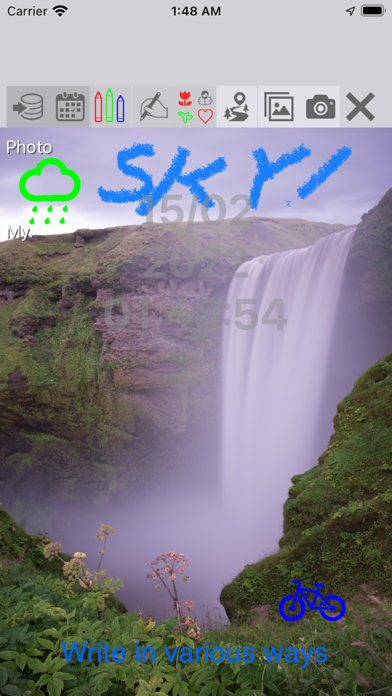
Photo and map diary is an application that easily records what happened at that time on that day.
There are five recording methods: handwriting, text characters, icons, maps, and photographs (shooting and albums).
If you have something you want to keep, record it and save it!
The app remembers the date and time at that time.
Since the current date and time is displayed in the background, it is now easier to understand and convenient.
(It does not affect writing)
Please enjoy using it.
[It is a simple operation method. ]
To record that day and that time, select the appropriate icon.
Select the recording method from handwriting, text text, icon, map, photo (photograph or album)
First select the icon to start the operation of the selected process.
Enter some record information.
If you select the same icon again, the processing of that icon will end.
Recording methods can be combined for recording.
The combination is
Combine handwriting, text text, icons, maps or photos (photographs or albums).
In this case, record the map or photo as the background, and write handwriting, text characters, and icons on it.
The display part of the record can be enlarged / reduced / moved by pinching in, out, and dragging.
Note) The last X icon is used when you want to end the operation you are currently processing.
[About the recording screen]
I will explain the icons in order from the left
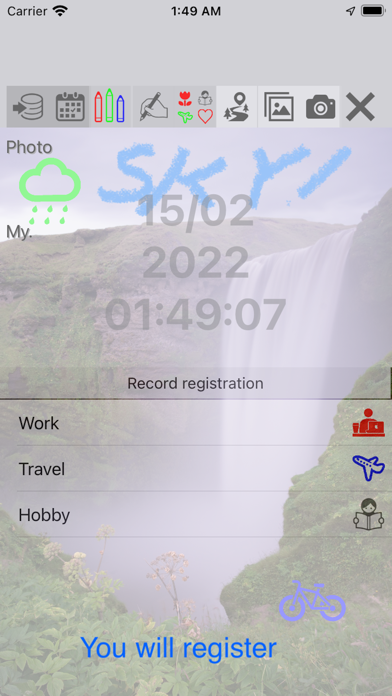
1. Save icon
Saves the entered information with its date and time.
You need to select a category when saving.
You can check the saved result on the calendar screen.
Save is selected and then selected again to cancel the save.
2. Calendar icon
Moves to the screen that displays the saved record in calendar format.
* For detailed calendar functions, refer to [Calendar screen].
3. Handwritten icon
Normally, this handwriting icon is selected and it is in the handwritten state.
You can write freely with your fingertips. (Apple Pencil can also be used if it is compatible with your model)
There are 3 types of pens, eraser, selection, and ruler functions.
Select the handwriting icon or another icon again to end the handwriting.
4. Text icon
Text input using the iPhone keyboard.
To finish typing, select the "End Input" button near the center of the screen.
On the text input screen, you can select the category of the recorded content.
This category is displayed on the calendar screen.
It was
5. Icon
You can place an icon in the part of the recorded content that you are interested in.
Up to 10 icons can be placed on one screen.
If you select an icon, it will change to the icon selection screen that can be placed on the screen.
The icon at the top is the icon that can be placed on the