Seattle Stickers

Seattle Stickers Summary
Seattle Stickers is a mobile iOS app in Stickers by Littleton Miller. Released in Sep 2021 (4 years ago). It has 3.00 ratings with a 5.00★ (excellent) average. Based on AppGoblin estimates, it reaches roughly 8.00 monthly active users . Store metadata: updated Oct 3, 2023.
Store info: Last updated on App Store on Oct 3, 2023 .
5★
Ratings: 3.00
Screenshots
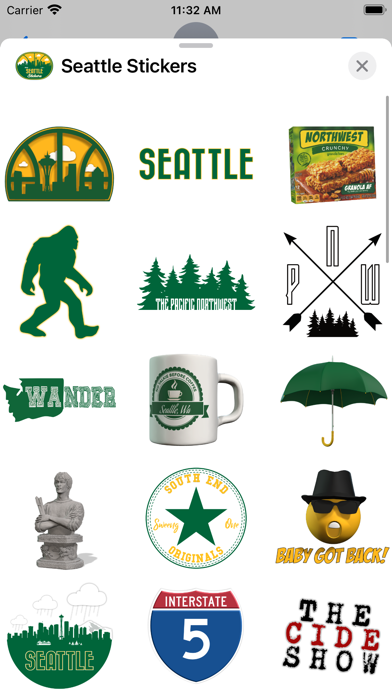
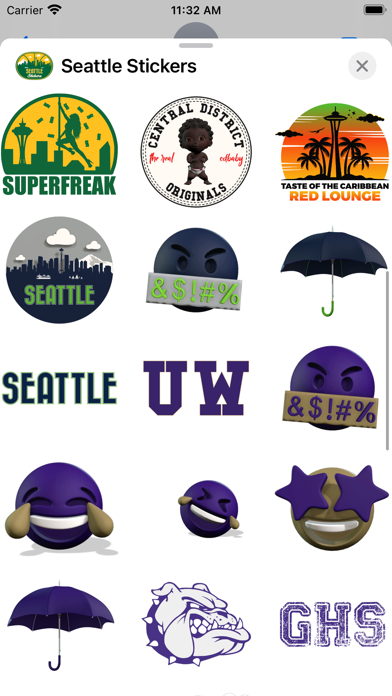
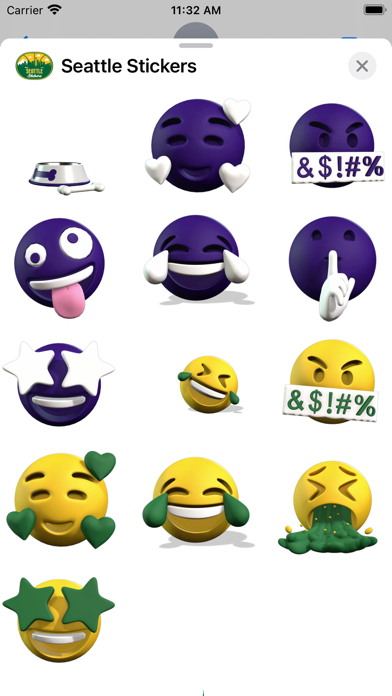
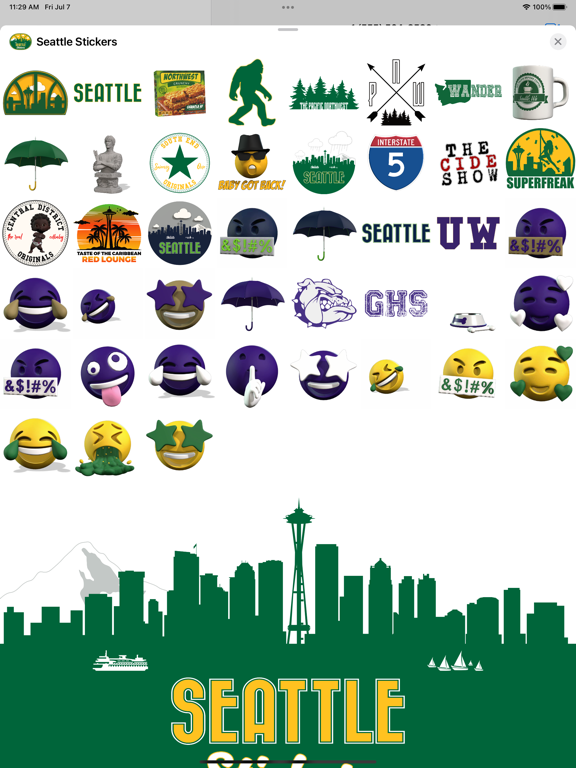
App Description
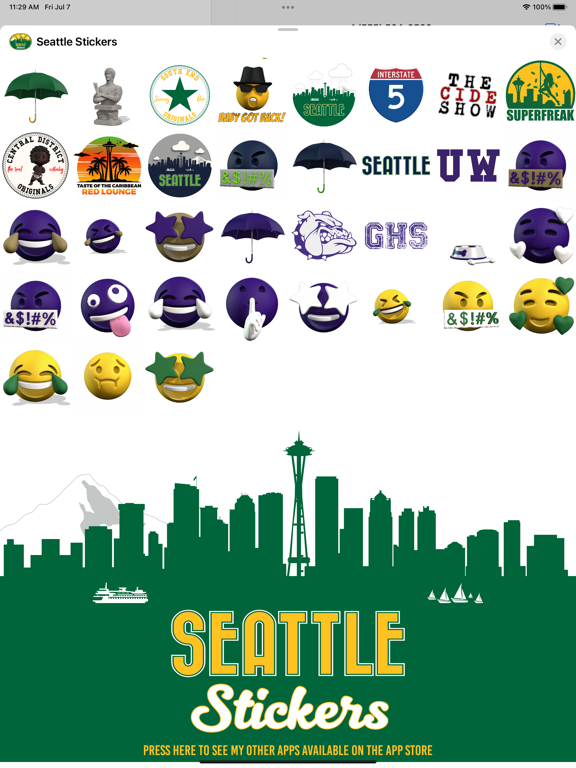
Seattle Stickers (formally Seattle Emojis) has been representing "Sea-Town" for years and has become a very popular iMessage App in the city. Static images are so yesterday, this sticker pack contains a rotating arsenal of animated stickers, emojis, memes, and emotes in various styles all related to Seattle and Surrounding Areas.
Have an idea for a new sticker or any other requests? Leave your comments, suggestions and/or reviews on the App Store to let me know how I'm doing.
New Features:
・Stickers now work in Facebook and other Social Media Apps that support photo sharing (via copy/paste)
・Accessibility Compatible Descriptions (blind users can hear what each sticker is saying, doing, and/or representing)
・No In-App Purchase needed, you get free updates for life
PLEASE NOTE:
This Sticker Pack is an iMessage App, you will not see an icon for this app on your device home screen. Sticker Pack icons will appear in your iMessage interface. If you don't see the app icon in iMessages, please follow these instructions to enable the app:
Open Messages and tap to start a new message or open an existing thread. From the app drawer (you’ll see a row of icons), tap “Seattle Stickers”. If you don’t see the icon, scroll to the far right and tap the icon with 3 dots. You’ll then be presented with all the sticker packs on your device, press “Edit” to enable a sticker and “+” to add it to your favorites.
Pro Tips:
to "peel" the sticker you'd like to use...
Press firmly on the sticker, while holding down... drag it to wherever you'd like to "stick it" within your current message thread.
While still holding the sticker, you can use a second finger to pinch and zoom in or out to increase or decrease the size.
While still holding the sticker, you can also use a second finger to rotate it in a different directions.