Epson Setting Assistant

Epson Setting Assistant Summary
Epson Setting Assistant is a free iOS app in Productivity by Seiko Epson Corporation. Released in Sep 2022 (4 years ago). It has 699 ratings with a 4.41★ (good) average. Based on AppGoblin estimates, it reaches roughly 1.8K monthly active users . Store last updated Oct 2, 2026
Recent activity: 1.00 new ratings this week View trends →
Epson Setting Assistant SDKs Summary
App not yet scanned for SDKs.
4.41★
Ratings: 699
Screenshots




App Description
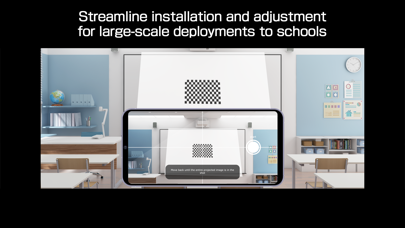
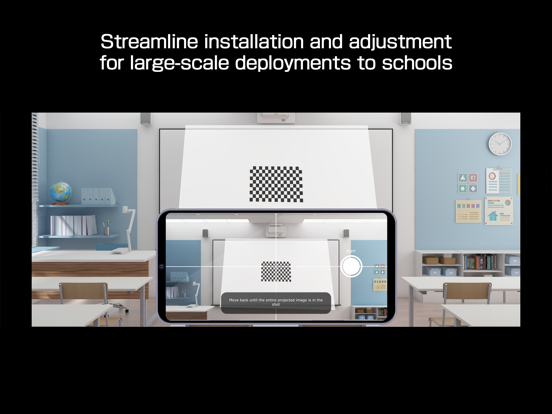
Epson Setting Assistant is an app that automatically corrects the shape of a projected image by using your camera.
By taking a shot of the projected pattern, the app automatically corrects distortion in the projected image and adjusts its shape to match the screen.
[Main Features]
1) Shape correction
The app adjusts the image to a rectangular shape or aligns it with a frame, such as a projector screen.
2) Unevenness correction
The app detects small surface irregularities, such as on a wall, and corrects distortion in the projected image.
[For Home Projector (EH Series) Users: Using the App]
Make sure your iPhone®, iPad®, or iPod® touch and the projector are connected to the same network.
1. Select [Installation] ([Installation] > [Geometry Correction Wizard]) from the projector's menu.
2. Open this app on your iPhone®, iPad®, or iPod® touch and select [Home] as the projector type to automatically connect to the projector.
3. Follow the on-screen instructions to take a shot of the projected pattern using the camera in the app, and the corrections will be completed automatically.
[For Business Projector (EB Series) Users: Using the App]
Make sure the [Wireless LAN Power] setting is set to [On] in the projector‘s [Management] menu.
1. Select [Installation] > [Connect to Setting Assistant] from the projector's menu to project a QR code.
2. Open this app on your iPhone®, iPad®, or iPod® touch, select [Business] as the projector's type, and then scan the QR code to automatically connect to the projector.
3. Follow the on-screen instructions to take a shot of the projected pattern using the camera in the app, and the corrections will be completed automatically.
[Supported Projectors]
Visit https://support.epson.net/projector_appinfo/setting_assistant/en/ for details.
Depending on your projector model, some features may not be available.
[Notes for use]
Depending on your environment, such as a curved projection surface or wallpaper with rough textures or patterns, automatic correction using the app may not be available. In these situations, please correct the image shape from the projector's menu.
Depending on your smartphone/tablet, the Wi-Fi settings may prevent you from temporarily connecting to the projector. Turn your Wi-Fi off and then on again and try again.
For detailed important points, visit https://download2.ebz.ep