Four_frames

Four_frames Summary
Four_frames is a ad-supported iOS app in Entertainment by RamSystem. Released in Jun 2022 (3 years ago). Store metadata: updated Jun 28, 2022.
Store info: Last updated on App Store on Jun 28, 2022 .
0★
Ratings: 0
Screenshots
App Description
Let's make a story based on an actual creation example.
Let's make 4 frames based on haiku.
It's a famous haiku.
Matsuo Basho's Frog Poem and his
Originally it is 575, so I will make this 4 frames.
old pond
Jump into the frog
The sound of water
If this is set to 4 frames,
old pond
frog
jump in
The sound of water
It becomes.
Register for the app.
Tap the app icon to launch the app.
If you are using for the first time, the upper icon and a blank screen will be displayed.
Tap [4 FRAMES] on the upper right.
The screen has changed, and the icon on the top and the four-frame display screen have changed.
Tap the number 1 frame at the bottom right.
The screen changes again, with various icons in the upper row,
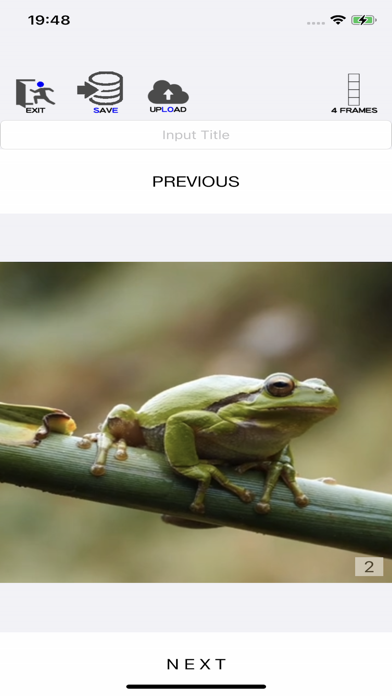
One frame has changed to a magnified screen.
This time, we are entering characters, so tap [KEYBOARD] at the right end.
You can now enter characters.
Enter old pond
Tap [KEYBOARD] again.
The input keyboard disappears and input is complete.
Tap the [EXIT] icon to exit this screen and return to the previous screen.
Note) After inputting, tap [EXIT] to return to the previous screen in the same way.
Frog Poem was created in the first frame.
In the same way, enter characters from 2 to 4 frames.
done.
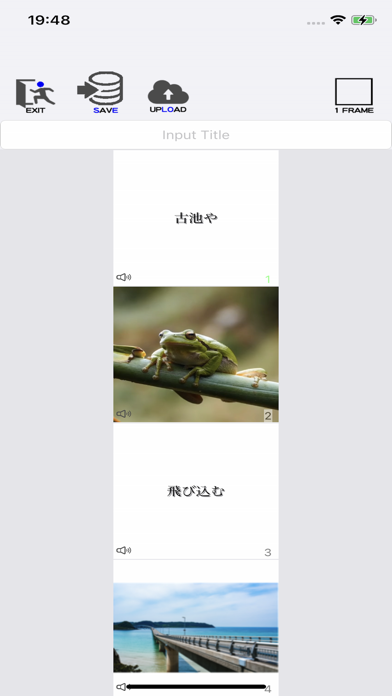
I think that the screen is displaying 4 frames now, so
Of the icon above
Tap [SAVE] or [UPLOAD] to save.
[SAVE] saves the story.
[UPLOAD] saves the story and makes it public.
Other people will be able to see it.
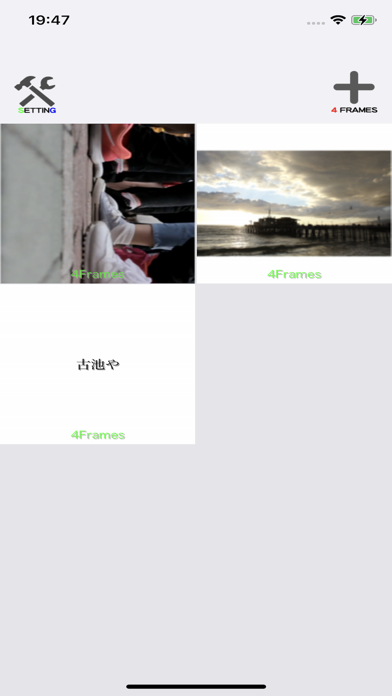
After saving (publishing), I returned to the first screen.
If you want to modify the story, tap this frame.
You can return to the 4-frame screen and make corrections for each frame on this screen.
Select a frame and start the correction.
Select the icon in the upper row for each frame and make corrections.
To complete the correction, tap the same icon or tap [EXIT].
You can import video or audio with the [VIDEO MIC] icon.
1) Tap [VIDEO MIC]
2) The [VIDEO], [MIC], and [PLAY] icons are displayed at the bottom.
3) Tap [VIDEO] to shoot.
Tap [MIC] to record.
[PLAY] is the playback of shooting and recording.
* The shooting / recording time is 3 seconds.
You can take a picture with the [CAMERA] icon.
1) Tap [CAMERA]
2) Please take a picture.
Note) Photos and videos cannot be displayed at the same time in the same frame.
You can load the downloaded file to the [DownLoad File] icon.
1) Tap [DownLoad File]
2) The iPhone download folder will be d