Emergency Calendar (eCal)

Emergency Calendar (eCal) Summary
Emergency Calendar (eCal) is a mobile iOS app in Tools by Trek Medics International, Inc. Released in Oct 2009 (16 years ago). Store metadata: updated Jan 31, 2018.
Store info: Last updated on App Store on Jan 31, 2018 .
0★
Ratings:
Screenshots



App Description
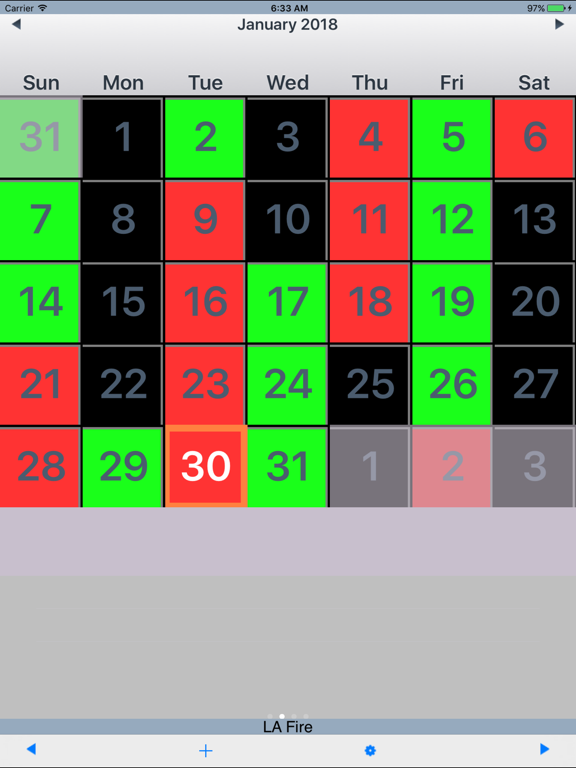
Emergency Calendar (eCal) lets you create and display any shift calendar used by fire departments and emergency medical services (EMS). eCal was designed for low-tech, easy use to allow users to personally customize their shift schedule -- whether it's a 2/4, 4/6, 48/96, or any other Platoon/Kelly combination. Video Tutorial: http://www.youtube.com/watch?v=xK5XIELgM5E
**All proceeds from the sale of this app will go to support Trek Medics International and their work to improve emergency medical systems in developing countries through innovative mobile phone technologies. Trek Medics is a 501c3-registered, nonprofit organization, and can be visited at http://trekmedics.org (EIN 27-4188010).**
*** IMPORTANT (Please Read) ***
The Emergency Calendar creates' any Kelly/Platoon schedule by using the repeating pattern unique to that specific schedule. For that reason, it is important that the User only includes one complete Rotation/Cycle when creating their calendar.
Examples:
2/4 Kelly = 12-day Rotation/Cycle/Tour
3/4 Kelly = 9-day Rotation/Cycle/Tour
4/6 Kelly = 24-day Rotation/Cycle/Tour
48/96 Platoon = 6-day Rotation/Cycle/Tour
Please DO NOT attempt to schedule by week, month or single "go-around", as these do not reflect the pattern that determines each schedule.
*** INSTRUCTIONS ***
Easiest to visit the website:
http://trekmedics.org/resources/ems-fire-iphone-calendar/
1. MAIN SCREEN
To get to the EDIT CALENDARS view, press the third button at the bottom of the screen. The pre-existing calendars will show up in a list.
2. EDIT / ADD CALENDARS
You can delete calendars, change their position by dragging them, or select them to edit. You can add a new calendar to the list by clicking the ADD CALENDAR button to the bottom right.
3. ADD / CREATE A NEW CALENDAR
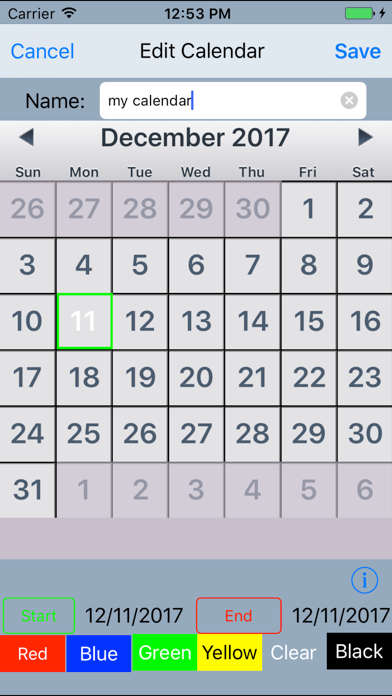
To create a custom calendar, first enter the calendar NAME in the top text field. To customize the schedule, select the START button and then click the start date of the first day of a given cycle. (For example, 2/4 Kelly = 12 total days; 4/6 Kelly = 24 total days; 48/96 Platoon = 6 total days.) Then select the END button and click on the last date of a single, completed cycle. Once you have selected the Start and End Dates, the Start date will be highlighted in green, the End date will be highlighted in red, and the dates in between will be highlighted in yellow. To configure the appr