SatFinder
SatFinder Summary
SatFinder is a mobile iOS app in Tools by Ralf Andrae. Released in Oct 2010 (15 years ago). It has 561 ratings with a 4.58★ (excellent) average. Based on AppGoblin estimates, it reaches roughly 1.6K monthly active users . Store metadata: updated Jun 6, 2024.
Store info: Last updated on App Store on Jun 6, 2024 .
4.58★
Ratings: 561
Screenshots


App Description
With SatFinder you can adjust your satellite antenna in a few seconds and with 4 simple steps:
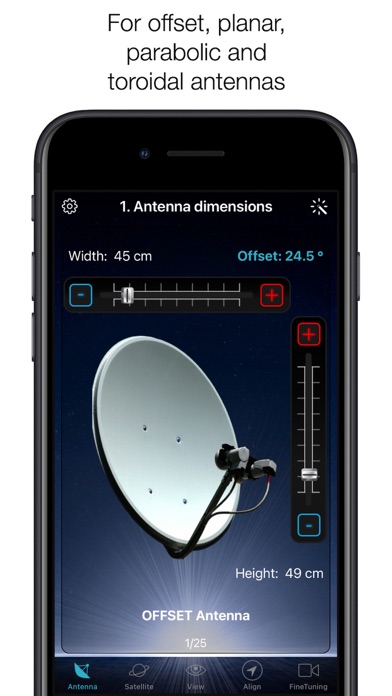
STEP 1 - CHOOSE YOUR ANTENNA
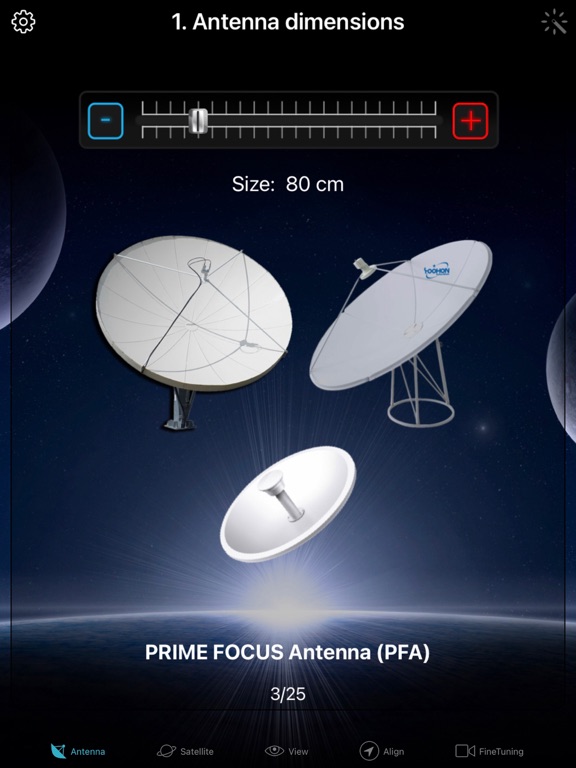
Choose one of the four different antenna designs:
- Offset antennas (the most common, is slightly oval, the LNB is not in the center).
- Special design (e.g. Oblong shaped Offset antenna, Multifeed antenna)
- Parabolic antenna (LNB is located in the center of the reflector, usually larger than 100cm)
- Flat or planar antenna (small, camping antennas)
If you have an offset antenna, enter the height and width of the antenna. If your antenna has a special shape, enter the offset angle and the size of the satellite antenna. You can find the offset angle in the manual of your satellite antenna. For parabolic antennas it is sufficient to enter the antenna diameter. With a flat antenna you do not have to set anything. If you know the exact antenna name, check if your antenna is already in the database.
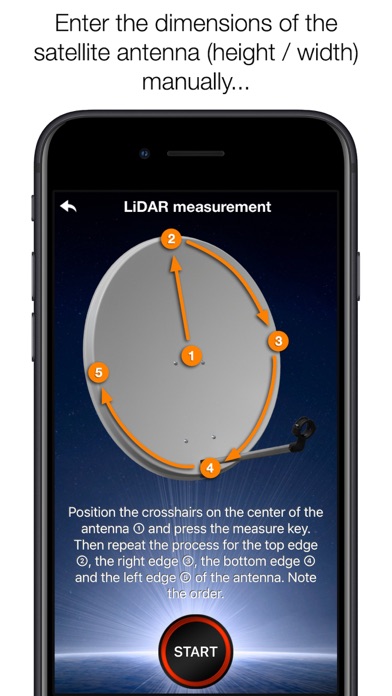
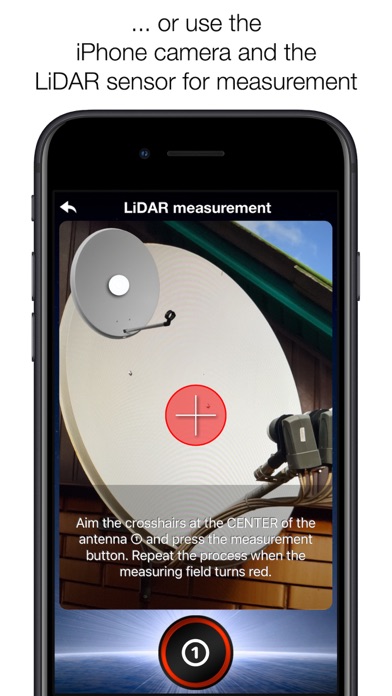
Tip: Press the wizard button to measure the size of the satellite antenna using the iPhone camera and LiDAR scanner.
STEP 2 - CHOOSE YOUR SATELLITE
To quickly and easily select a suitable satellite, simply press the "AUTO" button. The SatFinder will now automatically search for satellites that are in your reception area and that offer TV or radio stations in your language (the language setting of your iPhone will be selected). The stars (1-10) shown in the table result from the number of radio and TV channels offered and the reception strength at your location.
If you want to receive a special satellite, switch off "AUTO": Now you can simply scroll through the table and select the satellite. Faster is the search function - just enter the name of the satellite, the channel or the orbit position. You can also reduce the number of table entries by hiding satellites that are not available at your location or do not broadcast in your language. With the button "Channel Info" you can check which channels the selected satellite is currently broadcasting - including all channel parameters for your satellite receiver.
STEP 3 - CHECK OBSTACLES
For a smooth satellite reception, there must not be any obstacles between the satellite and your satellite antenna. You can check this with the "View" function. Simply aim at the satellite and watch the signs (GREEN - no obstacle, RED - caution, free view may not be given).
Tip: Press the button fo