MIDIFlute MIDI Controller

MIDIFlute MIDI Controller Summary
MIDIFlute MIDI Controller is a mobile iOS app in Music And Audio by Michael Eskin. Released in Nov 2012 (13 years ago). It has 4.00 ratings with a 3.50★ (average) average. Based on AppGoblin estimates, it reaches roughly 10 monthly active users . Store metadata: updated Jan 16, 2023.
Store info: Last updated on App Store on Jan 16, 2023 .
3.5★
Ratings: 4.00
Screenshots
App Description
MIDIFlute is an Irish Flute/Whistle MIDI controller for the iPad.
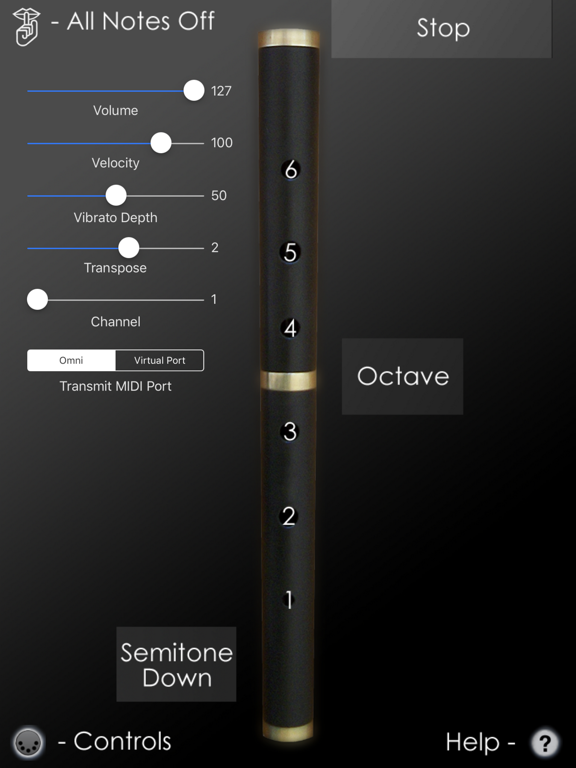
The fingerings are based on those used for the 6-hole keyless Irish flute or whistle.
MIDIFlute doesn't produce any sound on its own, it is designed for playing hardware and software VST-style MIDI synthesizers via a CoreMIDI compatible interface connected to the dock connector or virtual MIDI instruments like Roland Sound Canvas for iOS, IK Multimedia SampleTank®, or Sonosaurus ThumbJam running on your iPad.
IMPORTANT: Since this app requires as many as 8 fingers on the screen at the same time, before playing, disable "Multitasking Gestures" on your iPad (in the iPad Settings app, under the General section, turn the Multitasking Gestures switch to the off position).
Please visit the app support website to see some live demo videos and for the settings you will need to enable in the synth app you are using to have it work with the control surface.
To get started playing, first show the on-screen hole labels by touching the '?' icon at the lower right corner of the screen.
Start by touching the top half of the flute starting with the tips of your left index, middle, and ring fingers on holes #6, 5, and 4. The holes light up when touched.
Next touch the bottom half of the flute with the tips of your right index, middle, and ring fingers, on holes #3, 2, and 1.
To play the second octave, touch the "Octave" bar next to the flute with your left little finger while using the same fingerings as the first octave.
Touch the "Stop" bar at the top of the screen with your left thumb to stop the sound while fingering a note. This can be used for repeated notes in the place of doing a cut or tap.
Finger vibrato may be done with the middle finger of the right hand on many notes. The amount of vibrato is adjustable using the MIDI control sliders.
Touch the "Semitone Down" bar next the flute with the right little finger to lower the pitch one semitone. This may be used to play the notes F-natural, G#, D#, and Bb.
Touch the MIDI icon at the bottom left corner of the screen to show/hide the MIDI controls. All settings are saved and restored the next time the app is run.
You may select the volume, attack velocity, vibrato depth and MIDI chanel using the sliders.
The entire range may be transposed up or down up to one octaves (zero transpose is "C") in semitone increments using the transpose slide