CamScale - Easy measuring & remodeling by camera
CamScale - Easy measuring & remodeling by camera Summary
CamScale - Easy measuring & remodeling by camera is a with in-app purchases iOS app in Tools by Prime System Laboratory Co.,Ltd.. Released in Feb 2013 (13 years ago). It has 5.00 ratings with a 1.20★ (poor) average. Based on AppGoblin estimates, it reaches roughly 8.00 monthly active users and generates around $<10K monthly revenue (100% IAP / 0% ads). Store metadata: updated Jul 27, 2015.
Store info: Last updated on App Store on Jul 27, 2015 .
1.2★
Ratings: 5.00
Screenshots
App Description
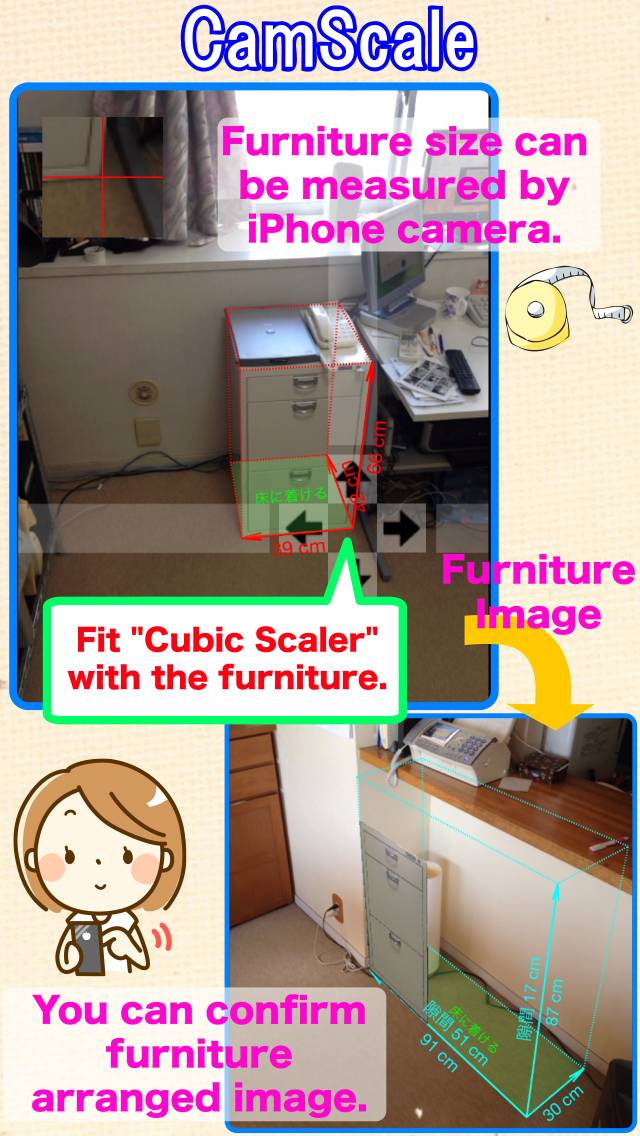
By using your iPhone's camera, you can measure width, depth and height of furniture.
As same as above, you can measure space in which you want to place the furniture, and confirm the placed image in the space.
You can use iPhone with "CamScale" instead of a tape measure in your moving, remodeling of your room.
You can also use "CamScale" in the furniture store for buying new furniture for your room.
*Number of photos that can be measured are limited. If you like this "CamScale", please upgrade to remove the limitation.
You can upgrade in a setting screen.
*The measurement result may contain an error of a few percent which comes from error of the sensors and/or the way of taking pictures.
Direction for use
1. Preparing CamScale
Before using "CamScale", you should set once below settings for accurate measurement.
This setting is only for first case.
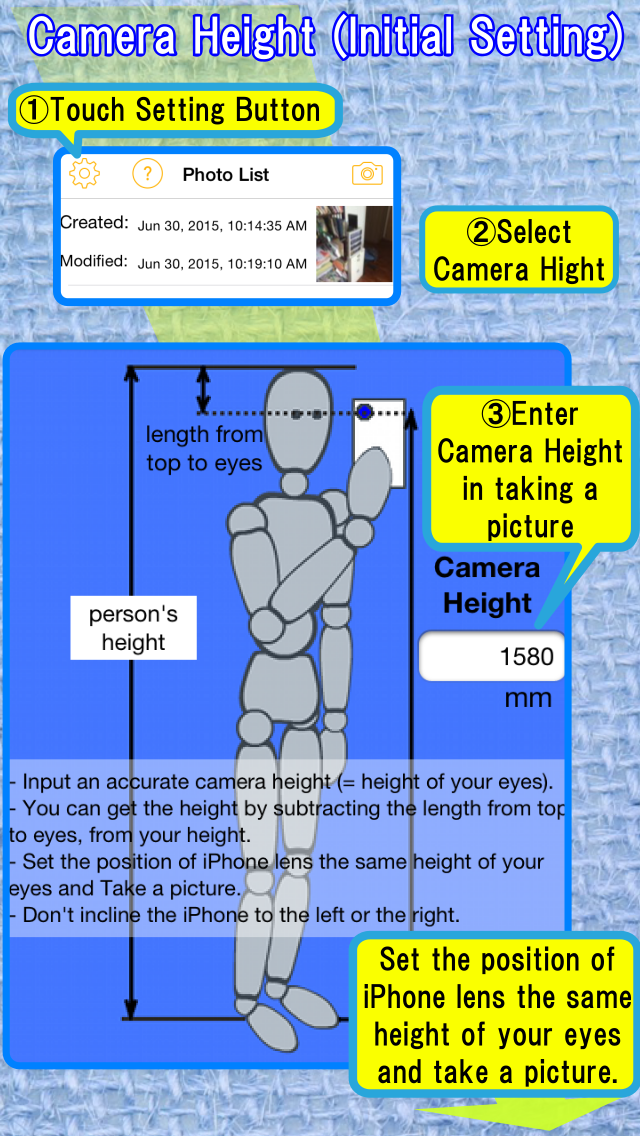
At first, push "Gear" icon on the upper left of the "Photo List" screen.
(1)Camera Height
Select "Camera Height" in the "Settings" screen.
The "CamScale" uses an accurate camera height for calculating an accurate dimension of furniture. So please input an accurate camera height in this settings and keep this height when you take a photo in the "CamScale".
"CamScale" recommends to input your height of your eyes as the camera height.
You can get the height of eyes by subtracting the length from top to eyes (around 90 - 120 mm) from your height.
(2)Calibration of Accelerometer
Calib1
Select "Accelerometer" in the "Settings" screen.
Place your iPhone vertically on the horizontal plane. Press "Reset" button. Roll & pitch angle is set to 0 Deg.
The normal calibration process will be completed by this calib1. But if the accuracy is not good after this calib1. please do following additional calibration. (calib2)
Additional Calibration (calib2)
Place your iPhone horizontally on the horizontal plane. Then press "Pitch Reset" button. Pitch angle is set to -90 Deg.
Focal length (advanced setting)
The calculated length is not good. please adjust the focal length.
2. Direction for use
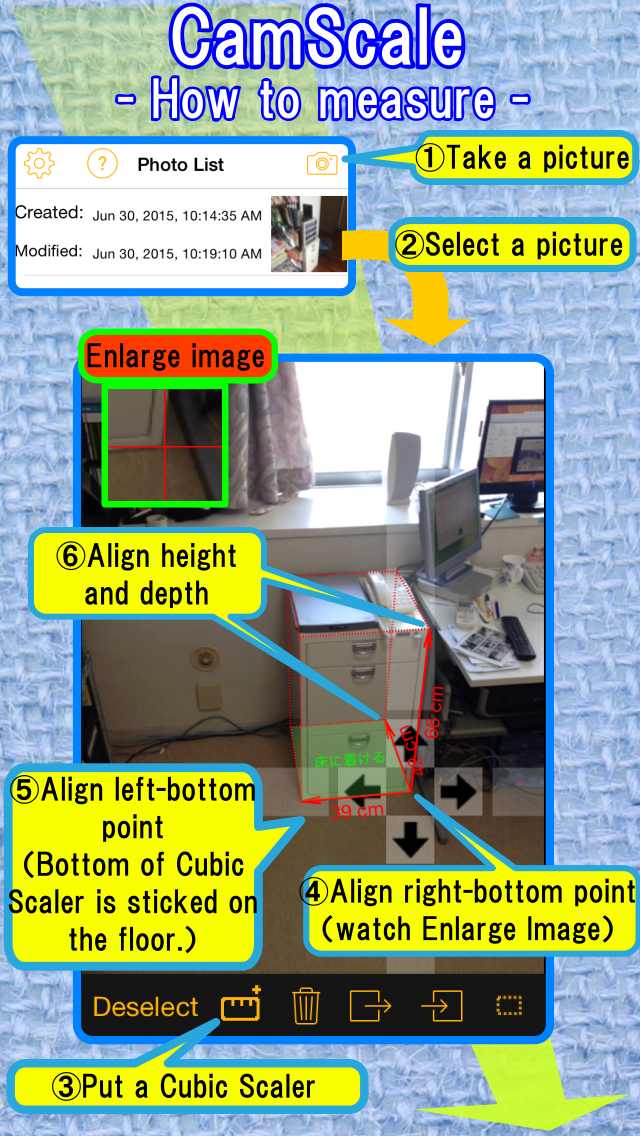
(1)Take a picture of things you want to measure
Push "Camera" icon on the upper right of "Photo List" screen.
Take a picture of furniture or space for the furniture.
Please keep in mind followings when you take a picture.
-Set the position of your iPhone lens the same height of your eyes.
-Don't incline your iPhone to