LG gram Link

LG gram Link Summary
LG gram Link is a free iOS app in Tools by LG Electronics, Inc.. Released in Jan 2023 (3 years ago). It has 22 ratings with a 2.23★ (poor) average. Based on AppGoblin estimates, it reaches roughly 44 monthly active users . Store last updated Jun 30, 2026
LG gram Link SDKs Summary
App not yet scanned for SDKs.
2.23★
Ratings: 22
Screenshots



App Description
■ App Info
Connect your PC and LG webOS TV with your Smartphone regardless of the OS
LG gram Link is a Smartphone connectivity application for LG PC users
Try to connect your LG PC and LG webOS TV with any Smartphone regardless of the operating system
You can transfer files, mirror your Smartphone, use it as a secondary monitor and more!
※ To use LG gram Link on gram PC, you must run the LG gram Link app on your iPhone (iPad).
• Easy connection with QR code
You can easily connect LG PC with your Smartphone just by scanning the QR code.
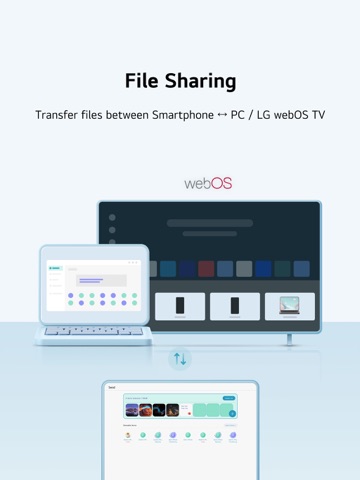
• Smartphone ↔ PC / LG webOS TV file transfer
Send any photos, videos or files you want to your Smartphone or LG webOS TV
• Import files and photos from PC to Smartphone
Quickly search for files and photos on your PC and effortlessly import them to your Smartphone.
Access the data you need on your PC instantly to work more efficiently.
(This feature works in conjunction with the gram chat On-Device, so the gram chat On-Device must be installed and run for the first time before it can be used.)
• AI classification
Manage and search your photos easily using LG AI Gallery feature.
Your photos will be organized automatically by date, person, location, etc.
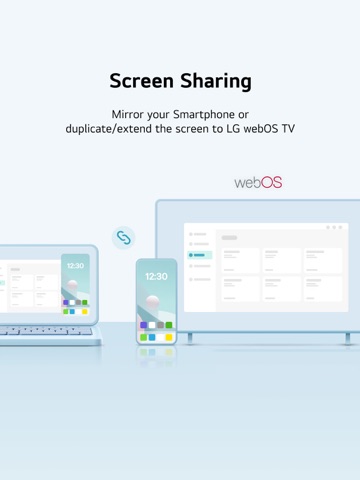
• Screen mirroring
Cast your Smartphone screen on your PC.
• Display extension/duplication
Use your Smartphone or LG webOS TV as a second screen.
• Keyboard/Mouse sharing
Control your Smartphone or LG webOS TV with your PC's keyboard/mouse.
※ To use the “Keyboard/Mouse share” feature, your iPhone needs to have Assistive Touch enabled.
(Includes when trying to use "Keyboard/Mouse share" with mouse click in mirroring)
Go to Settings > Accessibility > Touch > AssistiveTouch
Assistive Touch Guide : https://support.apple.com/en-us/111794
• Sharing Smartphone camera
Use your Smartphone's camera on your PC.
Perfect for video conferencing or photography, offering flexible functionality.
• Sharing Smartphone audio
Play audio from your Smartphone through your PC speakers.
Enjoy your content with enhanced sound quality.
• Talking on the phone via PC
Make or receive calls directly on your PC.
Talk hands-free while working, boosting your productivity.
• Get Smartphone notifications on PC
View Smartphone notifications directly on your PC.
Stay updated and conveniently m