That Checklist

That Checklist Summary
That Checklist is a mobile iOS app in Productivity by Ebey Tech LLC. Released in Feb 2023 (3 years ago). It has 1.00 ratings with a 5.00★ (excellent) average. Based on AppGoblin estimates, it reaches roughly 2.00 monthly active users . Store metadata: updated Mar 12, 2023.
Store info: Last updated on App Store on Mar 12, 2023 .
5★
Ratings: 1.00
Screenshots


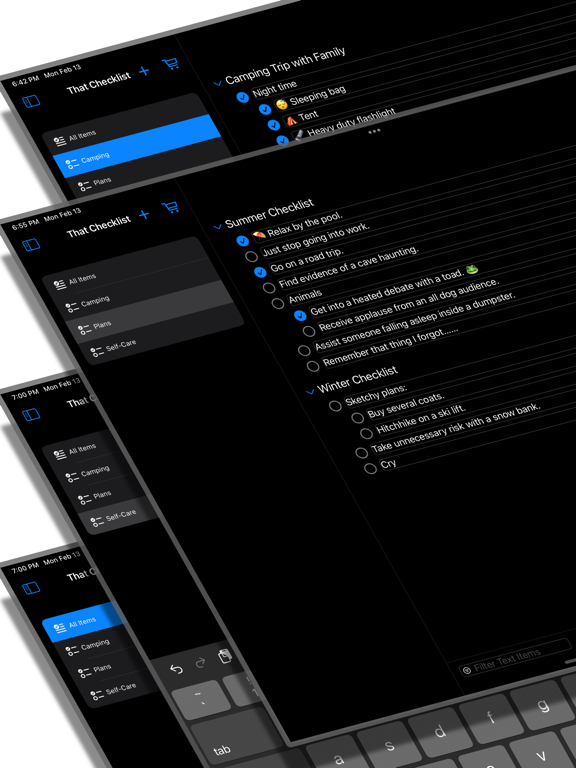

App Description
That Checklist allows for quick data entry into text fields and mark-off of checkboxes. Group checklists content into navigable entries to easily organize content. Click on a Nav Item to bring up previous checklists fast. Edit or reorder content using built-in context menus. Checklists can be shifted left/right to simulate a parent/child tree-like structure. A powerful Filter field allows for fast filtering of content. Filtering can be toggled between filtering by checklist text entry or Tree name.
Features:
- Editable navigation items.
- Stellar tree view to organize complex checklists.
- Great looking checklists that can be indented to form parent/child structures.
Instructions for app use:
1.) Launch app.
2.) Click + icon to create a new Navigation Item (Nav Item).
3.) Enter in a Nav Item name.
4.) Click newly created nav item.
5.) Main view loads. Click + icon in upper right to add new Tree Item. When pop up shows, enter a name.
6.) Click newly created Tree Item’s + icon. This creates checklist for data entry.
7.) Type data into text fields. It auto saves content. Click the checkbox to check-off items like a checklist.
8.) Click move left/right arrows to adjust indent.
9.) Click ( - minus) icon to delete a checklist. If text field has data, there will be a confirmation pop-up. If no data, the field is just removed.
10.) Tap-hold on checklist checkbox or the buttons to right for context options. For example tap-holding on minus (-) button will show more options.
10.1) Tap-hold options: Insert New Text Above/Below will insert a new checklist either above current tap-hold location or below. Indentation of inserted items will match current indent of currently tap-hold item.
10.2) Reorder will show a pop-up view where user can drag/drop entries around in whichever desired order is wanted.
11.) Toolbar Reorder button will perform a similar task as the checklist Reorder; although it will only show Tree items in list and they will be reordered to desired order.
12.) Toolbar chevrons for collapse all and expand all, this affects only Tree items under current Navigation item - unless using the "All Items" navigation, then all Tree Items for all Navigation Items will either expand or collapse.
13.) Tap-hold context options for Navigation items for editing Nav Item name, Reordering list, or deleting.
14.) Filter field at bottom left of main view - clicking t