Screen Mirroring to iPhone

Screen Mirroring to iPhone Summary
Screen Mirroring to iPhone is a with in-app purchases iOS app in Tools by Dmitriy Kharutskiy. Released in Oct 2024 (1 year ago). Store metadata: updated Apr 27, 2026.
Store info: Last updated on App Store on Apr 27, 2026 .
0★
Ratings: 0
Screenshots


App Description
The app transmits the screen image from iPhone/iPad to another iPhone/iPad. In other words, it is a screen mirror for two iPhone (it is possible to broadcast the screen image simultaneously to several iPhones/iPads). The two devices use peer-to-peer Wi-Fi, which allows the devices to communicate directly, even if they are not on the same Wi-Fi infrastructure network. This technology is used by AirPlay®, AirDrop®, etc. In other words, Internet access or a Wi-Fi router is NOT needed. The maximum distance at which a connection can be maintained between two devices is about 20 foot.
The app can work on iOS 12 and newer. This makes it possible to use older iPhone starting with the iPhone 5S and later.
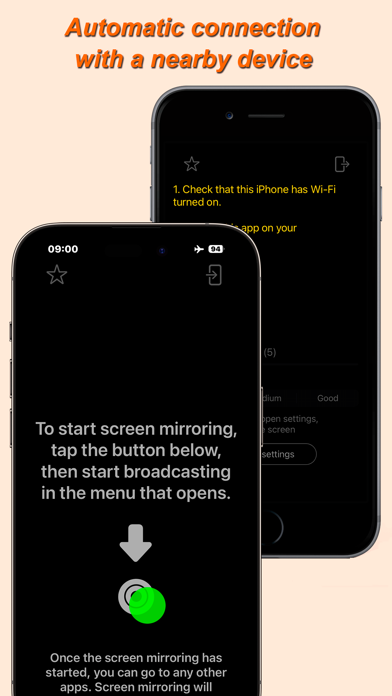
Two adjacent iPhones/iPads are connected automatically. To do this:
• Launch this app on both devices.
• Select a role for each device (sending a screen image or receiving a screen image).
• Turn on Wi-Fi on both devices.
• Start screen broadcast on the device that should share the screen image.
Screen image sharing can be done to several devices (up to 5). In order to be able to connect several devices receiving the screen image ("mirrors") to one "screen", you need to select the required number of "mirrors" in the application settings on the device that shares the screen image. However, you cannot select a larger number of "mirrors" than you will use. If you connect several "mirrors", but one of the devices acting as a "mirror" cannot connect or does not receive the screen image, then in the "screen" settings you need to reduce the number of "mirrors" to the number of "mirrors" that receive the screen image. This prevents the connection of foreign devices that are nearby. In case of using several "mirrors" for several users, in the "screen" settings there is an option to lock changing the frame rate and image quality through the "mirror" settings. Please note that when connecting multiple "mirrors", the settings for transmitting the screen image change to the settings set on the "mirror" that was connected last.
When the aspect ratio of the display of the "screen" and "mirror" is different, black margins are obtained. This is especially noticeable when broadcasting the screen image from an iPhone to an iPad. In this case, to enlarge the screen image to a size where there are no black margins, just quickly double-tap the "mirror" display (in the area