Useful Video Mosaic

Useful Video Mosaic Summary
Useful Video Mosaic is a free, ad-supported iOS app in Photo And Video by katapu.net. Released in Oct 2024 (1 year ago). Store last updated Jul 2, 2026
Useful Video Mosaic SDKs Summary
App not yet scanned for SDKs.
0★
Ratings: 0
Screenshots


App Description
A great app for detecting faces in videos and applying mosaic blur with a single tap is here!
When you upload videos to social media, do the faces of people in the footage ever get in the way?
This app detects people's faces in a video, applies mosaic blur with one tap, lets you preview the result, and then saves it to help protect privacy.
After loading a video, tap “Mosaic and Preview” to detect every person's face in the video, apply mosaic blur, and create a preview video. If the preview looks good, save it.
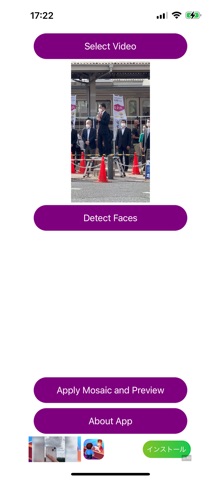
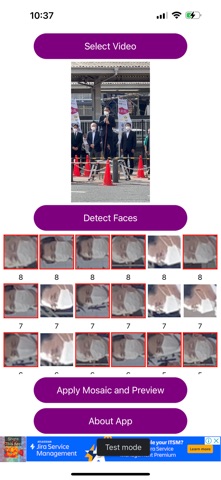
After loading a video, tap “Detect Faces” to detect and identify face images in the video.
By default, mosaic is turned on for every face.
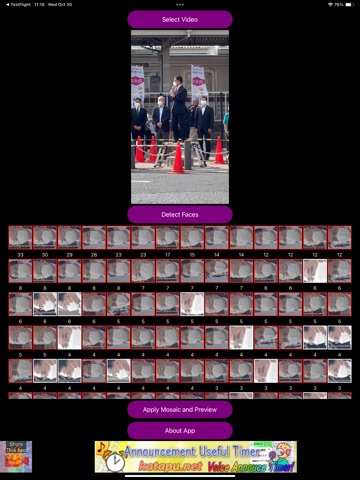
The identified faces appear as tiles at the bottom of the screen. Tap each face tile to choose individually whether that face should be mosaicked.
(Faces with mosaic on appear with a red border and a darkened face image. Faces with mosaic off appear with a white border and the face image displayed normally.)
After choosing mosaic on or off for all faces, tap “Mosaic and Preview” to create a preview video using those on/off settings.
If the preview looks good, save it.
If you want to upload a video to social media but people you do not want to show are visible, this app is worth trying.
The basic flow is simple: process with one tap, create a preview, and save it.
If there are specific people you do not want to mosaic, tap “Detect Faces”, choose mosaic on or off for each identified face, then create the preview and save it.
Please be careful not to upload the original video by mistake instead of the saved mosaic video.
The app is free, so feel free to use it.
A paid ad-free PRO version is also available.
How to use
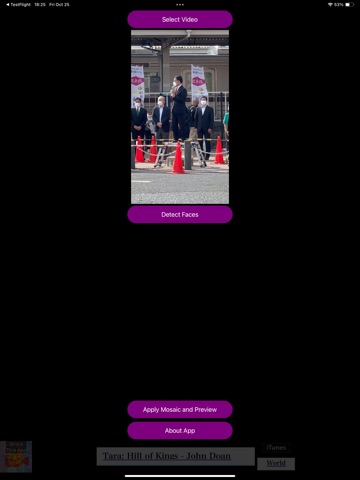
1-1. Tap “Select Video” and choose a video.
2-1. Tap “Mosaic and Preview” to apply mosaic blur and create a preview.
3-1. If the preview looks good, tap “Save Video” to save it.
1-2. Tap “Select Video” and choose a video.
2-2. Tap “Detect Faces” to detect face images in the video.
3-2. Tap the identified face tiles to set mosaic on or off.
4-2. Tap “Mosaic and Preview” to apply mosaic blur using your selected on/off settings and create a preview.
5-2. If the preview looks good, tap “Save Video” to save it. If not, cancel, adjust the mosaic on/off settings again, and repeat step 4-2.
Videos are saved to your camera roll.