Useful Furigana Lens

Useful Furigana Lens Summary
Useful Furigana Lens is a free, ad-supported, with in-app purchases iOS app in Education by katapu.net. Released in Mar 2026 (6 months ago). Store last updated Apr 16, 2026
Useful Furigana Lens SDKs Summary
App not yet scanned for SDKs.
0★
Ratings: 0
Screenshots



App Description
Useful Furigana Lens is a handy OCR (optical character recognition) app that detects kanji in Japanese text captured with your iPhone or iPad camera and automatically adds furigana. When you come across kanji whose reading you don't know while studying Japanese, reading, or looking something up, just point the app at it and you can instantly check the furigana. It is a powerful support tool that helps in a wide range of situations, from everyday life and study to business. It is free, so feel free to download it.
◇◇◇Why you will love the app◇◇◇
- Instant furigana display
Point the camera at text and the app automatically analyzes the kanji and adds furigana in real time. Even if the text includes difficult kanji, it becomes much easier to read smoothly.
- Works with many kinds of text
It works not only with printed materials and books, but also with signs, packaging, and text shown on screens. From study materials to signs you see while you are out, you can quickly check how words are read.
- Simple to use
No complicated setup is needed. Just launch the app and point the camera. The on-screen display is easy to understand, so even first-time users can use it right away.
- Learning support features
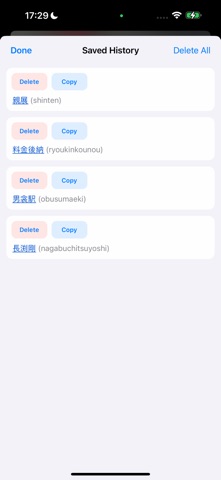
If you save the kanji and furigana you have read, you can review them later. You can keep a list of kanji you want to remember and use it for revision.
- Romaji mode included
Furigana is shown in katakana by default, but you can also display it in romaji. Turn on Romaji Mode in Settings to use it.
- Offline operation
You can use the app offline without connecting to the internet.
◇◇◇How to use it◇◇◇
- Launch the app
Tap Useful Furigana Lens on your Home screen to open it.
- Point the camera
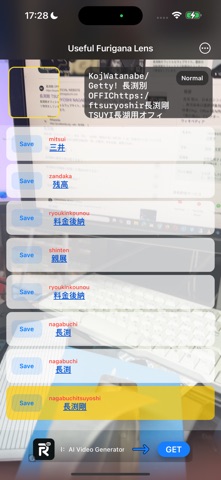
When the app opens, the camera preview screen appears. Aim the camera so that the sentence or sign you want to read fits inside the square in the upper-left corner.
- Detect text automatically
The app automatically detects kanji and analyzes the furigana. Recognized text appears in the preview at the upper right, and the final result with furigana placed above the kanji is shown as a list in the center of the screen.
- Check the results
Up to 30 results are shown at the same time. New items are added at the bottom, and older ones are removed in order. If there is text you want to read later, review again, or study, tap the save button on the left to sto