HelpUSee – Help You See

HelpUSee – Help You See Summary
HelpUSee – Help You See is a free iOS app in Tools by Li-Ren Lin. Released in Jun 2025 (1 year ago). It has 3.00 ratings with a 5.00★ (excellent) average. Based on AppGoblin estimates, it reaches roughly 9.00 monthly active users . Store last updated Oct 27, 2025
HelpUSee – Help You See SDKs Summary
App not yet scanned for SDKs.
5★
Ratings: 3.00
Screenshots


App Description
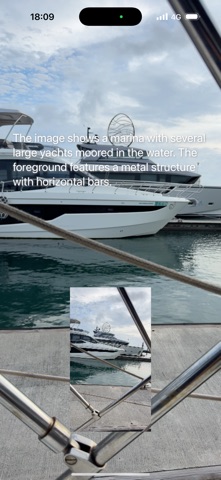
HelpUSee is an app built for people with vision impairments. We value privacy for our users, the app uses offline AI to describe scenes, recognize clothing colors, and read text from images. Once fully installed, it works entirely offline—no internet or cloud needed. Usage is unlimited and the app is entirely free.
Key Features:
1. Camera Mode, tap once to get a description of what’s ahead
2. Continuous Selfie Mode, ideal for checking clothing color:
• You can flip or reverse your phone (e.g. hang it upside down) for hands-free color checks.
• This feature was inspired by a request from the developer’s mother.
3. Continuously search text, and speak words near your finger
• If text appears in front of the camera, you will be alerted.
• Point your finger at the text you want to read
• Going a step further, you can take snapshots to get even more detailed information.
• If a snap contains text, you'll be notified. Triple-tap to reveal all the text.
• A long slide on the screen enters the Text Mode Reader.
4. Text mode reader, Designed like a Braille-display experience:
• Long slide screen to enter this mode if snapshop have text.
• Tap or slide your finger on the screen to read aloud the text (like touching Braille).
• Double-tap reads an image description; triple-tap reads all text.
• Use two fingers to zoom or pan the content.
• Long slide again to exit this mode.
5. iPad Support, text mode reader works well on iPad by larger screen helps.
• To have better experience, position your iPad on a stand like a book holder.
6. Receive Images from External Sources
- Want to know photo on your phone? "Share" it to this app.
- Want to check what's on your screen at any time? Even pictures sent by friends?
• In the "Shortcurs app", press "+" to start creating a shortcut.
• Search action "Take screenshot" and clicking "i" on right and add it as the first step.
• Search action "HelpUSee", then pickup "Receive Image" by clicking "i" on right.
• Also press "+Add" to add the second item, then LONG press "Choose" on right.
• Pick up the first item "Select Variable", and click a middle icon "Screenshot" for input.
• Rename top of screen as a "magic words" you like.
• Call Siri and speak magic words, it will take snapshot anytime and ask this app to work.
7. Quick Access via Siri
• In the "Shortcurs app", press "+