MyEditor - Easy Video Editor!

MyEditor - Easy Video Editor! Summary
MyEditor - Easy Video Editor! is a free, ad-supported iOS app in Photo And Video by MekeFactory. Released in Aug 2013 (13 years ago). It has 23 ratings with a 4.87★ (excellent) average. Based on AppGoblin estimates, it reaches roughly 7.00 monthly active users and generates around $<10K monthly revenue (0% IAP / 100% ads). Store last updated Jul 9, 2021
MyEditor - Easy Video Editor! SDKs Summary
App not yet scanned for SDKs.
4.87★
Ratings: 23
Screenshots



App Description
MyEditor can combine multiple videos.
In addition, it provides transition, playback speed, reverse playback, volume and trimming.
◆ Watch the tutorial video.
1. If no video is loaded, the tutorial video will be displayed.
2. Press the play button at the top left of the top screen to play the tutorial video.
◆ Import and edit videos.
1. Press the "round icon button" at the bottom center of the top screen to display the list.
2. Press the "New button (blue)" to open the editor screen.
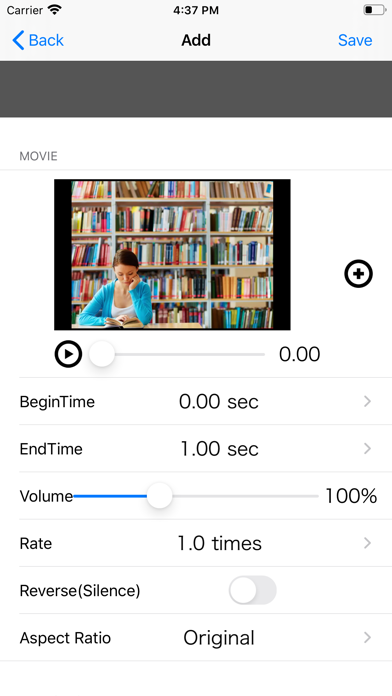
3. Edit the video on the editor screen.
・ Video
Video selection: Select the video you want to edit from the photo album.
Start position: Set the start position of the part you want to use in the video.
End position: Set the end position of the part you want to use in the video.
Volume: Set the video volume.
Playback speed: Set the video playback speed.
Reverse playback: Plays back the video in reverse.
・ Transition
Type: Select the transition at the end of the video and the junction with the next video.
: None: No transition
* Crossfade: The video disappears while fading out.
If there is the following video, the video will appear while fading in.
: Zoom: The movie disappears while zooming out.
If there is the following video, the video will appear while zooming in.
Page turning: The video disappears as the page turns.
Slide slide (to the left): The video slides to the left.
If there is the following movie, it will appear from the right end and slide to the left.
Slide slide (to the right): The video slides to the right.
If there is the following movie, it will appear from the left end and slide to the right.
* Slide (Up): The video slides upward.
If there is the following movie, it will appear from the bottom and slide upward.
* Slide (down): The video slides downward.
If there is the following movie, it will appear from the top and slide down.
Period: Set the period of the transition effect.
The longer the period, the slower the transition effect will work.
4. To confirm editing, press the “Save button” in the upper right, and to cancel, press the “Back” button in the upper left.
* By repeatedly loading multiple videos in the above procedure, the videos are automatically linked.
◆ I want to re-edit a video that has already been created.
1. Press the "round icon button" at the bottom center of the top screen to display the list.
2. Press the "arrow button" at