PixMemo
PixMemo Summary
PixMemo is a with in-app purchases iOS app in Tools by Prime System Laboratory Co.,Ltd.. Released in Oct 2013 (12 years ago). Store metadata: updated May 2, 2014.
Store info: Last updated on App Store on May 2, 2014 .
0★
Ratings: 0
Screenshots




App Description
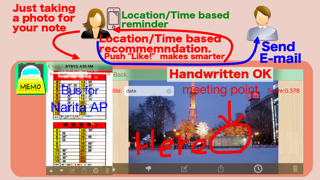
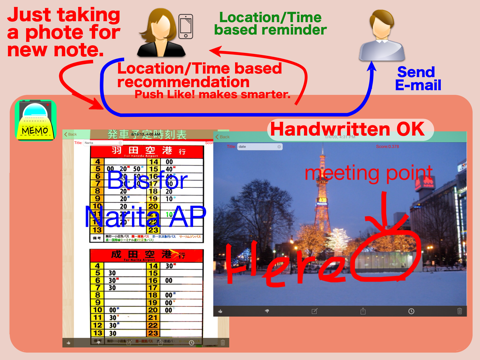
PixMemo helps easy taking a note using camera and recommends suitable notes for your situation.
A lot of things to taking a note are required in your life, like a timetable of your commuting train, notices on your school bulletin board and so on.
You just only need to take a photo, PixMemo recommends the suitable notes. For example, if you are leaving your home in the morning on Monday, PixMome selects the timetables of your nearby bus stop.
You can add handwritten lines and texts in the note. And you can also send the note as an attached PDF file by e-mail or as data via Bluetooth between devices.
The great features of PixMemo is learning of notes recommendation.
When PixMemo recommends a note and you feel the note is suitable for your situation, please push “Like button” otherwise please push “Dislike button”, PixMemo learns which notes are suitable for your situation.
The free version of PixMemo limits 10 notes, if you like the PixMemo, would you like to purchase upgrade function? By upgrading, the limit is deactivated.
1. Making a new note
You can make a new note by touching the camera icon
You can take a new phote by choosing “Camera”.
You can use a photo stored on your device as a new note by choosing “Photo album” or “Camera roll”.
If you want to get a note from your family or friends, please select “Receive nearby”. The details are in 3. Note view.
2. Collection view (Top screen)
On a top screen, you can see thumbnail images of all notes. These images are grouped in time order.
PixMemo will show “Recommendation” as the first group.
PixMemo calculates a suitability score for each note and chooses notes as a recommendation group by suitability score order.
3. Note view
Once you select a thumbnail image, you can see the detail of the note.
You can set a title of the note and see the suitability score of this note in the top of this view.
In a toolbar at the bottom, there are 6 buttons as follows;
- Like button
If you feel that the note is suitable to see at the situation, please push “Like button”.
- Dislike button
If you feel that the recommended note is not suitable in your situation, please push “Dislike button”.
- Edit button
PixMemo shows an edit view for this note. See 4. Edit View.
- Action button
“Send nearby”: You can send the note to a near iPhone or iPod which is set as “