Table Memo

Table Memo Summary
Table Memo is a free, ad-supported, with in-app purchases iOS app in Business by RYOICHI KAWAHARA. Released in Jan 2014 (12 years ago). It has 12K ratings with a 4.46★ (good) average. Based on AppGoblin estimates, it reaches roughly 61K monthly active users and generates around $<10K monthly revenue (22% IAP / 78% ads). Store last updated Jun 4, 2025
SDK intelligence: AppGoblin detected 1 ad networks(e.g. Google) integrated into Table Memo. View full SDK list →
Table Memo SDKs Summary
Table Memo was last scanned for SDKs on 2026-02-26. Below is the overview of third-party companies detected in the app. The full list of SDKs, permissions and unknowns is available here.
AppGoblin saw Table Memo uses 1 Ad Networks
 Google
4.46★
Ratings: 12K
Screenshots
App Description
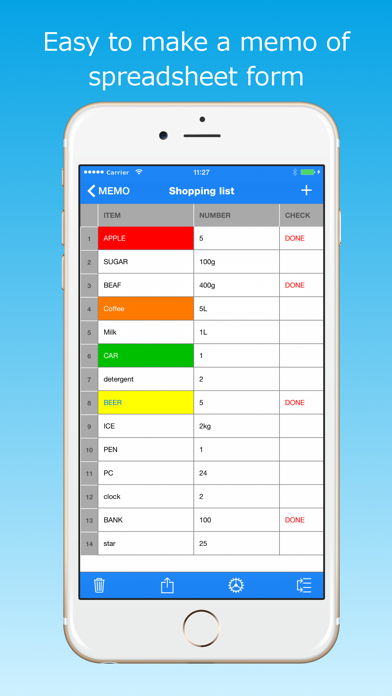
Table Memo is simple memo app of spreadsheet form.
Each memo has a header of several columns, and has rows of memo.
You can add/delete columns, edit each item name, add/delete/copy/move rows of memo.
Created/edited memo can be sent by mail as CSV (with values encapsulated in double quotes) formatted data (UTF-8 encoding).
You can also use Table Memo app as simple CSV (with values encapsulated in double quotes) viewer(use iOS mail app).
How to use:
1. Create Memo
At memo list view (first view of this app), tap add('+') button, and input the memo title.
By tapping Edit button, you can edit memo name, delete memo, and reorder list.
2. Edit Memo data
Select the created memo, and open memo table view.
Tap each cell you want edit, and edit the data.
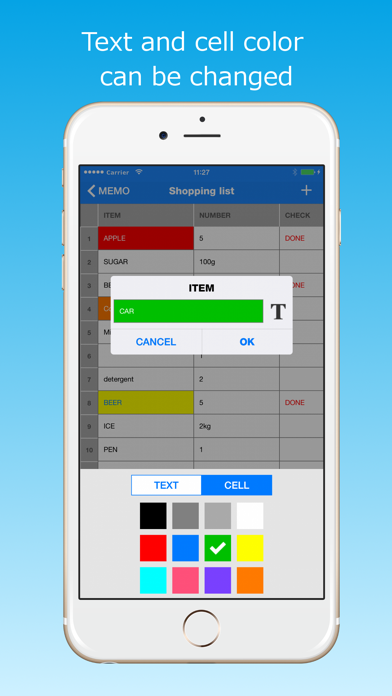
If color mode is on, text and cell color also can be changed.
To add new row, tap add('+') button.
To copy or delete row, tap the row number of left side and select operation.
By double tapping a cell, the entire contents of the cell is displayed, so you can check and copy the contents.
At the bottom of memo table view, there are four buttons, 1) trash button, 2) action button, 3) table settings button, 4) reorder button, from left to right.
1) trash button
You can delete current opened memo.
2) action button
Current opened memo can be duplicated, or can be sent by mail as CSV formatted data.
3) table setting button
Table settings view will open (see below).
4) reorder button
By tapping this button (the reorder button changes to the edit button), memo table becomes the reorder mode, and you can reorder rows by dragging each row.
To back to edit mode, tap the edit button.
3. Table Settings
1) Use Color switch
If set ON, text and cell color becomes changeable.
[[CAUTION]] If set OFF after using color, all color data will clear.
2) MEMO TITLE section
Select memo title and edit the title.
3) Left Inset setting
You can adjust the space on the left side of the cell.
4) Font Size setting
You can change the font size of the table.
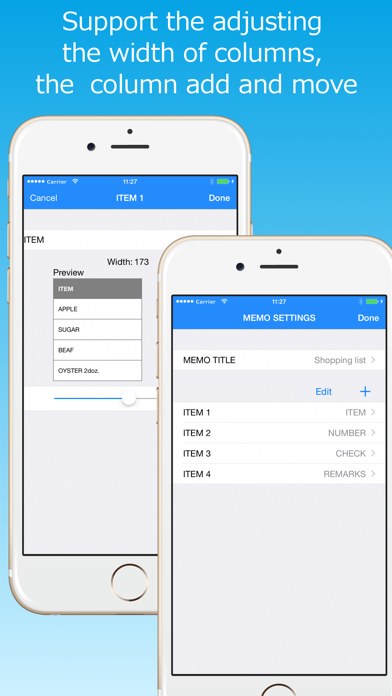
5) Columns section
To add new column, tap add('+') button.
To delete column or reorder columns, tap Edit button.
By selecting each ITEM of columns, column edit view will open (see below).
4. Column edit
1) ITEM name section
You can edit item name.
2) Column width section
You can change column width by slider.
By tapping the adjust button, the column width will be set