Auto Audio
Auto Audio Summary
Auto Audio is a mobile iOS app in Tools by 方 沈. Released in Jun 2014 (11 years ago). Store metadata: updated May 24, 2024.
Store info: Last updated on App Store on May 24, 2024 .
0★
Ratings: 0
Screenshots


App Description
The app will provide 8 solutions for recording the sound.
1 Record from Apple Watch.
In Watch OS 5, could record the sound when the watch screen is off.
When this App records the sound in the background in Apple Watch, sometime, a red icon of microphone will be displayed at the top middle of Watch Screen. That means, this App is recording the sound in the background status. Just tap this red icon, this App will be displayed again.
After finishing the recording, the record file will be transferred to the iPhone automatically. In iPhone, when we tap the file folder icon on the top left corner in the main tab controller, the file from watch will be displayed. In Watch App, tap the table cell, the detail of the record sound will be displayed. We will see a transfer button. If we need to transfer the record file to iPhone again, please tap this button.
2.Auto: When this App is inactive, just tap this App icon, this App could record the sound automatically.When you need to record the sound as soon as possible, you may like this solution. If you need to get this solution, just make the fast tab page appear before you press the home key.
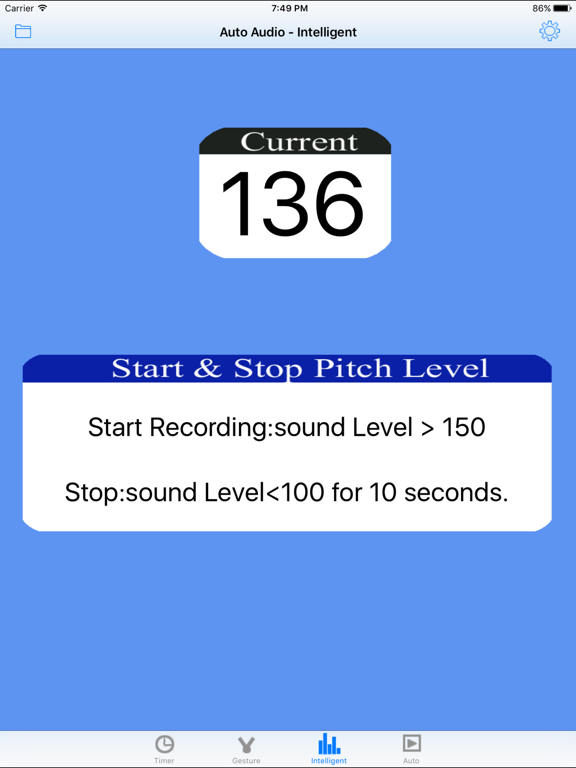
3 Intelligent: this App could start recording the sound when the pitch level of sound is over the indicted level of starting record. It could stop recording when the pitch level of sound is below the indicted level of stopping record.
If you need to record the sound when it is higher than some pitch level, just make the intelligent tab page appear.
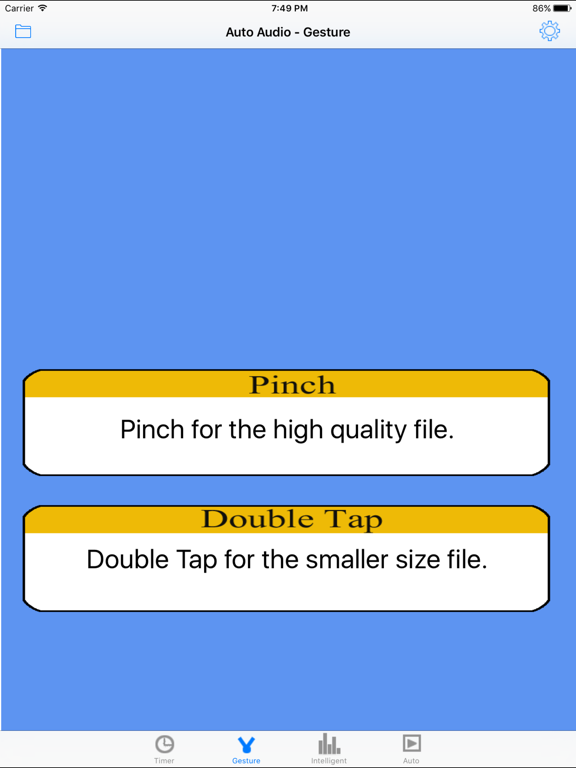
4 Gesture: gesture double tap or pinch could create the different size sound files. The larger size is more qualified. The smaller size could save the disk space and the sound is also qualified.
If you need to use this solution, just make the gesture tab page appear.
5 Proximity: Cover the top part of the iPhone screen , this App will record the sound. Cover the iPhone screen again, this App will stop recording. In some situation, you do not want to tap the device screen, then this solution is yours.
For example, you could use one book to cover the top part of the iPhone screen, or use your hands, your clothes,and even use your face.If you need to use this solution, just make the proximity tab page appear.
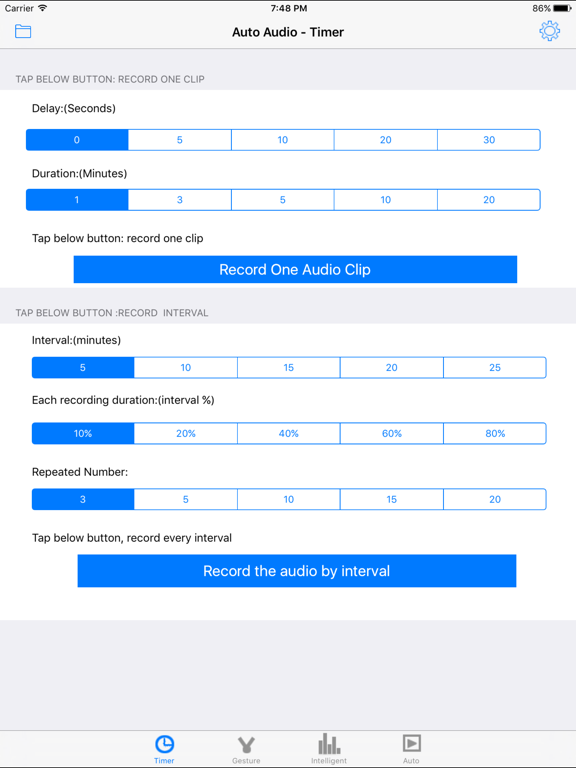
6 Delay the action : delay the recording after 0 - 30 seconds. In some situations, you want to record the sound after a little time, then this solution may help you.If you