eContacts Lite : Phonebook Backup

eContacts Lite : Phonebook Backup Summary
eContacts Lite : Phonebook Backup is a with in-app purchases iOS app in Tools by Vimal Jain. Released in Jul 2014 (11 years ago). It has 1.00 ratings with a 5.00★ (excellent) average. Based on AppGoblin estimates, it reaches roughly 2.00 monthly active users and generates around $<10K monthly revenue (100% IAP / 0% ads). Store metadata: updated Jul 15, 2016.
Store info: Last updated on App Store on Jul 15, 2016 .
5★
Ratings: 1.00
Screenshots

App Description
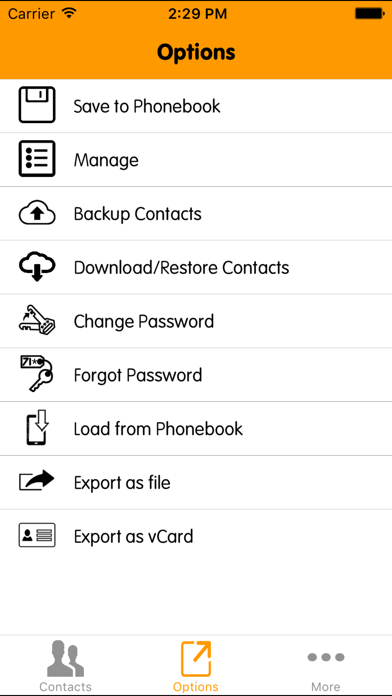
The eContacts is an application to backup and restore your contacts. It allows to store multiple versions of your contacts and get them back whenever you require it. It is a cross platform application, so you can get your contacts between multiple platform phones.
Main functionalities of application are:
1. Backup contacts to server from phonebook. Every backup will create a new version on the server.
2. Download contacts from server to application and then save to phonebook.
3. Cross platform contacts transfer (Pro Version only).
4. Find & merge duplicate contacts (based on name, phone number, email).
5. Qucik merge option to merge all duplicate contacts on one click.
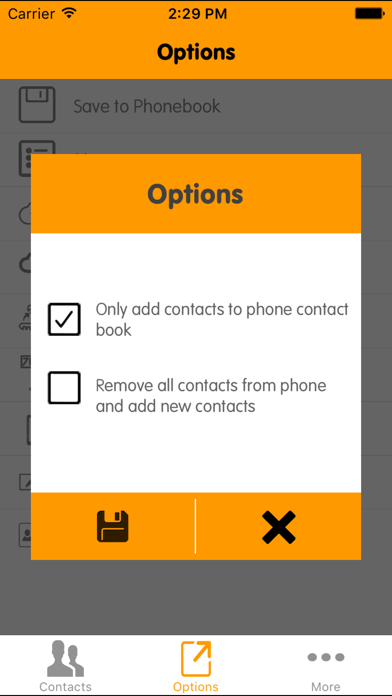
6. Save optimized contacts list to phonebook.
7. Find missing fields of contacts.
8. Export contacts as vCard or csv file and mail it.
How to take contacts Backup?
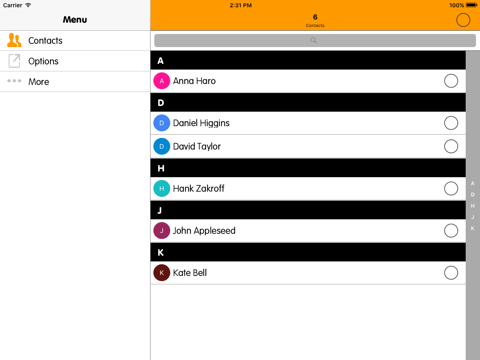
1. Start the application. Your current phonebook contacts will be loaded and shown. If all your phonebook contacts are not available on the list, select all contacts and delete them.
2. Click the option button on top right corner.
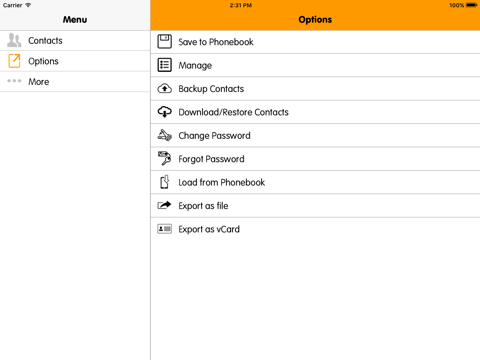
3. If there are no phonebook contacts available, select 'Load From Phonebook' option. It will load all your phonebook contacts.
4. Click the 'Backup Contacts' option. This will show a pop over with three buttons.
a) Sync: If you are an existing user from any platform, fill up your phone number and password and click 'Sync' button, this will save current contacts available within app to econtact server and backup of your contacts completed.
b) New User: If you are a first time user for any platform, select this option, fill up your Email, phone number and password and click 'Sync' button, this will create a new user and save current contacts available within app to econtact server and backup of your contacts completed. If Email or Phone number is already registered, user will get error message.
c) Cancel: If user needs to cancel the current process.
How to Restore contacts in the eContacts app?
1. Start the application. Your current phonebook contacts will be loaded and shown. If you need only contacts from the last backup, select all contacts and delete them.
2. Click the option button on top right corner.
3. Select 'Restore Contacts' option. It will show version list screen.
4. On version list screen, a popup will be shown. Fill up mobile number and password, which you had used when contacts were sa