iROK

iROK Summary
iROK is a mobile iOS app in Medical by 波 李. Released in Oct 2014 (11 years ago). It has 2.00 ratings with a 3.50★ (average) average. Based on AppGoblin estimates, it reaches roughly 7.00 monthly active users . Store metadata: updated Sep 8, 2022.
Store info: Last updated on App Store on Sep 8, 2022 .
3.5★
Ratings: 2.00
Screenshots


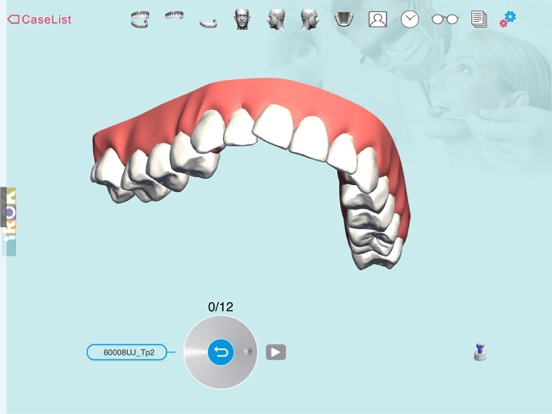
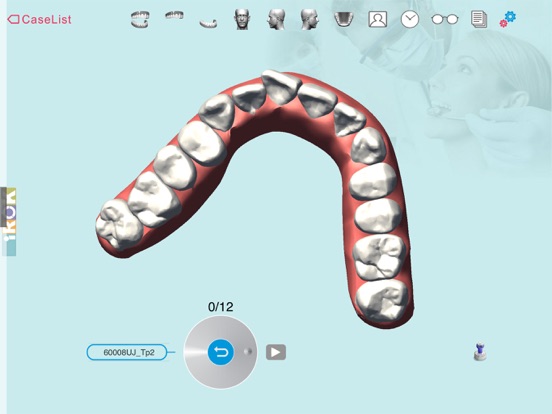
App Description
iROK is a brand name for the dental treatment simulation software and the custom-made dental devices from Henghui Technologies, in China. Henghui provides diagnosis and treatment simulation services, as well as the custom-made devices worldwide.
Function List:
1) User login
iROK app is an exclusive software designed to serve the doctors who provide iROK therapy to their patients. Meanwhile, non-iROK doctors or guests are welcome to install the app to get some ideas about iROK therapy and app functions.
Henghui Technologies’s will set up a password protected account for each iROK doctor. And will notify doctors the account login information by email and telephone call.
Once opened this app, there will be a case list interface. And some demo data sets will be listed. Everyone, even non-iROK doctors, can load and review these demo data sets without login.
For iROK doctors, can tap "doctor login" button to login. After login, their own clinical cases will be listed on the case list interface.
2) Load a case data
In the case list interface, each row contains a single case with some case information shown.
Tap “Load” button to load the data. If it is the first time to load this data, the data will be downloaded from the server and the data will be saved on the device. Typical downloading time for each case is 10 to 20 sec, depending on the connection speed.
3) Delete a case data
To delete a case from the device, touch and push the case’s row toward the left. A “delete” button will appear. Tap it to delete the case data.
4) Rotate a 3D dental model
Touch anywhere on the display window and drag to different directions.
5) Zoom-in and zoom-out a 3D dental model
Touch the display with two fingers. Move the fingers away from each other to zoom-in; Move the fingers closer to zoom-out.
6) Standard views
Tap icons shown as heads and a dental arch on top of the display set the 3D model to standard observation angles (Left View, Front View, Right View and Occlusal View)
7) Single dental arch or Both dental arches display
Tap the icons shown as dental arch configurations on top of the display window to select views of both maxilla and mandibular, maxilla only, or mandibular only
8) Play a simulation of teeth movement automatically
Tap the play icon to start an animation of teeth movements. The teeth move continually from initial positions t