Climb Designer

Climb Designer Summary
Climb Designer is a with in-app purchases iOS app in Entertainment by nthState. Released in Feb 2021 (5 years ago). It has 1.00 ratings with a 1.00★ (poor) average. Based on AppGoblin estimates, it reaches roughly 3.00 monthly active users and generates around $<10K monthly revenue (100% IAP / 0% ads). Store metadata: updated Apr 1, 2021.
Store info: Last updated on App Store on Apr 1, 2021 .
1★
Ratings: 1.00
Screenshots
App Description
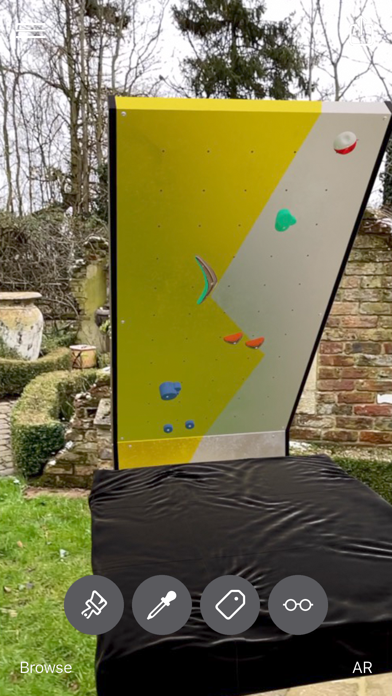
Climb Designer allows you to set climbing routes in Augmented Reality, routes can then be viewed by anyone with an iOS device, even without the app installed by visiting the climb designer website.
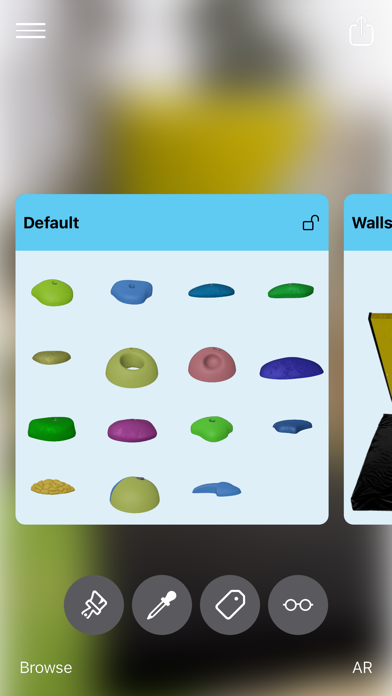
Climb Designer has lots of different types of holds and walls for you to build your creation, if you have a Lidar enabled phone, we can even create a scan of the environment to help visualise your climb.
Q: How do I add a hold
A: A `ghosted` version of a hold will be displayed on the screen, when you tap, it will be placed wherever it is
Q: How do I change to a different hold/volume/wall
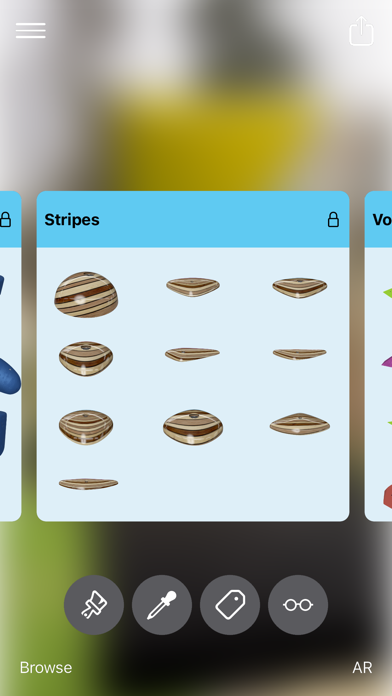
A: Tap the paintbrush icon to view all available holds/walls/volumes. Select one to set it as your active hold. Long-press a hold to see a larger version of it
Q: How do I change the color/material of a hold?
A: Tap the color dropper icon. This loads the color picker tool. Tap a material to apply it to your current hold and set it as your active color. Long-press to see a larger version
Q: How do I rotate a hold?
A: With a hold selected, Identified by a ring, use a two-finger gesture to rotate the hold
Q: How do I re-size a hold?
A: With a hold selected. use a two-finger pinch gesture to scale the hold
Q: How do I move an already placed hold?
A: Long-press on a hold, this will pick the hold up so you can move it. Tap again to place it.
Q: How do I set the start/finish tags of a route
A: Tap the tag icon to add or remove a tag from a hold
Q: How do I change the tag color?
A: Long-press on the tag icon to show the color picker for the tag. Tap a color to apply it to the tag
Q: How do I re-select a hold?
A: Double-tap a hold to select it, you can now change it's color etc
Q: How do I remove a hold?
A: With a hold selected, press the remove button
Q: How do I remove all holds?
A: With any hold selected, long-press the remove button. You will be asked if you want to remove all the holds. Tap yes to remove all holds
Q: How do I undo my last action?
A: Swiping left on the screen will undo your last action, you can swipe left until your scene is empty if you wish
Q: How do I redo my last action?
A: Swiping right on the screen will redo your last undone action.
Q: How do I go full-screen?
A: Tap the glasses icon to go into full-screen view mode. Tapping the screen again will go back to edit mode
Q: How do I upload my climb so others can view it?
A: When you'r