ControlRef - PC/console game c


ControlRef - PC/console game c Summary
ControlRef - PC/console game c is a ad-supported, with in-app purchases Android app in Entertainment by Acquasys. Released in Aug 2019 (6 years ago). It has about 9.9K+ installs and 31 ratings with a 3.17★ (mixed) average. Based on AppGoblin estimates, it reaches roughly 54 monthly active users and generates around $<10K monthly revenue (34% IAP / 66% ads). Store metadata: updated Aug 12, 2019.
Recent activity: 1.00 installs this week (6.00 over 4 weeks) showing steady growth View trends →
Store info: Last updated on Google Play on Aug 12, 2019 .
3.17★
Ratings: 31
Screenshots
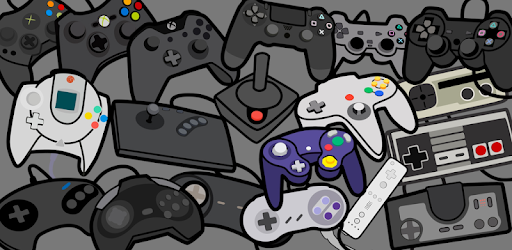
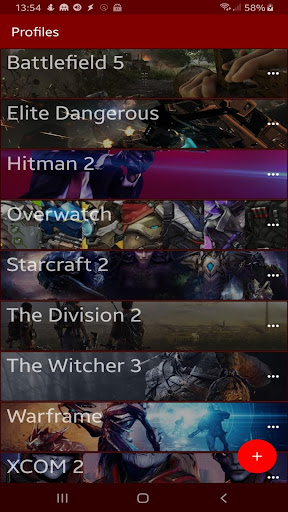
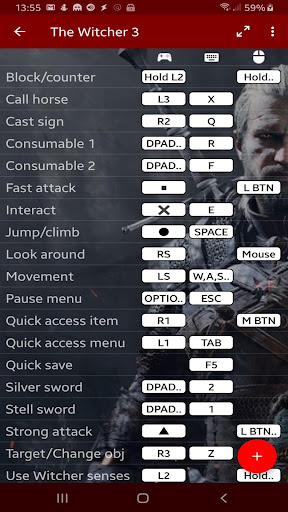
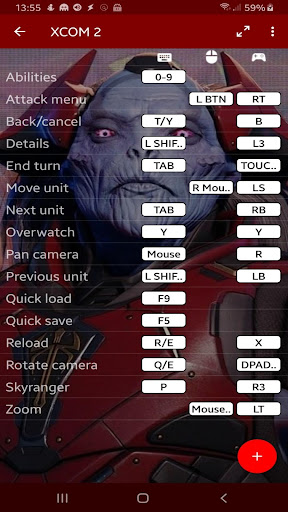
App Description
Build key/button lists as references for when playing PC or console games
Do you have problems memorizing all those keys and buttons for every new game you play?
This app allows you to build custom lists with all key/button used in any console or PC game, and have them displayed as a reference on your phone while you play. Can also be used with complex desktop applications like Photoshop.
Features:
- Unlimited number of profiles (games) and functions (actions)
- Each function can be mapped for up to 3 devices as keyboard, mouse, gamepad, joystick etc
- Button labels can be typed directly with support for all Unicode symbols
- Functions can be organized in custom groups ("navigation", "systems", "weapons" etc)
- Supports background images and themes
- Full screen mode for a cleaner view of all functions
- Export/import profiles
How to use:
1) From "Profiles" screen, tap "+" to create a new game profile. Give it a name (ex. "Starcraft") and select up to 3 input devices you use with that game (ex. "Keyboard" and "Mouse").
2) Tap the profile you've just created to open it, then tap "+" to map a function/action. Give it a name (ex. "Fire") and type the key/button that triggers the function in the white box, for each input device you will use with the game (ex. "SPACE" on Keyboard and "L BTN" on Mouse). Tap "Add" to save and continue entering the remaining functions. When done tap "Close".
3) When playing the game on your PC or console, open the corresponding profile in the app, place your phone in front of you either vertically or horizontally and use it as a reference table while you play. Use the "full view" mode to gain more screen space.
NOTE: This app DOES NOT allow you to use your phone as a game controller or map gamepad keys to play on your phone (like Octopus), it is a control reference only.
Please refer to the included sample profiles and let me know by e-mail if you have any issue or suggestion.