BeamCast

BeamCast Summary
BeamCast is a ad-supported Android app in Productivity by Adam fulugence. Released in Jun 2026 (recently released ago). Store last updated Jun 11, 2026
BeamCast SDKs Summary
App not yet scanned for SDKs.
0★
Ratings:
Screenshots



App Description
Project videos, images, and text files using your flash with auto-play & QR sync
Turn your smartphone into a dynamic media hub with BeamCast
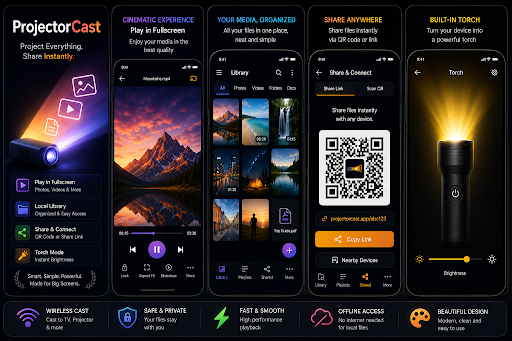
BeamCast is an innovative media utility designed to help you cast, browse, and organize your favorite photos, videos, audio tracks, documents, and text files directly on your device with an integrated, automated slideshow experience. Featuring deep hardware optimization, BeamCast coordinates your phone’s flashlight to activate dynamically with your media, offering a unique, illuminated viewing experience.
Whether you are reviewing files in the dark, scrolling through a gallery, or sharing data across devices, BeamCast provides a sleek, futuristic heads-up display (HUD) interface tailored for seamless navigation.
KEY FEATURES
Dynamic Media Slideshows: Load images, videos, texts, or PDFs into your local library and let the automated player handle transitions smoothly.
Smart Flashlight Integration: The app synchronizes with your device’s torch, automatically engaging the light as your media presentation updates.
Advanced Folder Scanner: Instantly scan entire local directories or selectively add files to build your projection queue in seconds.
Wireless QR Sync & Share: Instantly beam files to another device! Use the built-in fast QR code scanner to drop or receive media over local connections.
Format Versatility: Native support for images (JPEG, PNG, WEBP, SVG), videos (MP4, WEBM), text files, PDFs, and audio tracks.
Premium Dark HUD Interface: A stunning, high-contrast dark space theme built to protect your eyes and preserve battery life during nighttime operation.
HOW TO USE
Open the Media Library sidebar.
Tap Select Folder or Add Files to import your favorite pictures, clips, or notes.
Hit, Play to start the automated casting slideshow.
Use the floating Share button to instantly broadcast your current file or scan a friend's QR code to receive data!