Android Macro - Auto Clicker


Android Macro - Auto Clicker Summary
Android Macro - Auto Clicker is a ad-supported, with in-app purchases Android app in Tools by Autoware Project. Released in May 2024 (1 year ago). It has about 30.5K+ installs and 95 ratings with a 3.75★ (average) average. Based on AppGoblin estimates, it reaches roughly 2.3K monthly active users and generates around $<10K monthly revenue (59% IAP / 41% ads). Store metadata: updated Apr 20, 2026.
Recent activity: 280 installs this week (2K over 4 weeks) showing steady growth View trends →
Store info: Last updated on Google Play on Apr 20, 2026 .
3.75★
Ratings: 95
Screenshots


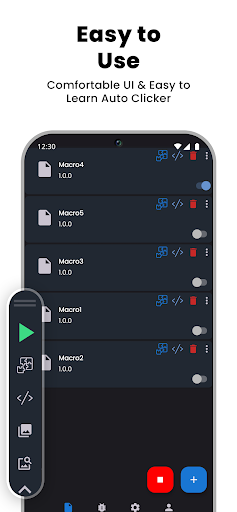

App Description
Auto Clicker with image and text recognition powered using block based editor
A powerful macro maker for automating tasks using image and text recognition.
Features:
- Perform touches and swipes.
- Search for matching images on the screen.
- Text and block editor.
- Backup macro feature (image and content).
- Perform text recognition.
- Copy-paste clipboard mechanism.
Simplicity and Flexibility:
Android Macro is designed to run your routine tasks, and it is also flexible and simple to use. It can perform complex operations by detecting either text or images, and it can also execute rapid clicks and swipes. The visual editor makes it easier to build your own macros.
To take advantage of touch/gesture control and image/text detection you need to read this requirements based on device you currenlty are using:
Requirements for Android 5.1-7.0:
- Because accessibility in not available on android lower than 7.1 you need ROOT.
- Media Projection.
- Overlay permission.
Requirements for Android 7.1 and higher:
- Accessibility Service.
- Media Projection.
- Overlay permission.
Important Note on AccessibilityService API:
* Why use this service?
This app uses the AccessibilityService API to perform clicks, swipes, copy-paste text, press navigation button, press home button, press recent button, etc.
* Do you collect personal information?
No. We do not collect personal information through this service. If you agree to it's use, click the Agree button, go to Settings, and turn on Accessibility Service to On.