Brother Print SDK Demo


Brother Print SDK Demo Summary
Brother Print SDK Demo is a mobile Android app in Libraries And Demo by Brother Industries, Ltd.. Released in Oct 2012 (13 years ago). Store metadata: updated Sep 10, 2025.
Data tracking: SDKs and third-party integrations were last analyzed on Jan 14, 2026.
Store info: Last updated on Google Play on Sep 10, 2025 .
SDKs, Trackers & Permissions
Brother Print SDK Demo was last scanned for SDKs 2026-01-14. Below is the overview of third party companies detected in the app. The full list of raw SDKs, app permissions and unknown SDKs is available here.
AppGoblin saw Brother Print SDK Demo uses 3 Development Tools
 JetBrains
 Kotlin
 JetBrains IntelliJ
App Details
App Store
Ads & App-Ads.txt
AppGoblin SDK Scans
0★
Ratings:
Screenshots

App Description
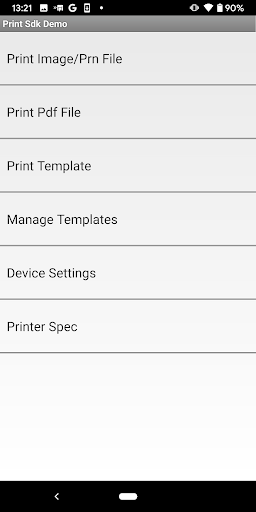
The Brother Print SDK Demo is a demo application on the Brother mobile printers.
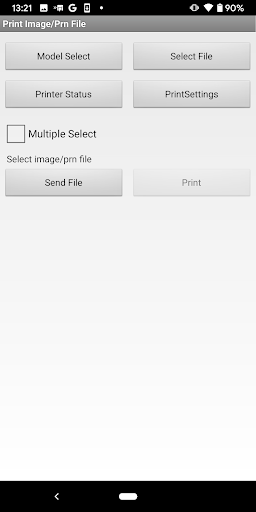
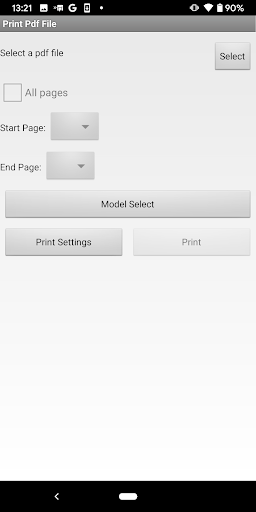
The Brother Print SDK Demo is a demo application used to print image files, PDF files and other files on the Brother mobile printers and label printers listed below.
You can send and print the image files or PDF files from your Android device via a Bluetooth, USB or WiFi connection.
[Supported Printers]
MW-140BT, MW-145BT, MW-260, MW-260MFi, MW-145MFi, MW-170, MW-270
PJ-562, PJ-563, PJ-522, PJ-523,
PJ-662, PJ-663, PJ-622, PJ-623,
PJ-773, PJ-762, PJ-763, PJ-763MFi, PJ-722, PJ-723,
PJ-883, PJ-863, PJ-862, PJ-823, PJ-822,
RJ-2030, RJ-2050, RJ-2140, RJ-2150,
RJ-3050, RJ-3150,RJ-3050Ai, RJ-3150Ai, RJ-3230B, RJ-3250WB,
RJ-4030, RJ-4040, RJ-4030Ai,
RJ-4230B, RJ-4250WB,
TD-2020, TD-2120N, TD-2130N, TD-2125N, TD-2125NWB, TD-2135N, TD-2135NWB,
TD-4000, TD-4100N, TD-4410D, TD-4420DN, TD-4510D, TD-4520DN, TD-4550DNWB,
QL-710W, QL-720NW,QL-800, QL-810W, QL-810Wc, QL-820NWB, QL-820NWBc, QL-1100, QL-1110NWB, QL-1110NWBc,
PT-E550W, PT-P750W, PT-E800W, PT-D800W, PT-E850TKW, PT-P900W, PT-P950NW,
PT-P910BT
(Brother laser printers and ink-jet printers are not supported.)
[How to use]
1. Pair the printer and Android device via Bluetooth by using the "Bluetooth Settings".
In case of Wi-Fi connection, you don't need to pair the printer and Android device in advance
2. Select the printer from the "Printer Settings".
3. Click the "Select" button, and select the image file or PDF file for printing.
4. Click the "Print" button to print your image or PDF document.
[Troubleshooting]
*If you have a problem with the Bluetooth connection, please disconnect the Bluetooth paring and reconnect it.
*If you have the problem of Wi-Fi connection, please select the printer again."
[Brother Print SDK]
The Brother Print SDK (Software Development Kit) is available for application developers who want to integrate the image printing function onto their own application. A copy of the Brother Print SDK can be downloaded from the Brother Developer Center: https://support.brother.com/g/s/es/dev/en/mobilesdk/android/index.html?c=eu_ot&lang=en&navi=offall&comple=on