Miracast


Miracast Summary
Miracast is a ad-supported Android app in Tools by Cast4TV. Released in Nov 2020 (5 years ago). It has about 6.5M+ installs and 14.4K ratings with a 3.37★ (mixed) average. Based on AppGoblin estimates, it reaches roughly 955.6K monthly active users and generates around $50K+ monthly revenue (0% IAP / 100% ads). Store metadata: updated Aug 5, 2025.
Recent activity: 42.4K installs this week (136K over 4 weeks) showing below average growth , and 37 new ratings this week View trends →
Store info: Last updated on Google Play on Aug 5, 2025 .
3.37★
Ratings: 14.4K
Screenshots

App Description
Cast Android device screen to Smart TV screen
* What's Miracast?
Cast Android device screen to Smart TV screen (The TV must support Wireless Display / Miracast).
* How to use Miracast?
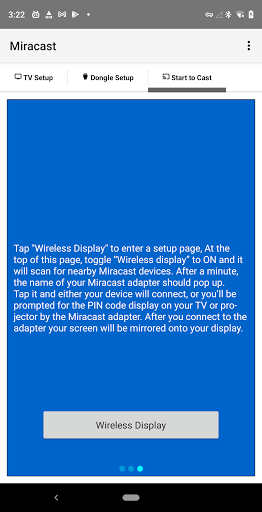
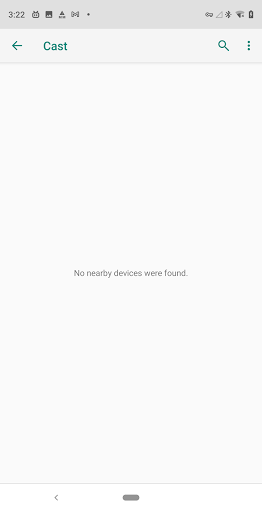
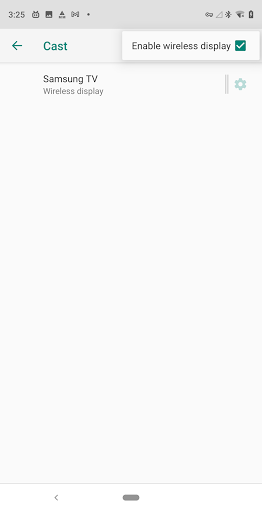
Tap "Wireless Display" to enter a setup page, At the top of this page, toggle “Wireless display” to ON and it will scan for nearby Miracast devices. After a minute, the name of your Miracast adapter should pop up. Tap it and either your device will connect, or you’ll be prompted for the PIN code display on your TV or projector by the Miracast adapter. After you connect to the adapter your screen will be mirrored onto your display.
* How to setup Smart TV?
1. Check if your Smart TV considers Miracast an app you can run. Press the Menu button on your remote and select Apps for your Smart TV. Look for "Miracast", "Screen Casting", or "Wi-Fi Casting" apps.
2. Sometimes, Miracast is considered another input, rather than an App in and of itself. Select Input or Source. Look for "Miracast", "Wi-Fi Casting", or "Screen Casting".
* How to setup Miracast dongle?
Plug the dongle or the adapter into any open HDMI input port on your TV, projector, or monitor, then plug the small USB cable coming from the side of the device into the TV or an outlet. These USB cables don’t actually transfer any data, they’re there just to provide power to the adapter. Power on your TV display, and switch the appropriate input of the adapter.